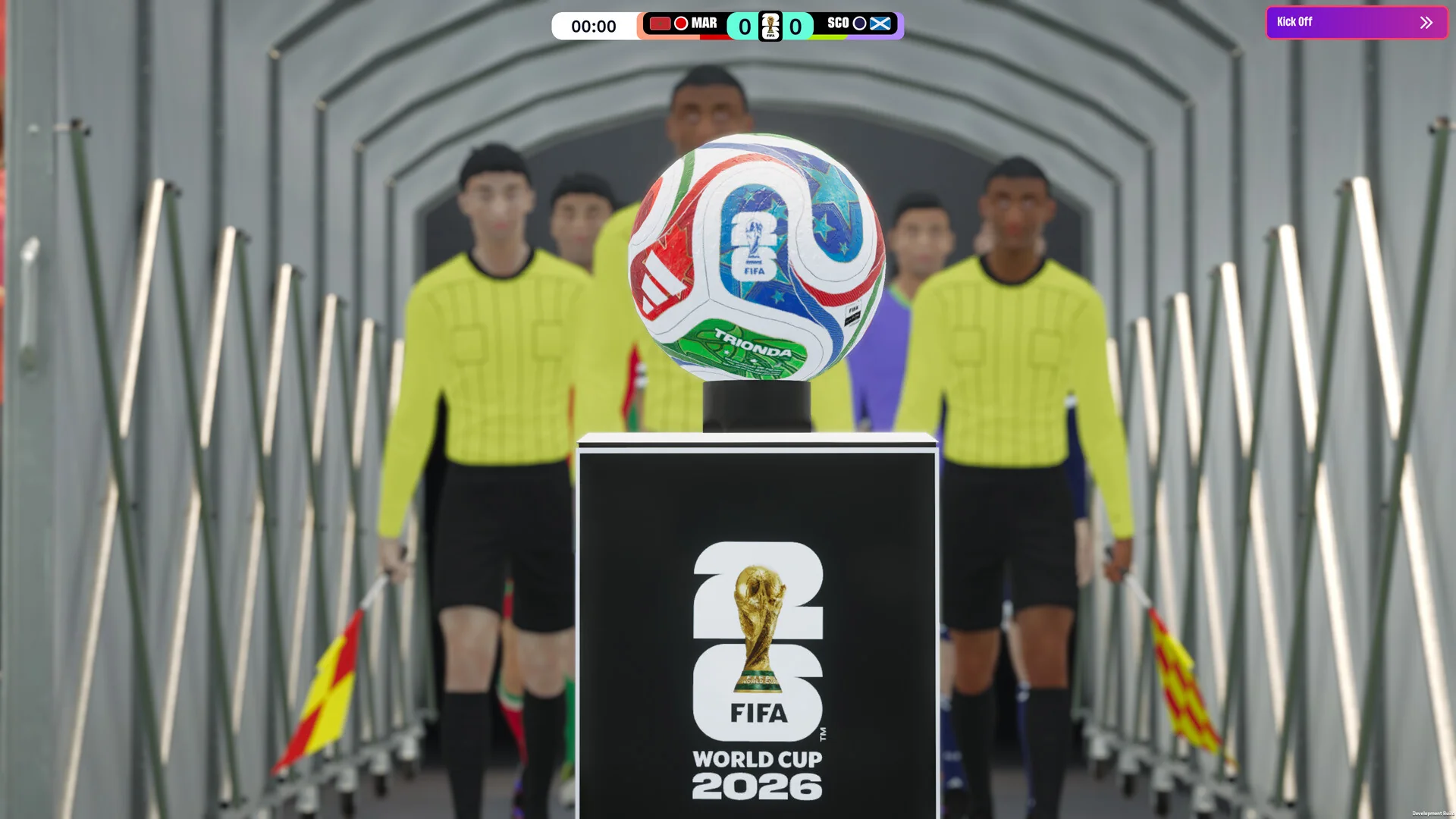
Football Manager 26 and Console Edition leave on November 10
Football Manager 26 and Football Manager 26 – Console Edition are scheduled to leave Xbox Game Pass on November 10, 2026. Microsoft names both in its October 20 catalog announcement. For a manager several seasons into a career, the immediate task is to identify the edition you play and preserve the progress you want to continue.
The two products share a departure date, but the platform rows are different. The full Football Manager 26 is listed for PC. Console Edition is listed for cloud, console and PC. That second PC label matters: playing through the Xbox app on a computer does not, by itself, establish which edition your save belongs to.
| Product in Microsoft's removal list | Listed platforms | Departure date |
|---|---|---|
| Football Manager 26 | PC | November 10, 2026 |
| Football Manager 26 – Console Edition | Cloud, console and PC | November 10, 2026 |
These are November 10 removals, separate from the October 31 departures in the same announcement. Do not shorten your planning window by confusing the two headings, or assume the November list applies to every Football Manager product. Open the installed game's title and store page rather than relying on a shortcut named only “FM.”
Microsoft does not give an exact removal hour or timezone in that notice. If retaining access matters, complete your backup and purchase checks before the departure date instead of depending on a final late-night session. This is a planning recommendation, not an announcement of a particular last playable minute.
The official Xbox Wire list establishes the removal. Our leaving-soon tracker helps monitor later updates. Neither should be read as a promise that a particular successor will replace your current game or automatically import your career. A continuing FM26 save, a new license and a different installment are separate decisions.
Start by writing down the full product name, your platform and the account that holds your progress. Those details are useful whether you intend to buy the game, change storefronts or simply pause your career. They also make a support request much clearer than saying that “the Game Pass version” has stopped working.
Removal changes your access, not the identity of your career
Think of three things separately: the installed application, the career you have saved and the license that lets you launch the application. An installation obtained through Game Pass does not become a purchased copy when the game leaves. Microsoft's catalog access terms make membership access dependent on the game's continued inclusion.
Your carefully developed squad and league history are a different concern from that license. The useful response to removal is to preserve the career and identify a compatible way to continue it. Reinstalling randomly, deleting a save to fix a license message or purchasing a different edition by mistake can create work without answering the actual access problem.
Switching to a more expensive Game Pass tier should not be your first reaction. The announcement names the games as leaving the catalog; it does not describe an ordinary move from one included plan to another. Compare memberships for the rest of the library through our plans guide, but evaluate an FM26 purchase separately if continuing that title is your priority.
A purchase and a subscription answer different questions
A purchase of the correct game can supply access beyond its catalog departure. It does not by itself prove that you selected the edition compatible with your existing save. Before checking out, match the full title and platform to the version you have been using. A product named Console Edition on PC still deserves that exact comparison.
Be equally careful with add-ons. An editor, unlockable or other extra should not be mistaken for a complete game license merely because its page mentions Football Manager 26. Read what the product includes and whether it requires a separately owned base game.
For a manager pausing rather than purchasing, preserving progress is still worthwhile. Keep the files or supported account save intact, record how you accessed the game and leave yourself enough detail to resume later. There is no need to turn the departure into a rushed transfer to an unfamiliar store if you have not established that it will solve the right problem.
Preserve a PC career before changing stores or installations
Before changing a full PC installation, identify the career you actually want to keep. Load it while you still have access, note the club and in-game date, and make a deliberate save. A folder containing several similarly named files is much easier to understand when you know which season and session each one represents.
SEGA's backup guidance recommends maintaining multiple recent saves rather than relying on a single overwritten file. That is useful ordinary practice, and particularly valuable when you are about to change access or installations. Keep the original and a separate backup until you have successfully loaded the career through the route you intend to use next.
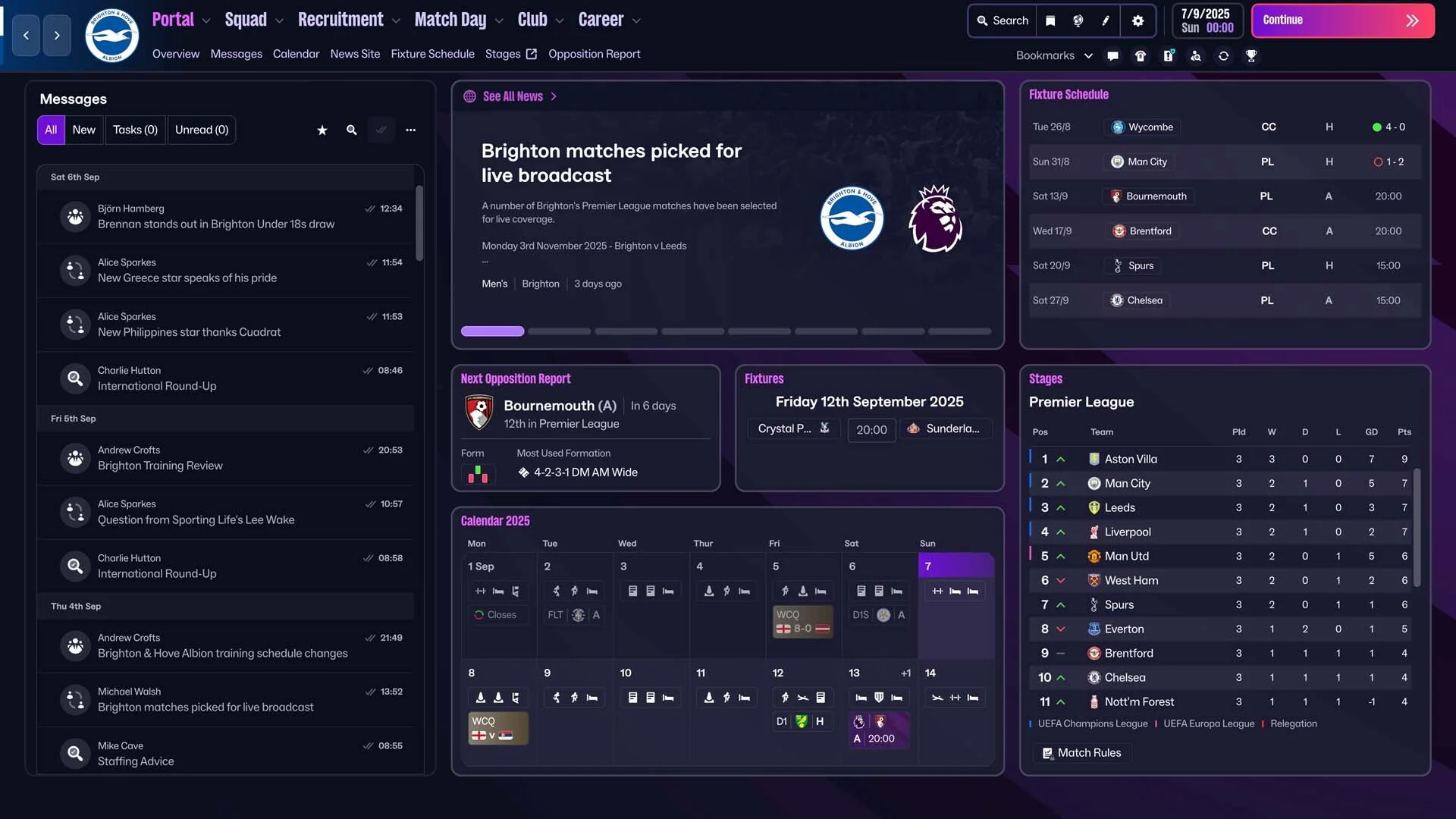
Locate the career and make a separate copy
The official FM26 save FAQ gives the default Windows location as Documents\Sports Interactive\Football Manager 26\games. Treat that as the default, not proof that every machine stores its files in exactly the same place. If you redirected Documents or chose another save location, use the location actually shown by your game.
Copy the career you need to a separate location you control, with a name or accompanying note that identifies the date and edition. A copy is preferable to moving the only original during an initial check. Afterward, verify that the backup exists and that you have not merely created a shortcut to the original folder.
If the file you expect is absent, stop and establish whether the career is stored locally or through a cloud option. A cloud save visible inside one application is not automatically a local file ready for another storefront. Do not delete application packages, rename unidentified files or follow a converter for an unrelated game to make the folder look right.
Treat a Steam move as a compatibility check
Buying on Steam can be a separate purchase option, but first compare the actual product with your current one. A full PC FM26 career and a Console Edition career should not be treated as interchangeable simply because both can appear on a Windows computer. “Played on PC” is not enough information to establish compatibility.
For a potential move, retain the original installation and backup while checking the target game's supported loading procedure. Test a copy of the correct career and verify the club, date and usable state after loading. Do not assume that signing into Steam will automatically fetch progress from an Xbox cloud account. If the target version rejects it, record the exact error and contact SEGA support with both product names instead of repeatedly modifying the original file.
The departure deadline is a reason to do this preparation promptly, not a reason to skip the test. If preserving your current career with minimal changes is the main goal, compare buying the same Microsoft edition before taking on a storefront migration. You can evaluate another store later without risking the only copy of your season.
Console managers should keep the same edition in view
For an Xbox Console Edition career, begin with the profile you use to play. Save normally, allow synchronization to finish and verify that the expected career loads before changing the installation. Do not clear saved data in response to a membership or license message: deleting progress does not supply the missing right to launch the game.
The Microsoft Console Edition listing identifies Xbox Play Anywhere and cloud saves. Those features are relevant to keeping progress within the supported Microsoft version and account. They are not a universal export service for every Football Manager product or a promise that a save can be copied to any other platform.
If you are buying to preserve access, compare that same Console Edition product first. Write down the account and the most recent successful save so that a later installation can be checked against something concrete. If the wrong profile shows a new career screen, investigate the account mismatch before assuming the old season has disappeared.
Console Edition on a PC is still Console Edition
The device does not rename the edition. A person using Console Edition through the Microsoft PC ecosystem should still look for Console Edition when comparing purchases. The full PC game has a similar name, but it is not automatically the compatible next step for that career.
Sports Interactive's save FAQ specifically identifies the Microsoft Store PC Console version and Xbox Console version as a supported connection. Read that as an edition-specific statement. It does not establish a general route from a Console career into the full desktop game, nor from a Microsoft Console save into a PlayStation copy.
If you have only played through streaming, add one more question before payment: how will you launch your purchased game after its catalog removal? A matching license and preserved progress matter, but a usable device or supported owned-game streaming route matters too. Someone with a console for installation has a different practical situation from someone who only uses a phone. Compare that route with your membership's current features rather than assuming the old catalog tile will remain a cloud launch button indefinitely.
Compare the purchase you need with the time you want to keep playing
Once the edition is clear, compare the actual purchase options available to your account. For a full PC career, the Microsoft PC listing and the publisher's Steam listing are distinct storefront choices. For a Console career, compare the Console product. The cheapest similarly named page is not a saving if it does not support the way you want to continue.
Use the current signed-in checkout for the price, applicable member offer and included content. Avoid assuming that a historical sale or a general “up to” member discount applies to this exact purchase today. You are deciding what you would pay now for the edition you need, rather than reconstructing a past deal from a search result.
Then consider the remaining value of your current career. A manager intending to play several more seasons has a different reason to purchase than someone who only wants one final match or a brief replay. Time already spent can explain why the career matters, but it does not oblige you to buy. Preserving the save and taking a break remains a reasonable choice if the current price or setup does not suit you.
For cloud-only players, verify access after purchase especially carefully. Xbox's owned-game streaming explanation applies to selected supported games. A game being cloud-playable through the subscription today is not, by itself, a promise about streaming a purchased copy after the catalog changes. Check the exact title and edition under the current owned-game offering, along with your plan and region.
Keep your broader membership decision separate. You may still value the rest of the library, online features or another included game after buying FM26, or you may not. Our plan comparison helps with that assessment. Buying one game does not require you to keep every subscription feature, and canceling a membership should not be treated as a way to transfer a license to another store.
The practical aim is a compatible license, a verified career and a device that can run or legitimately stream it. Resolve those three items before deciding that a larger bundle, another tier or a new storefront is the better deal.
Check any newer release and save migration independently
There is a confirmed newer PC option to consider. Sports Interactive's FM27 launch announcement gives a release from November 10 and names Xbox Game Pass Ultimate and PC Game Pass for the PC version. That is a specific announced entitlement, rather than an assumption made because FM26 leaves on the same date.
The publisher also announced a PC and Mac Launch Preview free-play period from 6 p.m. GMT on October 29 to 6 p.m. GMT on November 3. Its October 21 preview information specifically identifies Ultimate and PC Game Pass for subscription continuation. If you use Premium for FM26, do not carry that game's eligibility over to the new release automatically.
Importantly, the official FM27 preview FAQ says FM24 and FM26 saves can be carried into FM27 through an option on its start screen. The relevant data must be available on that PC or in the platform account's cloud storage. For a full PC FM26 manager, that supplies a documented route to investigate before deciding to buy the older game solely to preserve a career.
Keep the scope clear. This is an announced import option, not an automatic process that requires no action, nor a promise that every Console Edition career can be transformed into the full PC game. Read the instructions for the product you intend to launch. The older FM26 save FAQ deals with bringing earlier careers into FM26; a newly updated website header does not turn its old answers into a universal FM27 transfer guide.
A sensible evaluation is to preserve the original FM26 career, test the supported import with a copy when the new version becomes accessible, and check the resulting club and date before committing to the move. If you prefer your current game or setup, purchasing the matching FM26 edition remains a different choice. If your aim is the newer experience, evaluate its actual behavior and plan requirements rather than buying an older license out of habit.
Follow the new-games tracker for catalog changes, and use the publisher's exact edition instructions for migration. A new release date, a free preview and a compatible-save feature are useful together, but they still answer three separate questions about when, how and with which progress you can play.
Give your current season a deliberate stopping point
A long Football Manager career does not need to be “completed” before a catalog deadline. Pick a useful checkpoint instead: the next decisive fixture, the end of a transfer window or a clear moment between seasons. Those are suggested goals, not official limits or a prediction of how many hours you need. Choose something that fits the time you actually have.
If you intend to continue FM26, use that checkpoint to create a clearly identified save and verify your next license. If you plan to test FM27, keep the original career intact and make the supported import a separate experiment. If you are stopping for a while, preserve the same information without feeling obliged to buy immediately.
Leave yourself a short manager's note alongside the backup: your club, in-game date, current tactical idea and the next decision you meant to make. Record an unresolved transfer negotiation or a player you were developing if that will help you return. A few lines of context can save you from loading the right file months later and wondering why you assembled that particular squad.
For a new player who has not built a career yet, make a smaller test. Try the management interface, prepare for a match and decide whether you enjoy the decisions between fixtures. You do not need to simulate years of football to know whether the basic rhythm interests you. The newer game's confirmed preview may also be a useful comparison, under its own dates and conditions.
Keep any screenshots or written notes as context, not substitutes for a playable save. The priority is still the correct data and a compatible game you can access. Check our Game Pass calendar when planning what comes next, then choose deliberately between continuing, moving through a supported route or pausing. The November 10 departure changes subscription access; your next step should protect the football story you actually want to keep playing.
Comments
Comments are reviewed before publication. Please keep the conversation helpful and on topic.
Sign in with Google to leave a comment.
Loading comments…