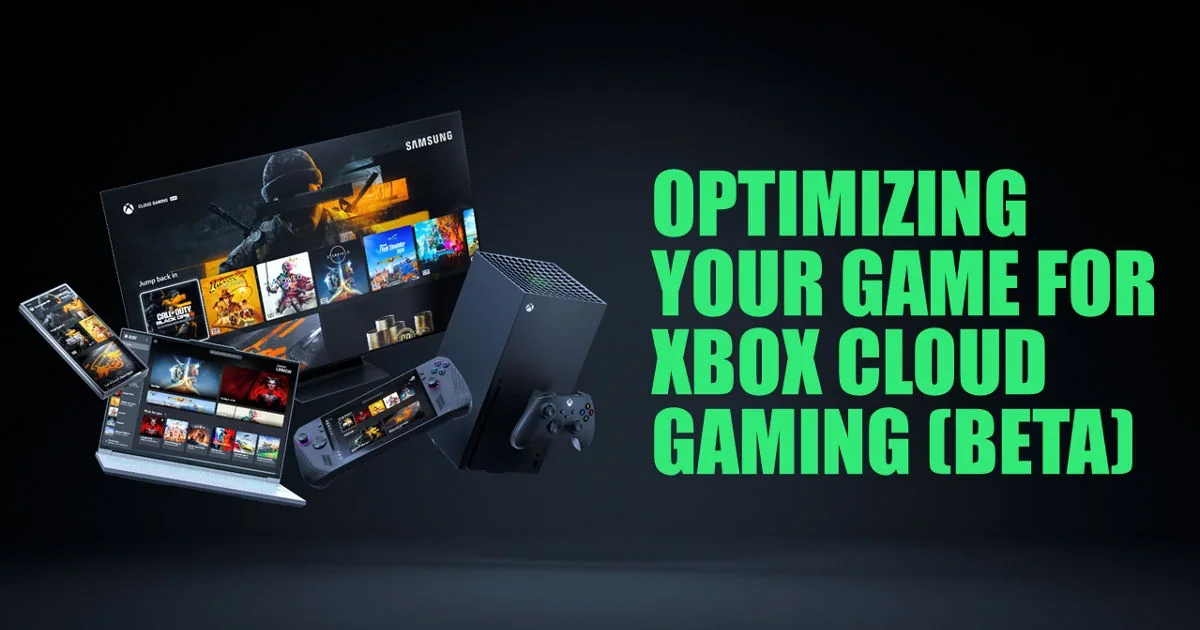
Xbox Cloud Gaming supports mouse and keyboard in more than 190 games, based on Xbox’s April 30, 2026 update. The exact current list is the official Play with mouse and keyboard gallery at Xbox.com/play, not a frozen list copied into an article. Xbox adds input support over time, and what you can launch also depends on your account, region, plan, and game entitlement.
A game must pass three separate gates: you need access to it through Game Pass or a supported digital purchase, the title must be cloud playable, and that cloud version must explicitly support mouse and keyboard. This guide shows how to verify all three, set up browser input, choose suitable games, and troubleshoot missing controls. Use the live catalog and current plan comparison alongside the official gallery.
How to find the current supported games list
Start at Xbox’s Play with mouse and keyboard gallery while signed into the Microsoft account you will use for cloud play. The sign-in matters because Xbox can then show which games your plan includes, which supported purchases your account owns, and which products still require a purchase. A signed-out visitor may be redirected to the general cloud homepage or see a less useful collection.
- Open Xbox.com/play and sign in with the correct Xbox account.
- Open the mouse-and-keyboard collection rather than the general All games page.
- Search the exact game title and edition you want.
- Open its cloud page and inspect the Play with input labels.
- Confirm that the page offers a cloud Play action for your account, not only Buy or a controller label.
An input label and an entitlement are separate. For example, an official game page can show keyboard-and-mouse capability while also explaining that the title is cloud playable with certain plans or requires purchase. If the input is supported but the account lacks the game license, connecting a mouse will not unlock it. If the license exists but the cloud build lacks the input label, the game may still require a controller.
Third-party lists can be useful for alphabetical browsing, genres, or quick discovery. One specialist tracker showed 218 entries at the research cutoff, above Xbox’s earlier 190-plus milestone. Treat that difference as a reminder that dates, counting methods, editions, and update timing vary—not as proof that the official number is wrong. Verify the final choice on Xbox before subscribing or buying.
A copied 200-row article would become stale whenever Xbox adds support or a game leaves a plan. This guide therefore explains the decision process and points to live data. Our Game Pass catalog can help identify subscription availability, but the official cloud page remains the authority for the input label and your account’s Play action.
How to play with keyboard and mouse
- Check cloud access first. Confirm that the Microsoft account has an eligible plan or owns the supported cloud product. Review current cloud benefits before changing a subscription.
- Use a supported Windows path. Open a current Microsoft Edge or Google Chrome browser at Xbox.com/play, or use the Cloud Gaming area of the Xbox app on a supported Windows PC.
- Sign in with the correct account. A family PC can retain a different profile from the account that owns the game or membership.
- Choose the mouse-and-keyboard collection. Open a game carrying the input badge rather than assuming every cloud game accepts desktop controls.
- Connect the hardware before launch. A basic wired USB keyboard and mouse remove Bluetooth pairing and battery variables during the first test.
- Start the cloud session and click inside it. Browser play may need the stream to capture the pointer. Follow the full-screen prompt if shown and press a key or move the mouse so the game changes input mode.
- Use the displayed exit control. Xbox documented holding Esc to leave full screen and F9 to release mouse-and-keyboard use during the rollout. Browser shortcuts can change, so prefer the current session overlay when it displays another command.
Do not be alarmed if the first screen says “Press A.” Xbox noted that some games initially display controller UI and switch only after keyboard or mouse interaction. Click the stream, press a harmless menu key, and wait for the prompts to change. If a controller is also connected, pressing its Xbox button can shift control back; pressing a keyboard key can shift toward desktop input in supported titles.
The Xbox PC app uses the same cloud concept even though it looks like an installed-game launcher. Enter its Cloud Gaming section and use the mouse-and-keyboard collection. Starting a cloud tile does not download a native PC build, and local graphics or mod settings do not apply merely because the stream is viewed on Windows.
Once the menu responds, check key bindings and mouse sensitivity before entering competitive play. Cloud input travels to a remote Xbox build, so a comfortable local desktop setting may not feel identical. Keep a controller nearby for a first test if the title supports switching, but do not use controller success as proof that keyboard/mouse is enabled.
Which games benefit most from keyboard and mouse?
Keyboard and mouse support is most valuable when a game asks for precise pointing, frequent camera movement, dense menus, or many shortcuts. That does not make the input objectively better in every genre. Cloud latency, desk space, familiarity, accessibility needs, and the game’s own control design can make a controller the more comfortable choice.
| Interaction pattern | Why desktop input can help | Examples to verify in the live gallery |
|---|---|---|
| First-person aiming | Direct mouse movement can make target acquisition and fast camera turns feel more familiar to PC players. | MOUSE: P.I. For Hire, Halo Infinite, Quake |
| Strategy and tactics | A pointer can select units and map positions while number/function keys expose more commands. | Gears Tactics, Age of Mythology: Retold, Cities: Skylines |
| Simulation and management | Menus, placement tools, and repeated selection often translate naturally to mouse control. | The Sims 4, House Flipper, city-building titles |
| Survival and building | Inventory slots, hotbars, crafting screens, and camera control can use the keyboard’s extra keys. | Grounded, ARK: Survival Evolved, Valheim |
| Slow exploration or puzzles | Input preference matters more than reaction speed; either control method may be equally comfortable. | Pentiment, Planet of Lana 2, puzzle collections |
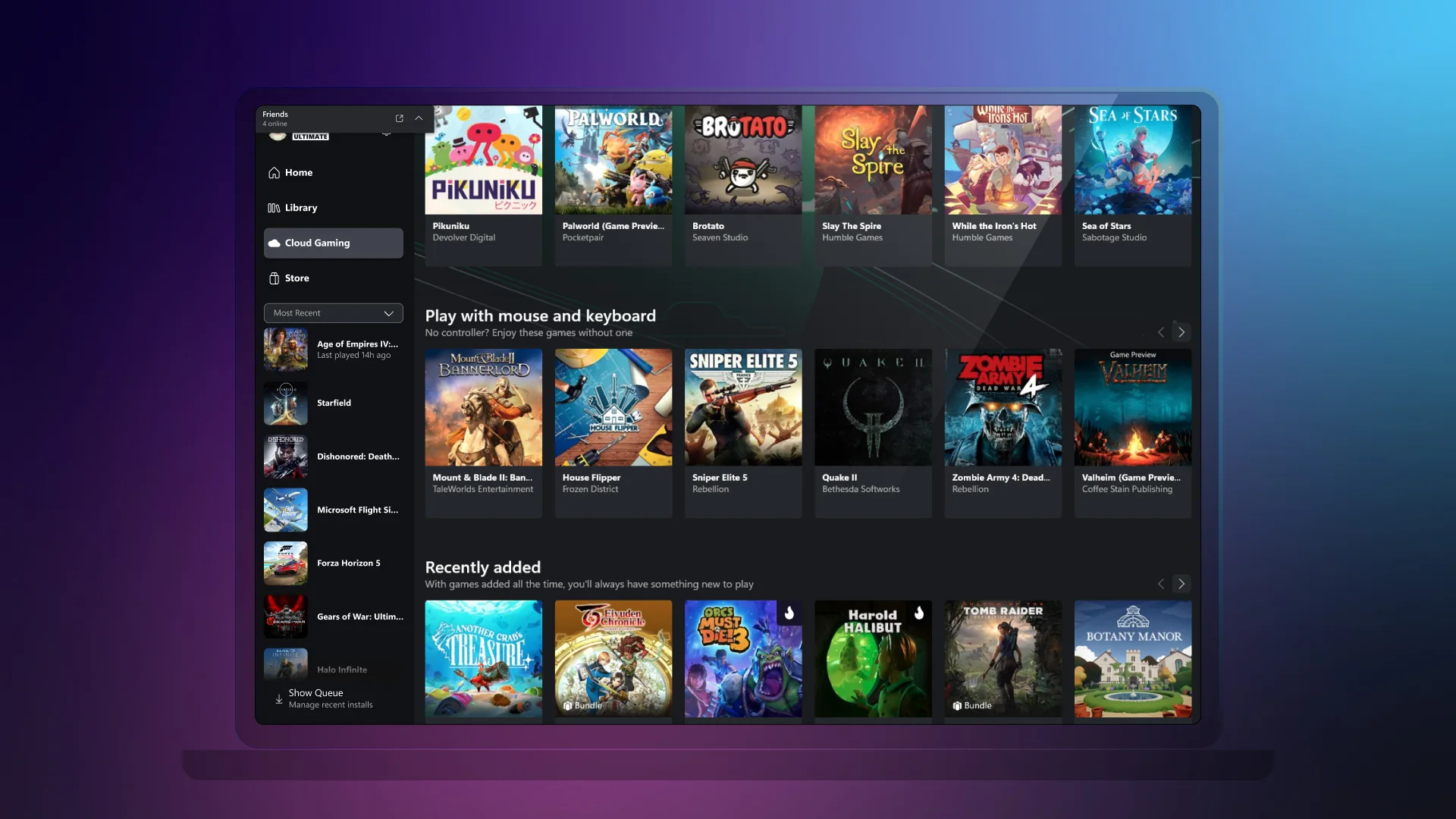
Examples are discovery prompts, not a promise that the same plan includes every game today. Some came from Xbox’s original rollout list, others appeared in later updates, and catalogs rotate. Open the game’s official cloud page before committing. Also distinguish “supports keyboard and mouse” from “feels like the native PC edition”: the streamed build may use console menus, controller-first tutorials, or a different key-binding range.
For a first test, choose a noncompetitive game with an obvious cursor or camera response. Confirm that the pointer stays captured, sensitivity feels controllable, and the key prompts change correctly. Then move to a faster shooter or complex strategy game. Browse the best-games guide by the kind of session you want, and intersect that choice with the live input gallery rather than picking solely because a badge exists.
Cloud keyboard/mouse is not the same as PC Game Pass
Using a keyboard and mouse on Xbox Cloud Gaming does not mean you are running the native Windows edition. The game still runs on Xbox cloud hardware and sends a video stream to your PC. Xbox has even placed console-only, cloud-playable games inside the Xbox PC app. Seeing a title in that app therefore does not prove that a downloadable PC version exists.
| Way to play | What runs | Storage and connection | What to verify |
|---|---|---|---|
| Cloud game with keyboard/mouse | A supported Xbox cloud build on remote hardware | No full game install; a stable, low-latency connection matters throughout | Cloud access, exact game entitlement, and the mouse/keyboard input badge |
| PC Game Pass download | The native Windows build from the PC catalog | Uses local storage and PC hardware; most play happens locally after installation | PC catalog availability, Windows requirements, and the PC version’s input features |
| Xbox Play Anywhere title | Supported Xbox and Windows versions under one digital entitlement | Can be installed on supported devices; saves and other listed progress follow the account | The title’s Play Anywhere label, because the feature is not universal |
The distinction changes what you should expect. Cloud play can get you into a large game quickly, conserve disk space, or make a console-only title accessible from a laptop. It also keeps the remote build’s graphics menu, update state, and supported control map. A powerful graphics card will not raise that build’s local rendering settings, and a Windows mod does not attach itself to the stream.
A PC installation is the better path when you need native ultrawide options, local files, PC-specific mods, offline capability supported by that game, or the lowest possible input delay. It may also carry a different save ecosystem or multiplayer pool unless the publisher explicitly supports cross-save or cross-play. Never infer those features from the mouse icon.
Xbox Play Anywhere is another separate label. For a supported digital title, it can let one purchase work across Xbox and Windows and carry saves, achievements, and eligible add-ons. It does not guarantee cloud availability or cloud keyboard/mouse support. Check the game for all required labels, then use the plan comparison to decide whether subscription access fits your preferred version.
Browser controls and hardware limitations
Cloud keyboard/mouse compatibility has more boundaries than the connector on the back of a computer. Four things must cooperate: the device and app or browser path, the game’s cloud build, the peripheral’s buttons and layout, and the network. A failure in any one can look like “the mouse does not work,” so isolate these layers before replacing hardware.
- Browser focus and pointer capture: click directly inside the video stream after launch. Xbox’s rollout required full screen and explicit pointer capture. Current layouts may present a capture banner or session-menu control instead, so follow the prompt visible on screen.
- Exit shortcuts: Xbox documented holding Esc to leave full screen and F9 to stop sending mouse/keyboard input during the initial rollout. Treat those as useful fallbacks, not permanent commands that override the current interface or your operating system.
- Basic hardware first: Xbox has documented wired USB mice and keyboards for select navigation and games. A simple wired set avoids Bluetooth pairing, receiver, battery, and sleep-state variables. Extra mouse buttons, media keys, macros, RGB software, and unusual layouts may not reach the remote game as expected.
- Device scope: Xbox Cloud Gaming runs on PCs, Macs, Chromebooks, phones, tablets, consoles, televisions, handhelds, and other supported screens, but that broad device list does not make every input mode universal. A game that accepts a keyboard in a Windows browser may still expect a controller on a TV app or mobile browser.
Network quality affects how input feels, even when input support is working correctly. Xbox recommends at least 20 Mbps and, where possible, wired Ethernet; capable 5 GHz Wi-Fi or 5G are alternatives. That speed is a starting point rather than a guarantee. A busy 2.4 GHz channel, packet loss, Wi-Fi roaming, long distance to the router, or another household download can introduce stutter and delayed pointer response despite a speed test above 20 Mbps.
For a clean first test, update Edge, Chrome, or the Xbox PC app, connect one ordinary wired keyboard and mouse, close bandwidth-heavy transfers, and use Ethernet or a strong 5 GHz connection. Start a supported single-player title and test the menu before gameplay. Only after that baseline works should you add Bluetooth devices, hubs, remapping utilities, or specialty peripherals.
Key bindings remain game-specific. The remote console build decides which keys can be rebound and whether side buttons, function keys, or non-US layouts are recognized. Browser and operating-system shortcuts can also intercept a key before it reaches the stream. If one key fails while movement and clicking work, inspect the in-game control menu and browser shortcut first; do not assume the entire cloud-input feature is unavailable.
Troubleshooting keyboard or mouse input
Start with the symptom, because “not working” can describe different failures. A missing game tile points toward catalog, region, or entitlement. A stream that launches but ignores every key points toward unsupported input, focus, or hardware. Working movement with one missing button usually points toward the game’s binding or a browser shortcut.
- Recheck the exact title and edition. Sign in and find it in Xbox’s live mouse-and-keyboard collection. Do not rely on a search-result snippet, an old rollout list, or a similarly named edition. If the badge is absent, network tuning will not add input support.
- Confirm that the account can launch it. Verify the active account, region, eligible Game Pass access or supported owned-game license, and the cloud Play action. Check the current plan guide if the page offers only Join or Buy.
- Use a documented path. Update Edge or Chrome and retry Xbox.com/play, or update the Xbox app on Windows and open its Cloud Gaming collection. A general store or installed-game page is not the same as a cloud session.
- Give the stream focus. Click inside the game video, accept full screen or pointer capture when prompted, then press a key and move the mouse. If the menu still shows controller buttons, interact once more; Xbox documented that prompts may switch only after desktop input begins.
- Reduce the hardware chain. Disconnect an active controller, hub, KVM, remapping tool, and extra receivers for the test. Reconnect one basic wired keyboard and mouse directly, then restart the browser or app session.
- Test inside the game’s controls menu. Try movement, left/right click, Escape, and an ordinary letter key. Reset only the game’s key bindings if necessary. Do not delete cloud saves as a generic input fix.
- Separate input from streaming quality. If keys respond but arrive late or the cursor jumps with video artifacts, test Ethernet or strong 5 GHz Wi-Fi, pause other traffic, and retry. That is a connection-quality symptom, not necessarily missing keyboard support.
- Check Xbox status and retry another supported title. A second title helps distinguish one game’s mapping from an account, app, or service problem. If both fail during a reported cloud outage, wait for service recovery before changing more settings.
If a second supported game works with the same equipment, record the failing title, device, browser/app version, exact keys, and whether controller input succeeds. That evidence is much more useful to Xbox Support or the publisher than “keyboard broken.” It also prevents destructive troubleshooting of saves or purchases when the issue is limited to one game build.
Fast diagnosis: no mouse/keyboard badge means unsupported or not currently listed; a badge plus no cloud Play button suggests access; a running stream with no input suggests focus or hardware; delayed input plus video breakup suggests connection quality.
Frequently asked questions
Can every Xbox Cloud Gaming title use keyboard and mouse?
No. Mouse/keyboard support is assigned to specific cloud builds. A game can be cloud playable with a controller yet absent from the input collection. Verify the exact product in Xbox’s live mouse-and-keyboard gallery before launching or buying access.
How many keyboard-and-mouse cloud games are there?
Xbox reported more than 190 active games on April 30, 2026. That is the best dated first-party scale marker, not a frozen August total. Games and input updates can be added, removed, or counted by edition differently, so the current gallery is more useful than any copied number.
Do I need Game Pass Ultimate?
Not for every cloud route. Xbox’s current guidance includes cloud gaming with Essential, Premium, and Ultimate, and its April update says members of all three can stream supported games they own. The accessible catalog and benefits differ by plan, however, and owning a game does not make every purchase cloud playable. Confirm both the plan or license and the cloud/input labels on the product page.
Does PC Game Pass by itself make these cloud games available?
Do not treat native PC catalog access and cloud access as interchangeable. Check the account’s current cloud benefit on the plan page, then check the game entitlement. If you only want the Windows version and it is in PC Game Pass, downloading it may be the clearer path.
Can I use this feature on a Mac or Chromebook?
Xbox lists current Macs and Chromebooks among supported cloud device classes, generally through a browser. That establishes a cloud route, not universal peripheral support. Update the supported browser, connect ordinary hardware, open the live input collection, and verify the title on that device. Operating-system shortcuts or an unsupported device/input combination can still limit individual keys.
Do I still need a controller?
A game that explicitly supports cloud mouse/keyboard can be controlled with that input once the stream captures it. A controller can still be useful for navigation, a first-session fallback, or switching input modes. Pressing a keyboard key or the Xbox button on a controller can switch modes in supported sessions, and controller prompts may linger until desktop input is detected.
Can I remap every key and mouse button?
There is no universal cloud promise for every key, macro, or side button. The streamed game’s control menu determines ordinary remapping, while the browser and operating system may reserve shortcuts. Test the exact binding before assuming a specialty peripheral will behave like it does in a native PC game.
The dependable answer is therefore live rather than static: open Xbox’s official input gallery, sign in, verify the exact title’s cloud Play action, and test one straightforward setup. Use our current Game Pass catalog to check subscription availability, but let Xbox’s live page decide whether the cloud build accepts keyboard and mouse today.
Comments
Comments are reviewed before publication. Please keep the conversation helpful and on topic.
Sign in with Google to leave a comment.
Loading comments…