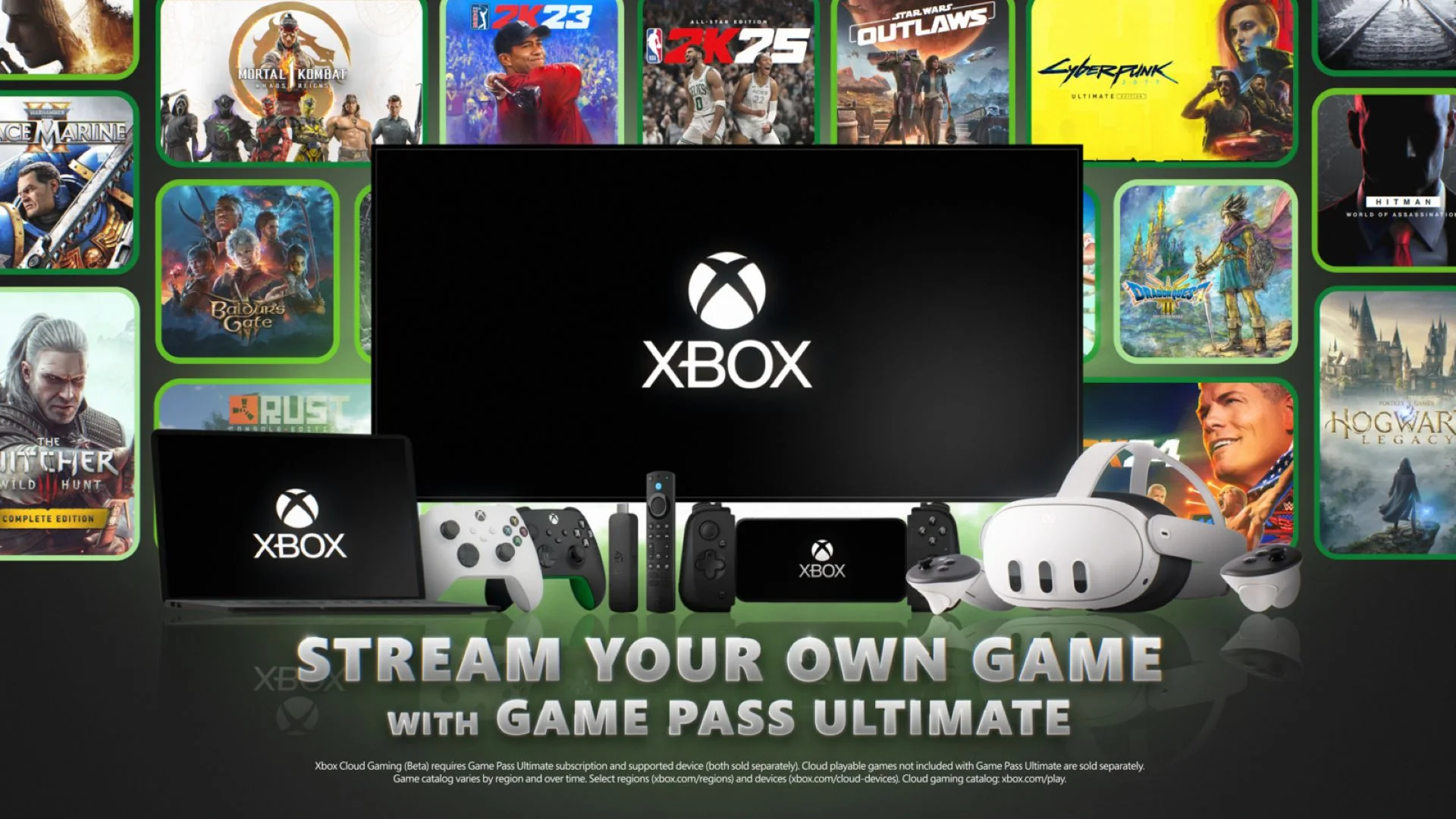
Xbox Cloud Gaming’s “Stream your own game” library contains more than 1,000 supported games as of Xbox’s February 2026 update. Essential, Premium, and Ultimate subscribers can stream eligible games they digitally own across supported devices. Buying an Xbox game does not automatically make it cloud playable: the exact title or edition must be in the owned-games cloud collection.
The list grows frequently, so the signed-in collection at Xbox.com/play is more reliable than a copied 1,000-row article. This guide explains how to find that live list, verify a digital license, and distinguish owned-game cloud streaming from the ordinary Game Pass catalog and Remote Play. Check current plan features before subscribing because device, region, input, and service levels can change.
What “Stream your own game” means in 2026
The feature combines two separate keys. First, an eligible Game Pass membership grants access to Xbox Cloud Gaming. Second, the signed-in Microsoft account must own a supported digital Xbox game. Microsoft’s cloud server runs the supported console version and sends the video and audio to your screen while your controller, keyboard, mouse, or touch input—where supported—travels back to the server.
This is different from the normal Game Pass cloud library. In the subscription library, the plan itself grants temporary access to a catalog game. In Stream Your Own Game, your purchase grants the game license, while the plan provides the cloud-streaming service. That allows supported purchases to remain streamable even when they are not included in your plan’s rotating game catalog, provided the cloud feature and title support remain available.
The eligibility rules expanded substantially. The November 2024 beta began with just over 50 games for Ultimate members. By February 2026, Xbox said the collection had grown past 1,000 games and named Essential, Premium, and Ultimate subscribers as eligible. Articles that still say “Ultimate only” may accurately describe the launch but are no longer a complete current answer.
“Own” also does not mean Microsoft uploads your local copy. The service checks the digital license attached to the signed-in account and launches a supported cloud build from Xbox infrastructure. You still need a supported region, device, network, and input method. Compare current service levels on the plan page; eligibility does not mean identical resolution or queue priority across tiers.
Where to find the full current owned-games list
The authoritative list lives inside Xbox Cloud Gaming. Open Xbox.com/play in a supported browser or launch the cloud section of a supported Xbox app, sign in with the account that owns the games, and find the Stream your own game collection. The interface can distinguish games ready to play from supported games available to purchase.
- Sign in before judging the list; otherwise Xbox cannot match your digital licenses.
- Open the owned-games collection rather than the general Game Pass catalog.
- Search the exact title and inspect the edition shown on the product page.
- Confirm that the action says Play with Cloud Gaming, not merely Install or Buy.
- Repeat the check on the device you intend to use if app support differs.
A static full list is the wrong long-term format now that the collection exceeds 1,000 games. Xbox adds batches frequently, publishers can change support, and one franchise may have several editions with different product IDs. A copied list can be technically accurate in the morning and incomplete after an afternoon rollout.
Third-party trackers remain useful for alphabetical browsing or change history, but treat them as discovery tools. The signed-in Xbox collection and Store listing control whether your account can launch the game. Our Game Pass catalog answers a different question—what the subscription includes—so do not use its Cloud filter as a substitute for owned-game streaming support.
Recently confirmed Stream Your Own Game examples
Xbox’s February 2026 milestone update named a varied recent batch including Gears of War, High on Life 2, Reanimal, Ride 6, Pummel Party, Mordhau, Starsand Island, Roadside Research, and TCG Card Shop Simulator. Those examples show that the owned-streaming collection spans first-party series, multiplayer games, indies, simulations, and Game Preview releases.
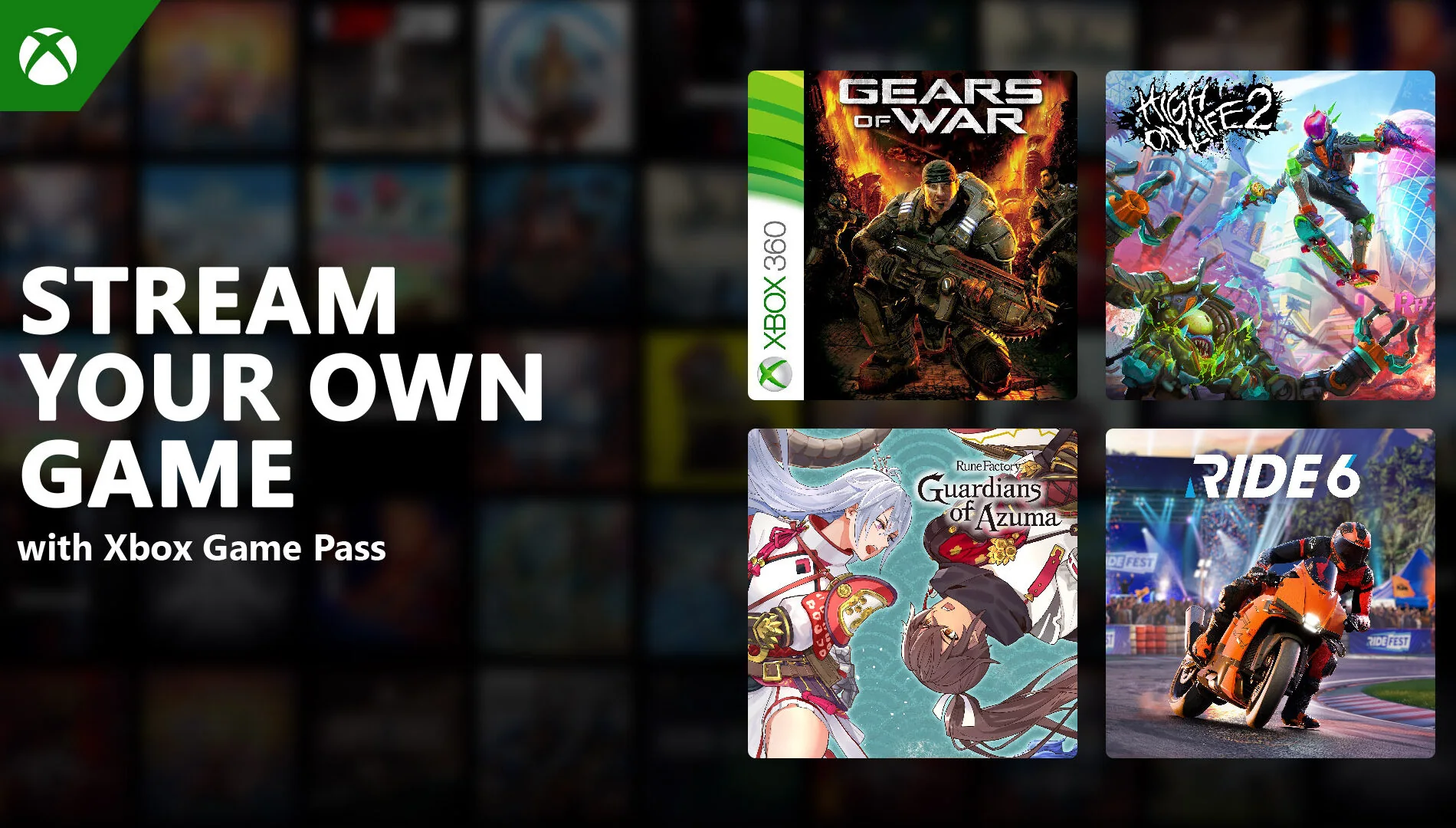
The library continued growing. A July 2026 update added 52 more supported titles; reported examples included Call of Duty: Black Ops 6, Assassin’s Creed Black Flag Resynced, A Hat in Time, Absolver, Bō: Path of the Teal Lotus, and Bravely Default Flying Fairy HD Remaster. A batch announcement proves cloud support on that date, but it does not prove that your account owns the correct Xbox edition.
These examples should be read as snapshots, not a best-games ranking. A title can support owned streaming while also appearing in Game Pass, can require purchase because it is outside your plan, or can later leave the subscription while remaining eligible as an owned game. The storefront should show which route applies.
For change tracking, watch official Xbox updates and then recheck the live collection. The Game Pass additions page is useful when a title also enters a subscription catalog, but owned-streaming support is a separate flag. Never assume one follows automatically from the other.
What you need before an owned game will stream
- An eligible plan: Xbox currently names Essential, Premium, and Ultimate for Stream Your Own Game. The tiers can differ in cloud quality, bitrate, and waiting priority.
- A digital Xbox license: the Microsoft account used for cloud gaming must own the supported game or edition. A disc in a console cannot be inserted into Microsoft’s cloud server.
- Title support: the game must appear in the Stream your own game collection. General Xbox backward compatibility, Play Anywhere, or a Cloud tag elsewhere does not replace this check.
- A supported cloud region: account, physical location, and service availability must align. Traveling can change what launches.
- A supported device and access method: options include supported Xbox consoles, browsers, Windows PCs, handhelds, phones, tablets, selected TVs/streaming devices, and Meta Quest hardware, with current OS/app requirements.
- A stable connection: Xbox recommends at least 20 Mbps for a stable experience and favors wired Ethernet or capable 5 GHz Wi-Fi/5G where practical. Latency and network congestion matter as much as headline download speed.
- Supported input: most games require a compatible controller. Some titles add mouse and keyboard or touch, but support is title- and device-specific.
Passing six checks cannot compensate for the missing seventh. A fast network does not make an unsupported game appear, and buying a supported game does not open the cloud without an eligible plan. Use the plan comparison and the live collection together before spending money.
Also separate minimum access from experience quality. Xbox’s February update rolled out up to 1440p and higher bitrate on supported consoles for Ultimate; that does not mean Essential and Premium are ineligible for owned streaming. It means tier and device can affect the service level after basic eligibility is satisfied.
How to stream an owned Xbox game step by step
- Use the account that owns the game. Open Xbox.com/play in a supported browser, or enter the cloud-gaming area of a supported Xbox app, and sign in with the Microsoft account that made the digital purchase.
- Open Stream your own game. Do not stop at the general Game Pass catalog. The owned-games collection is the part of the service that matches supported purchases to your account.
- Search for the exact title and edition. Similar names, cross-generation bundles, deluxe editions, and remasters may be separate Store products. Confirm that the product attached to your license is the one marked for cloud play.
- Connect a supported input method. Pair a controller before launch unless the title explicitly offers touch or mouse-and-keyboard controls on your device.
- Select Play with Cloud Gaming. The session should start from Microsoft’s servers without a local download. If the page only offers Buy or Install, recheck the account, edition, and owned-streaming support.
The labels and menu position can differ between browsers, TVs, consoles, handhelds, and mobile apps, but the license check is the same. You need to be signed in, own the supported digital product, and open it through the cloud interface. On a shared device, confirm the profile in the corner before assuming a purchase is missing.
Before buying a game specifically for cloud play, verify its product page while signed in and look for the cloud-play action. A franchise name in an announcement is not enough when several editions exist. If the title is also in Game Pass, the current catalog can show subscription access, but the owned-game collection remains the decisive check for Stream Your Own Game.
Digital purchases, discs, DLC, and editions explained
A physical disc by itself does not unlock Stream Your Own Game. The disc proves ownership only when it is in compatible local Xbox hardware; there is no drive at the cloud data center into which you can insert it. For the owned-cloud route, the service checks a digital Xbox license on the signed-in Microsoft account. Players who own only a boxed copy should not assume that subscribing will convert that disc into a cloud entitlement.
A base game and its add-ons are also separate licenses. Owning an expansion, currency pack, soundtrack, or “digital extras” product does not normally mean you own the underlying game. Conversely, downloadable content you own may be available inside a supported streamed base game, but the Store and launch screen are the places to confirm the combination. Some add-on products even appear as separately named items in Xbox’s update lists, which is another reason to read the full product title.
Editions require careful attention. Xbox’s original announcement used Cyberpunk 2077: Ultimate Edition and The Witcher 3: Wild Hunt – Complete Edition to show that supported games could recognize owned versions beyond the standard release. That is useful precedent, not permission to assume every deluxe, cross-generation, remastered, or regional package maps identically. Open the exact Store page tied to your order history and confirm that it offers cloud play.
The safest buying rule is simple: sign into the purchasing account, visit the Stream your own game collection, open the precise product, and verify the Play with Cloud Gaming action before checkout. Games bought digitally for this feature can also be downloaded to an Xbox console when that product supports the console, so the purchase is not inherently cloud-only. Our catalog database can reveal subscription overlap, but it cannot replace the account-level license check.
Stream Your Own Game vs Game Pass cloud vs Remote Play
| Method | Where the game runs | What grants access | Your console required? | Best use |
|---|---|---|---|---|
| Stream Your Own Game | Xbox cloud servers | Eligible cloud plan plus a supported digital purchase | No | Playing select purchases without installing them |
| Game Pass cloud catalog | Xbox cloud servers | Eligible plan while the title remains in that plan’s cloud catalog | No | Trying or playing included subscription games |
| Xbox Remote Play | Your own Xbox console | A game your console can run, installed on that configured console | Yes | Reaching the console and its installed library from another screen |
The first two options are Xbox Cloud Gaming. Microsoft supplies the remote hardware, so you do not need to leave a personal console running or install the game locally. The difference is the license: your plan lends catalog access in the standard cloud library, while your digital purchase supplies access in Stream Your Own Game. Either route still needs the title to be enabled for Xbox’s cloud service.
Remote Play sends the output of your own Xbox to a supported browser or device. The game must be installed on that console, the console must be configured for remote features and reachable over the network, and its local compatibility rules apply. This route can cover installed titles that are absent from the owned-cloud collection, but the experience depends on both the console’s home connection and the connection at the remote device.
The web interfaces have become more unified, which can make the names look interchangeable. They are not. If the session can launch while your home Xbox is unplugged, it is using Microsoft’s cloud infrastructure. If it needs that console, it is Remote Play. Review the current plan comparison for cloud eligibility, then choose owned cloud for supported purchases, catalog cloud for included games, or Remote Play for an installed console library.
Troubleshooting when an owned game does not appear
- Confirm the signed-in account. Compare the cloud profile with the account’s Xbox order history. Signing out and back in can refresh an interface that has retained the wrong profile.
- Check the exact Store product. Search the full edition name and open its page. A disc, DLC license, different-generation package, or purchase on another storefront may not match the supported Xbox digital product.
- Separate support from ownership. If the collection offers Buy, the product may be cloud supported but not owned by this account. If it offers neither Buy nor Play with Cloud Gaming, it may not currently be in Stream Your Own Game.
- Verify plan, region, and device. Make sure the subscription is active, cloud gaming is offered where you are physically located, and the browser, app, operating system, and device remain supported.
- Check Xbox service status. A platform incident can prevent license discovery or session launch even when your setup is correct. Wait for recovery instead of repurchasing the game.
- Then test the connection and input. Update the browser/app, reconnect the controller, try Ethernet or 5 GHz Wi-Fi, stop competing traffic, and retest. Xbox recommends at least 20 Mbps, but low latency and a stable route are also important.
A missing tile is primarily a catalog or entitlement problem; a visible Play button followed by stuttering, disconnects, or input failure is primarily a session problem. Keeping those paths separate saves time. Network resets cannot make an unsupported edition appear, while checking purchase history will not cure congested Wi-Fi.
The Xbox web experience may also look different during interface rollouts or previews. Use the search and product page instead of relying on one remembered menu position. If the exact game remains missing after the account, product, plan, region, and status checks, capture the Store page and order details for Xbox Support. Do not purchase a second copy merely as a test. The current catalog can help determine whether subscription access offers a temporary alternative.
Stream Your Own Game FAQ
Can I stream every Xbox game I own?
No. The digital purchase and the streamed title must both be supported by Stream Your Own Game. Xbox’s 1,000-plus figure is large, but it is not the entire Xbox Store or every backward-compatible disc.
Which Game Pass plans support owned-game cloud streaming?
Xbox currently names Essential, Premium, and Ultimate. Older pages may say Ultimate because that was the only eligible tier when the beta launched in November 2024. Consult the live plan comparison before subscribing because plan names and service levels can change.
Does streaming on a PC give me the native PC version?
Not necessarily. The PC or handheld can be the screen and input device for a console cloud build. Xbox specifically promoted console-only games in the PC app’s cloud library, so do not infer native Windows ownership, mod support, graphics settings, or PC cross-buy unless the Store separately confirms them.
Will my saves follow me?
Xbox says cloud progress is saved and shared across platforms. In practice, use the same Xbox account and allow synchronization to finish before closing a session. A publisher account, separate game generation, or edition-specific save system can still affect an individual title.
Can I use mouse and keyboard or touch controls?
Only when the particular cloud game and device support that method. Most games accept a compatible controller; the mouse-and-keyboard and touch collections change as Xbox adds support. Check the input icons before launching.
What happens if my Game Pass subscription ends?
The digital game purchase remains on the buying account, but Stream Your Own Game needs an eligible cloud plan. Without one, use a compatible Xbox console to download and play the purchased product, or renew an eligible plan after confirming the title is still cloud supported. A lapsed membership does not turn the purchase into a Game Pass catalog license.
The reliable answer is always account-specific: check the current owned-games collection while signed in. It resolves the three facts a generic list cannot—whether Xbox still supports the product, whether your exact account owns it, and whether the cloud service currently offers a Play action.
Comments
Comments are reviewed before publication. Please keep the conversation helpful and on topic.
Sign in with Google to leave a comment.
Loading comments…