Xbox Cloud Gaming has a large, changing collection of games you can play with on-screen touch controls and no paired controller. The safest current list is Xbox's own Play with touch gallery, because games, regions, and membership access can change after any article is published. Xbox said in its April 2026 platform update that more than 260 cloud games supported touch at that time, but that dated figure is a useful scale marker—not a promise that every one remains available to every member today.
This guide explains how to read that live list, which game styles translate best to a phone or tablet, and how custom touch layouts differ from a generic virtual controller. It also covers setup and common fixes. Before starting, remember that three separate conditions must line up: the game must be cloud-playable, it must advertise touch support, and your account must have access through the relevant Game Pass plan or ownership option in your region. Our current Game Pass catalog can help with the availability check; the official touch gallery is the final check for the input method.
How the Xbox touch games list works
The touch gallery is a live filter, not a separate subscription. A game card appearing there tells you that Xbox Cloud Gaming recognizes a touch-control option for that title. It does not by itself guarantee that the game is included with every Game Pass plan. A title may require a particular membership, may be available because you own an eligible copy, or may not appear in the same way in every supported region. Sign in with the account you intend to play on before treating the gallery as your personal list.
Use three filters in order. First, confirm access: check the title's current plan or owned-game status. Second, confirm that Cloud is listed as a playable platform. Third, look for the touch capability in the Xbox cloud interface. This avoids the most common mistake—seeing that a game supports cloud streaming and assuming it will open without a controller. If you are unsure which membership includes cloud play, compare the current benefits on our Game Pass plans page rather than relying on an older article that may still use retired plan names.
A static A–Z table would look comprehensive on publication day but age badly. Games enter and leave the subscription catalog, input support can be added later, and Xbox's Stream your own game program can make some purchased titles cloud-playable. Bookmark the official gallery for the exhaustive view. Use the recommendations below as a way to narrow that living collection by control demands, screen readability, and session length.
The best kinds of Game Pass games to play with touch
The best touch game is not necessarily the highest-rated game in the catalog. It is the one whose important information remains legible on your screen and whose inputs tolerate a finger covering part of the picture. Games with deliberate pacing, a limited set of repeated actions, generous pauses, or a layout designed around context-sensitive buttons usually travel well. Games that demand simultaneous camera control, precise aiming, and several shoulder-button combinations ask much more of an on-screen overlay.
Turn-based, card, narrative, and management games
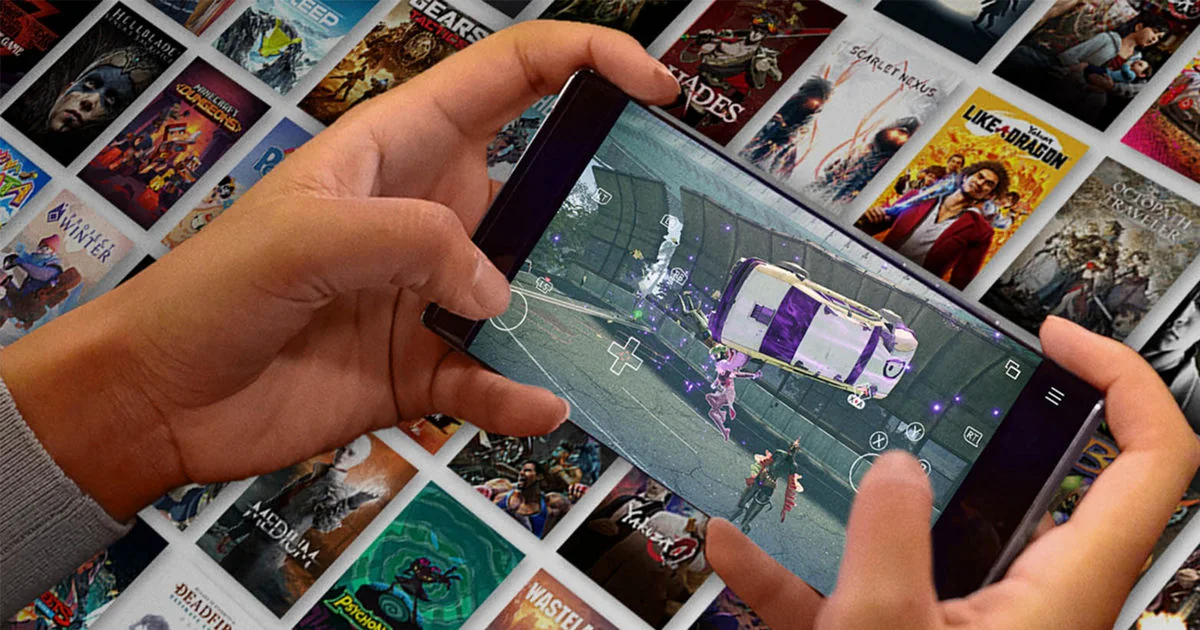
Start with games that wait for you. Turn-based RPGs, deck builders, choice-driven adventures, and management games rarely punish the half-second it takes to find a virtual button. Their play loops also suit a phone: inspect a card, choose dialogue, move a unit, or adjust a menu, then put the device down. A touch layout can hide controls that are irrelevant to the current scene and surface only the actions you need, leaving more of the streamed image visible.
Text size is the catch. A strategy game may be mechanically comfortable yet exhausting on a small phone if its menus were designed for a television. Preview a title for five minutes before committing to a long session. Open its busiest inventory or management screen, rotate the device if supported, and check whether tooltips remain readable without leaning in. A tablet often turns a merely workable interface into a genuinely pleasant one.
When browsing the live gallery, favor descriptions that suggest pauses, turns, cards, dialogue, simulation, or puzzle solving. Then use our broader Game Pass recommendations to identify critically strong candidates and recheck each candidate in the touch gallery. That two-step method is more dependable than an old “top ten” list: recommendation quality changes slowly, while membership and touch badges can change quickly.
Action, racing, and shooters—when touch still works
Fast games are not automatically bad touch games. A strong custom layout can enlarge the two or three actions used most often, combine inputs that make sense together, or change the visible controls when you enter a vehicle or menu. Driving can be comfortable when steering and braking occupy predictable zones. Action games with generous lock-on, adjustable difficulty, frequent checkpoints, or auto-aim can also work well for short sessions.
The problem is simultaneous precision. If a game expects you to move, aim, jump, reload, and track a tiny target at once, both thumbs can cover useful information while the stream adds network delay. Competitive shooters, demanding platformers, rhythm games, and high-speed combat are the cases where a physical controller usually gives a clearer and more reliable experience. Touch may still be valuable for inventory work, a daily task, or a low-stakes run, but it need not replace the controller for every situation.
Test fast games at home before depending on them during travel. Try a crowded encounter, not just the tutorial, and check whether the layout lets you resize or reposition controls. If a newly added title interests you, find it on the new Game Pass games page, then verify the touch badge in Xbox's live gallery. A game can join Game Pass before receiving a tailored touch layout, so those checks answer different questions.
Custom layouts, basic overlays, and native touch
“Supports touch” describes the result—controller-free input—but not every implementation feels the same. A basic overlay resembles an Xbox controller placed on the glass: virtual sticks, face buttons, triggers, and bumpers. It is broadly understandable, yet it can be crowded. A customized layout can show a larger interaction button during exploration, swap controls when a vehicle appears, or remove buttons that a scene does not use. Those changes reduce hunting and screen obstruction.
Native touch goes further by letting the game interpret taps, drags, or gestures directly. Selecting an item may feel like using a mobile app instead of steering a cursor with a virtual stick. Microsoft’s developer guidance recognizes both native interaction and adapted layouts, but the consumer gallery may not spell out the technical implementation for every card. The practical test is visible: can you tap the object or menu you want, do the controls change with context, and can you move or resize them?
Do not treat “custom” as an automatic quality award. A thoughtful controller-style overlay can suit a simple game, while a busy native interface may still be hard to read on a small screen. Spend a few minutes in actual play, open the densest menu, and enter a representative encounter. That reveals more than the badge alone. Also recheck titles listed on our recent additions page, because input support may arrive on a different schedule from catalog entry.
How to start a touch-control cloud game
- Confirm cloud access. Sign in to the Xbox account you will use and check that its membership or owned-game entitlement supports the selected title. Current benefits are summarized on our plans comparison.
- Use a supported route. Open Xbox Cloud Gaming through the supported browser or Xbox experience for your phone or tablet. Xbox's support page is the authority because device and app availability can change.
- Start from the touch gallery. Choosing a game from the official filtered gallery removes guesswork about whether Xbox currently advertises touch input.
- Check the controls after launch. The overlay should appear when the stream is ready. Open any layout or touch settings offered by the game and adjust size, position, opacity, or vibration to taste.
- Run a realistic test. Play past menus into a normal scene, then test movement, camera, pause, and a busy interface. Five minutes here prevents frustration away from home.
A controller does not need to be paired for a title designed to launch with touch, but Bluetooth devices can sometimes change which input the stream expects. For the first setup, leave the controller disconnected until the on-screen controls appear. Use landscape orientation unless the title specifically presents a portrait-friendly design, and disable screen rotation only after the layout settles correctly.
Cloud gaming streams video and sends your inputs over the network. Touch support removes the controller requirement; it does not remove the need for a stable connection or a supported cloud-gaming region.
How to choose a touch game for your screen and connection
Match the game to the conditions you actually have, not the conditions in a promotional screenshot. A six-inch phone on cellular data calls for different choices than a large tablet on steady home Wi-Fi. The following table is a starting point; the live touch gallery supplies the candidates, and a brief test confirms the fit.
| Your situation | Look for | Be cautious with |
|---|---|---|
| Small phone | Large icons, short dialogue, few persistent buttons | Dense inventories and tiny map labels |
| Tablet | Strategy, management, card, and narrative interfaces | Layouts that cannot move controls away from key UI |
| Unpredictable connection | Turn-based play, pause-anytime games, frequent saves | Ranked multiplayer, rhythm, and precision platforming |
| Ten-minute session | Runs, levels, puzzles, or clear stopping points | Long unskippable sequences and slow checkpoint gaps |
| Fast action | Custom layouts, aim assistance, adjustable difficulty | Many simultaneous stick, trigger, and face-button inputs |
Also consider heat, battery use, and hand position. Streaming keeps the game workload in the cloud, but the display, radio, and video decode still consume power. Virtual sticks near the screen edge can become uncomfortable during long sessions. A stand or grip can help on a tablet, while a controller remains the sensible upgrade when touch fatigue outweighs portability.
Use touch as one input option, not a loyalty test. Many people will prefer it for dialogue, daily tasks, and travel, then continue the same cloud-synced game with a controller or console later. Browse our best Game Pass games for quality, then apply the table above to decide which of those choices suits your mobile setup.
Fixes when touch controls do not appear or feel wrong
Start with eligibility, because no amount of device troubleshooting can create an official layout for a title that is not currently touch-enabled. Return to the signed-in touch gallery and open the game from there. If the game is absent, check whether you selected a different edition, whether your plan grants access, and whether the game is offered for cloud play in your region. Search the current catalog to separate a catalog problem from an input problem.
- Restart the stream. Fully exit the session and relaunch from the touch gallery rather than a recent-games shortcut.
- Disconnect other inputs. Temporarily turn off a paired controller or keyboard that may have changed the active input mode.
- Check orientation and zoom. Return browser zoom to normal, rotate to the expected orientation, and make sure display scaling has not pushed controls off-screen.
- Update the supported browser or app. Then sign out and back in if entitlement information appears stale.
- Test another network. If buttons appear but respond late, compare stable Wi-Fi with the current connection and pause competing high-bandwidth traffic.
If the layout appears but feels awkward, look for touch settings before giving up. Reduce opacity when buttons hide targets, move frequently used actions into comfortable thumb zones, and enlarge inputs you miss under pressure. Not every game exposes the same controls, so do not follow a title-specific menu guide for another game. When delay persists across multiple supported titles and devices on one network, use Xbox's official cloud-network troubleshooting guidance; when only one title misbehaves, report that title and device combination through Xbox feedback.
Frequently asked questions
Do all Xbox Cloud Gaming titles work with touch?
No. Cloud availability and touch availability are distinct. Use Xbox's touch-filtered gallery and check while signed in.
Is a controller required?
Not for a game that launches with official touch controls. A controller may still be more comfortable for precise or long sessions.
Can a purchased game have touch controls?
Potentially, but two eligibility checks apply. Xbox must support that owned title through its cloud program, and the cloud version must separately advertise touch input. Ownership alone does not add an overlay.
Does touch work on both iPhone/iPad and Android?
Xbox Cloud Gaming supports multiple mobile routes, but the supported device, browser/app method, and region can change. Check the current Xbox Support page for your exact device, then launch from the touch gallery rather than assuming instructions for another platform apply.
Which Game Pass plan do I need?
Cloud benefits and catalog access depend on the current plan structure. Review the up-to-date plan comparison and the selected game's own access notice. Do not rely on guides that still present discontinued plan names as current.
Bottom line
For the complete current answer, begin with Xbox's live Play with touch gallery. Then choose for your real device: slower decision-based games are the safest phone picks, good custom layouts can make action and racing practical, and a tablet helps text-heavy interfaces. Verify plan access, cloud support, and the touch badge separately before a trip.
Touch controls are most valuable as a convenient option, not a promise that every console design will feel native on glass. Test the busiest part of a game, adjust the layout when possible, and keep a controller for precision-heavy sessions. Check our Game Pass calendar for changing catalog dates, but return to the official gallery whenever touch eligibility itself is the deciding factor.
Comments
Comments are reviewed before publication. Please keep the conversation helpful and on topic.
Sign in with Google to leave a comment.
Loading comments…