Find a game's time played on your Xbox console
To check your Xbox playtime, press the Xbox button, open Game activity > All achievements, choose a game and select Stats. Look for its time-played entry. Repeat this for the games you want to compare. Xbox's official instructions provide a per-game statistic; they do not describe a complete library that automatically sorts every game by lifetime hours.
That distinction answers two different questions. If you want to know how many hours you have spent in one game, its Stats screen is the starting point. If you want your personal top ten across everything you have ever played, you need comparable records from multiple games. A recent-games row or a popular-games chart cannot supply that ranking.
- Sign into the Xbox profile whose playing history you want to inspect.
- Press the Xbox button on your controller to open the guide.
- Select Game activity, then All achievements.
- Choose the exact game entry you want to examine.
- Select Stats and find the time-played field if the game provides it.
- Record the displayed value and its unit before moving to another game.
These steps follow the current Xbox Support time-played guide, checked on October 17, 2026. The same guide warns that not all games track this statistic. If the field is absent, treat the result as unavailable rather than assigning the game zero hours.
Choose the correct edition when several entries share a similar name. A remaster, a different console-generation release or a separately listed Windows version may be represented by another game entry. Record what the screen actually identifies; a matching cover image is not enough to establish that two totals cover the same sessions.
There is no need to launch every installed game simply to begin this check. Start from the achievements list and select the entries you already recognize as your likely most-played titles. A short initial shortlist is usually more useful than copying hundreds of rows before deciding what you want to measure.
Keep a date beside each number. If you continue playing while building your list, an entry checked on Monday and one checked on Friday describe different observation times. This rarely matters for a casual personal ranking, but it matters when two games are close or you want to compare this month's activity with next month's. A dated snapshot also makes a later missing or changed value easier to describe accurately.
Check your Xbox profile on PC or mobile
You can inspect supported Xbox game statistics without sitting in front of the console. The clearest currently documented alternative is your Xbox profile on the web. It is particularly useful when a phone or PC app presents a different layout from an older tutorial.
Xbox Support gives this browser route: sign in at account.xbox.com, select your gamerpic, choose Xbox Profile > Achievements, select a game, then select Achievements again. The guide says minutes played appears among the available statistics. Use the same Xbox account you use for the game.
Xbox app on Windows
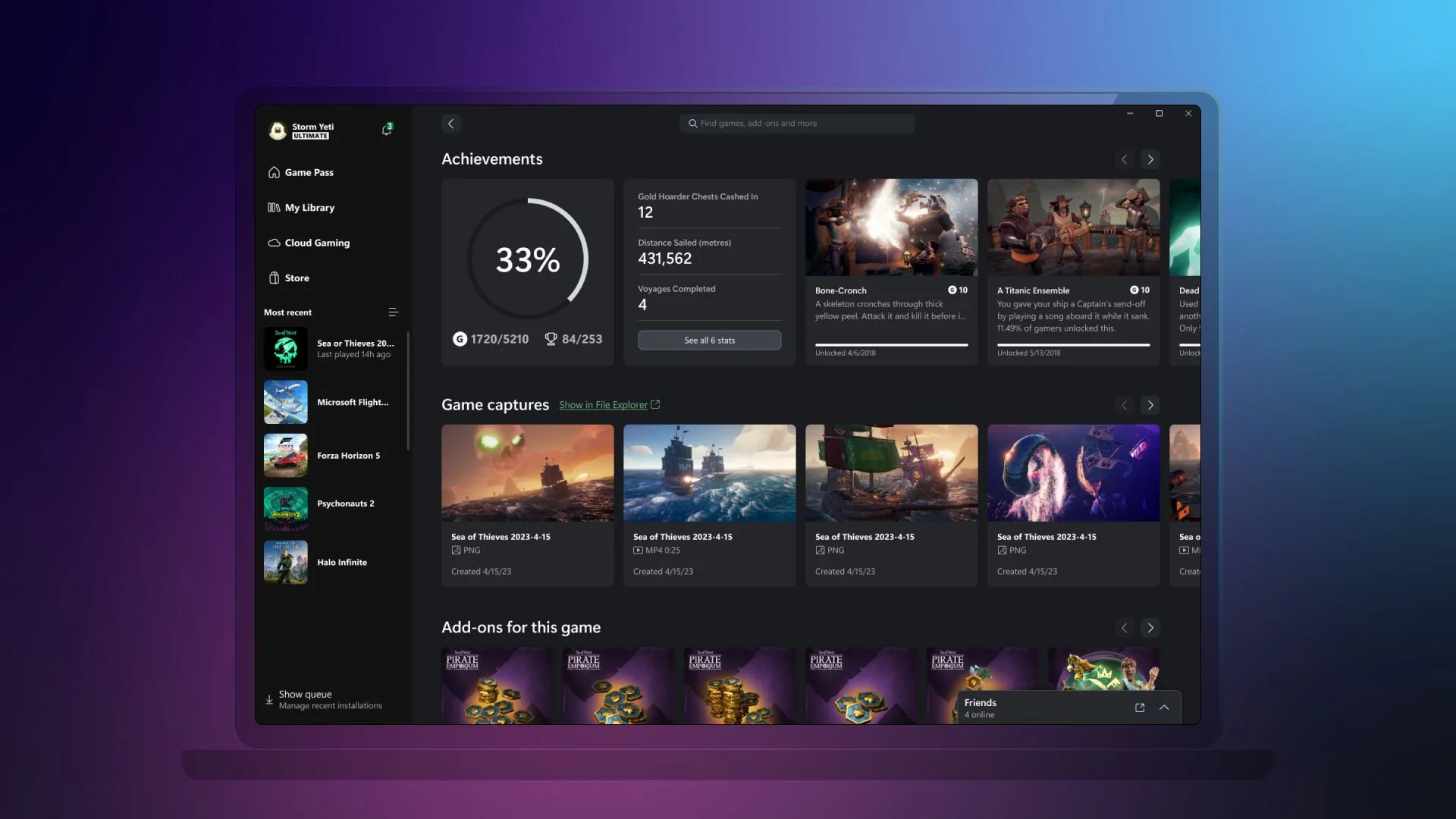
In the Windows Xbox app, start with the specific game in your library or sidebar and inspect its game hub. Xbox's official game-hub rollout announcement describes this as the place to follow progress and related game information. Look for the achievements or statistics information that your installed version exposes for that title.
If the expected time field is missing, move to the documented web-profile route above. This is more useful than following instructions for an old companion app or assuming every screenshot online shows your current build. The browser and console instructions are the specific routes verified in the current support article; the older game-hub announcement establishes the feature's purpose rather than every present-day button position.
A PC library can also include games associated with other launchers or accounts. Seeing a title in a launcher is not proof that its entire play history is available as an Xbox statistic. Check the Xbox-enabled version and account first. If your hours are displayed in another platform's client, record that source separately instead of silently treating it as the same Xbox record.
For a comparison across devices, open the same game entry in your console profile and browser profile. Note whether both identify the same edition and account, then compare the units. A web value in minutes and a console display broken into days and hours may describe the same duration. Convert them before deciding that the records disagree.
Xbox mobile app
Xbox added game statistics, including time played, to achievements game pages in its May 2021 mobile-app update. That announcement is historical. It does not guarantee an identical tap sequence in every Android or iOS version in 2026.
If your current app exposes a game's achievements and statistics, use that individual game page and check the displayed account. If it does not, open your browser and follow the web-profile steps. You do not need to keep hunting for a supposed universal “most played” sort option that the current support guide does not document.
On a shared phone or tablet, check the profile before copying a number. Your browser can be signed into a different Microsoft account from the Xbox app. When collecting several games, keep one source open and work through the shortlist consistently; switching between profiles and apps makes accidental comparisons more likely.
Neither an achievements score nor the order of recently opened games measures total playtime. The useful field is the game's actual time-played statistic. If an interface only shows achievements or recent activity, label that information accurately and use another supported route for hours.
Build a useful personal most-played list
For a practical personal ranking, create a small table with game, edition or platform, displayed time, equivalent hours, source and date checked. Begin with five or ten likely favorites. The result is a ranking of the records you collected, so describe that scope honestly if several games do not provide statistics.
The following fictional examples show how to compare different time formats. They are calculations, not readings from an Xbox account.
| Example entry | Displayed duration | Comparable duration | How to treat it |
|---|---|---|---|
| Game A | 2 days, 3 hours, 30 minutes | 51.5 hours | Highest of these two known totals |
| Game B | 2,800 minutes | 46 hours, 40 minutes | Below Game A |
| Game C | No time field | Unknown | Leave outside the numerical ranking |
Convert days to hours by multiplying by 24, then add the remaining hours and divide remaining minutes by 60. For a minutes-only value, divide by 60. Preserve the original displayed value in a separate column so you can correct a transcription error later without reopening every game.
If you use a spreadsheet, sort the numeric equivalent-hours column from largest to smallest. Sorting a text column containing values such as “9 hours” and “120 hours” can produce an alphabetical result instead of the ranking you intended. Keep unavailable values blank or mark them unknown in a separate notes column.
Decide whether your unit of comparison is an individual edition or an entire game series. Combining every sequel into one franchise total answers a different question from identifying your most-played individual game. Similarly, adding console and PC entries is only appropriate if you know they cover separate sessions. When coverage is unclear, show both records separately rather than risking double counting.
A list of games with achievement activity should not automatically be treated as a complete record of everything ever launched. Even Microsoft's title-history documentation explicitly distinguishes achievement-related history from a full played-game history. For an ordinary personal comparison, this means keeping your own missing-title notes instead of assuming absence proves you never played something.
Most-recent sorting answers when you last opened a game. Public popularity lists answer what other players are playing. Neither ranks your lifetime hours. Our best Game Pass games page can help you discover another title, but your personal list must come from your own account records.
For a monthly comparison, save a baseline now and record the same fields again next month. Subtracting two comparable cumulative totals gives the change between those observations. Label the actual dates rather than calling it a calendar month if you started halfway through one. This simple approach is useful only while the underlying statistic remains consistent; flag unexplained decreases instead of presenting a negative playing time.
Understand missing hours and conflicting totals
A missing time-played field does not automatically mean your account is broken. Xbox explicitly says some games do not track it. A statistic that exists but seems outdated is a different problem from a field that the game never supplies, so identify which situation you have before troubleshooting.
Microsoft's statistics documentation also explains that Xbox games can use different reporting systems. One supports a built-in minutes-played statistic, while another requires the game to track its playtime value. This helps explain why there is no sensible promise that every Xbox title will display identical statistics or behave like a universal stopwatch.
Check the game, edition and account
First confirm the gamertag, exact title and version. If you used a second profile for couch multiplayer or moved between separately listed editions, the number you remember may belong to another record. Compare the account name on the game, the app and the browser rather than assuming all three are signed in identically.
Next determine the scope of the problem. If one title lacks a time field while other game statistics load normally, investigate that title's support information. If multiple profiles or game pages fail to load, check Xbox status and your connection. Our Xbox service troubleshooting guide helps distinguish a broader service problem from a device issue.
For a value that has stopped changing, record the current figure, the device, the game version and when you last played. Then check again after a normal connected session. This creates a useful observation for support; it does not guarantee that a session will repair a missing historical total. Avoid deleting saves or reinstalling a large game solely because a statistic looks wrong without a title-specific reason to do so.
Separate saved-game timers from platform statistics
A campaign save can display the time associated with that save, while an Xbox statistic may represent activity reported for the game more broadly. Those numbers answer different questions. A second campaign, a multiplayer mode or another save slot can make a single saved-game timer unsuitable as a substitute for the platform total.
Do not assume a universal rule for paused menus, idle time, Quick Resume or disconnected play. The official documentation does not establish one counting algorithm for every game. If you want to understand a particular title, compare its own documentation and a small set of clearly recorded sessions instead of applying a claim from an unrelated game.
Microsoft's event-based reporting overview describes locally recorded events being uploaded when the device is connected. That supports allowing for synchronization, but it does not promise recovery of every missing session or a specific waiting time for your consumer-facing Stats screen.
When asking for help, explain the discrepancy precisely: the same account and edition shows one value on the console and another on the web, or the figure has not changed across identified sessions. Include observation dates and the interface involved. A precise report is more useful than saying only that your hours are wrong, and it lets you keep your personal ranking marked provisional until the discrepancy is understood.
Use annual recaps and shared statistics with the right scope
Xbox has offered personal annual recaps, but an old Year in Review link should not be treated as a permanent lifetime dashboard. The official 2024 recap announcement described total time played and a player's three most-played games for that year. It also gave an availability deadline of January 31, 2025.
That announcement establishes what the 2024 report contained, not that a 2026 report is currently available. As of this guide's October 17, 2026 check, the official sources reviewed did not establish a live personal 2026 Year in Review. If Xbox announces another edition, read its year, coverage, eligibility and access window before treating its results as a comparison with your older records.
A game can lead your annual list without having your highest lifetime total. Imagine spending several hundred hours in one game years ago and concentrating on a new release this year. The new release might win the annual comparison while the older game remains ahead in cumulative hours. Both results can be correct because their measurement periods differ.
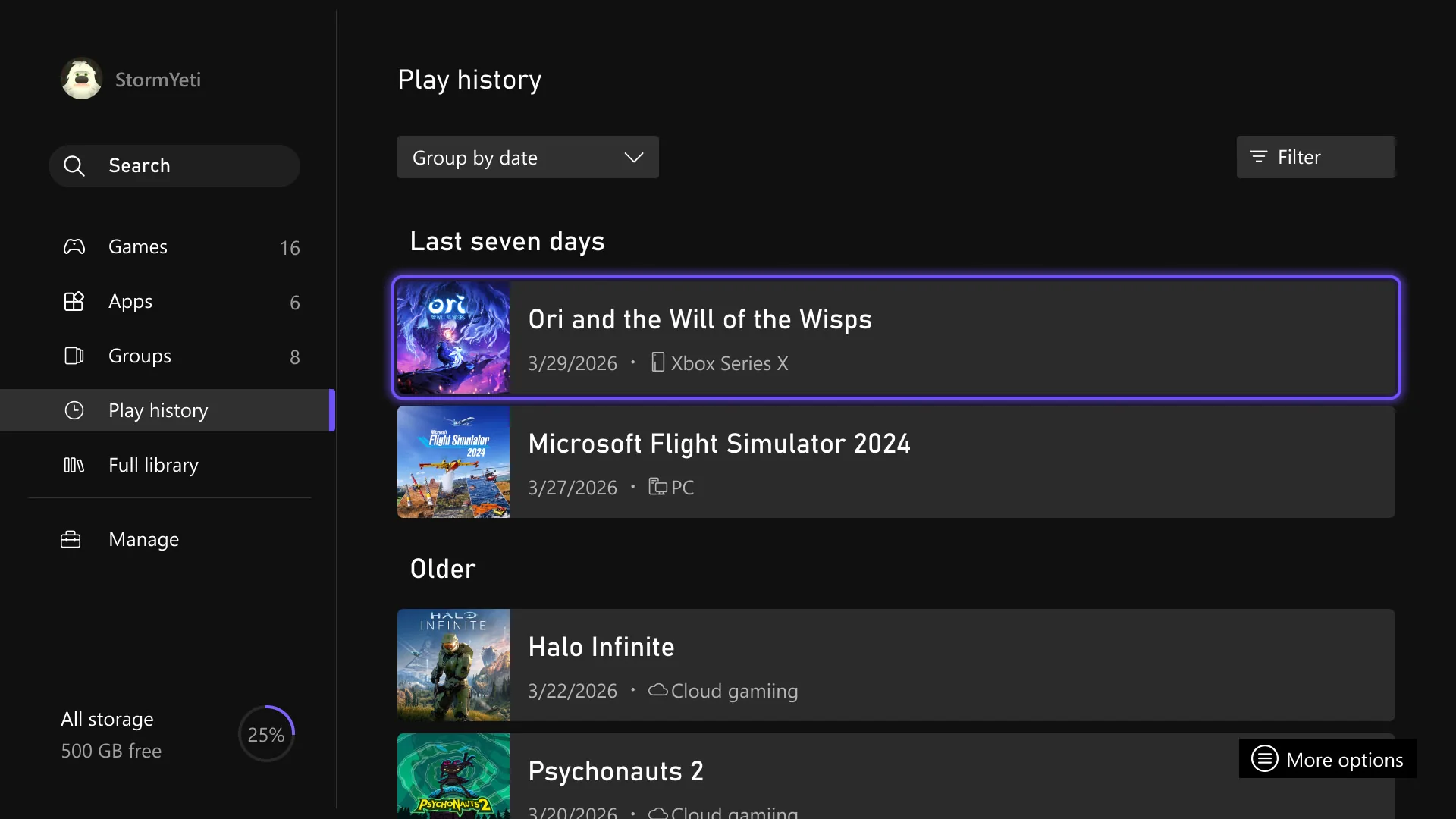
Current Play History is another separate view. Xbox's April 2026 update introduced a console Play History tab in My games & apps with grouping by recency. It helps you return to recently played games. Its position in that interface is not a ranking by hours, and pinning a favorite to a recent list does not increase its recorded playtime.
When considering a third-party statistics service, ask what data it collects, which platforms and accounts it covers, and whether it reports measured values or estimates. A polished graph cannot fill a gap in the underlying record by itself. Compare one known game against your official account before trusting a broad combined total.
You can keep a useful personal record without sharing it publicly. Store the dated comparison table somewhere private, preserve the exact edition labels, and keep notes about missing statistics. If you share a screenshot, inspect the visible account information and other players' details first. A cropped game-and-hours comparison is often all you need to communicate your result.
For a longer-term record, keep each observation rather than overwriting the previous month. This lets you spot changed values, separate a new game edition and reconstruct your own period comparisons. The record remains limited to the statistics you observed, but that limitation is visible instead of hidden inside an unexplained total.
Use the console or web method when you need a game's current recorded time, a consistently dated list when you want your personal ranking, and a properly dated recap when you want a particular year's story. Keeping those purposes separate makes the numbers much easier to interpret and avoids mistaking recent activity, achievement progress or community popularity for your own most-played games.
Comments
Comments are reviewed before publication. Please keep the conversation helpful and on topic.
Sign in with Google to leave a comment.
Loading comments…