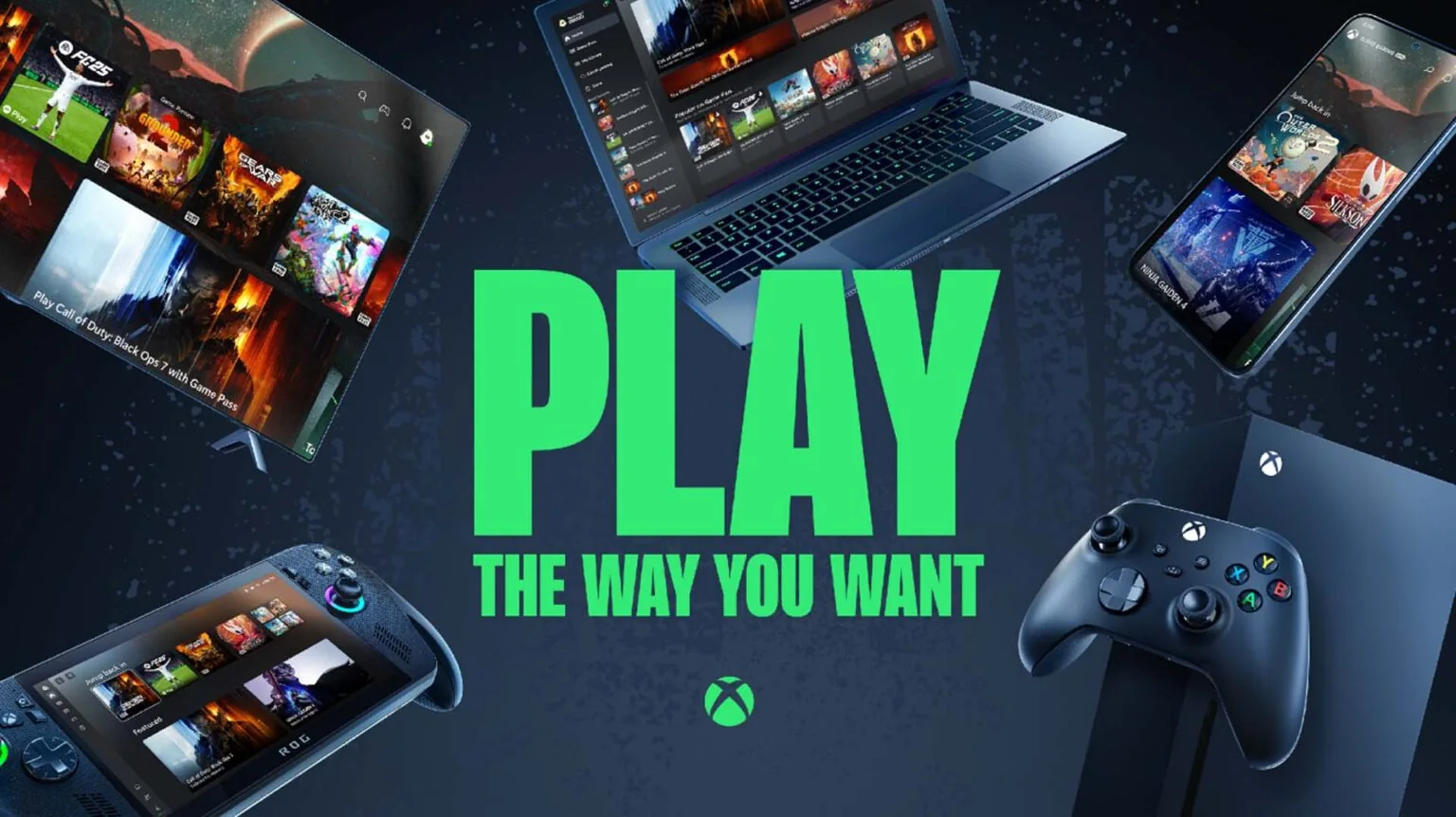
Xbox Cloud Gaming works on supported iPhones and iPads through Safari, not through a native cloud-streaming app from the App Store. Open xbox.com/play, sign in with your Microsoft account, tap Safari's Share control, choose Add to Home Screen, and then launch Xbox Cloud Gaming from the new icon. On current Apple software, enable Open as Web App if Safari offers that switch.
The icon creates an app-like doorway to the Xbox website. It does not download console games to the device, does not make cloud games available offline, and is not the same product as the Xbox mobile app in the App Store. The mobile app remains useful for Game Pass discovery, purchases, parties, chat, captures, achievements, and console management; Xbox's current iOS instructions still direct cloud play to Safari.
- Update iOS or iPadOS and Safari through Apple's normal software update.
- Visit
xbox.com/playin Safari and verify the Xbox.com domain. - Sign in and confirm that the account has access to the game.
- Use Share → Add to Home Screen → Open as Web App → Add where those labels appear.
- Open the new Home Screen icon, connect a compatible controller or choose a touch-enabled game, and start the stream.
Do not search for an “Xbox Cloud Gaming iOS IPA” or unofficial profile. Microsoft and Apple already provide the supported web-app route without sideloading, configuration profiles, or a third-party installer.
How Xbox Cloud Gaming works on iPhone and iPad
Xbox Cloud Gaming runs the console game on remote Xbox infrastructure and sends interactive video and audio to Safari. Your controller or touch input travels back over the network. The iPhone or iPad is therefore decoding a live stream rather than installing and rendering the console build locally. You still need storage for iOS, browser data, and normal device use, but not the full console game's download size. You also need a continuous internet connection; the Home Screen icon does not create an offline copy.
The web app is more than an ordinary bookmark in presentation, but it remains web-delivered. Apple describes Home Screen web apps as websites that open and behave like apps, and Xbox can update its cloud interface without waiting for you to install an App Store update. Deleting the icon removes that launcher from the device; it does not delete your Microsoft account, cloud library, purchases, or Xbox profile.
| Experience | Use it for | What it needs |
|---|---|---|
| Xbox Cloud Gaming Home Screen web app | Stream eligible cloud games from Xbox infrastructure | Safari setup, supported device/region, account access, network, and suitable input |
| Xbox mobile app from the App Store | Browse Game Pass, buy content, chat, join parties, view captures/achievements, and manage console installs | Compatible iOS/iPadOS and an Xbox/Microsoft account for signed-in features |
| Xbox remote play | Stream games installed on your own Xbox console | Supported console with remote features enabled, compatible client/device and controller, account, and network |
This distinction explains two common surprises. First, the App Store's Xbox app may show a button to install a game on your console but no button to cloud-stream it inside that app. Second, cloud gaming does not require you to own an Xbox console, whereas remote play does. A Game Pass plan or a supported cloud-playable purchase may provide game access, but it does not turn remote play and cloud play into the same service.
Before subscribing, compare the current Xbox Game Pass plans and then inspect the live cloud library while signed in. Catalog access, owned-game streaming, queue priority, quality, platform, and region rules can change, so the account's actual Play button is more reliable than an old setup screenshot.
Check these requirements before setup
Adding a Home Screen icon is quick, but the icon cannot override an unsupported device, country, account, or game. Xbox currently lists iOS 14.4 or later for iPhone cloud gaming and iPadOS 14.4 or later for iPad. Update to the newest Apple software your device supports, because current security fixes and Safari changes matter even when an older version meets the published minimum.
| Requirement | What to confirm | If it is missing |
|---|---|---|
| Apple device | Supported iPhone/iPad and current supported iOS/iPadOS | Do not assume a Home Screen icon adds device support |
| Region | Your market is on Xbox's current Cloud Gaming region list | Wait for official availability; changing App Store country is not a technical fix |
| Microsoft account | Correct account, Xbox profile, age/family permissions, and eligible access | Resolve the account restriction before changing Safari |
| Game | Exact title/edition appears as cloud-playable for the account and region | Choose a supported game; not every console or Game Pass title streams |
| Input | Compatible controller or a game specifically marked for touch | Pair supported hardware or select a touch-enabled game |
| Connection | Stable Wi-Fi/mobile data with adequate speed and latency | Improve the network before reinstalling anything |
Xbox's general requirements give 10 Mbps as a mobile download minimum, note that some devices need 20 Mbps for best quality, and recommend 5 GHz Wi-Fi. Xbox's current mobile page recommends 20 Mbps or higher. Treat those numbers as a floor and a target, not a guarantee. Latency, packet loss, router congestion, wireless interference, distance from the data center, and other household traffic can make a fast speed test feel poor in play.
Most cloud games require eligible Game Pass or supported owned-game access. Selected free-to-play exceptions can work with a free Microsoft account in a supported region, but the whole catalog is not free. The site's guide to free Xbox Cloud Gaming games explains that boundary. Check the live Xbox game card rather than assuming an App Store download or Home Screen shortcut changes entitlement.
A useful preflight is to sign in at Xbox.com/play before adding the icon. If you can see the correct profile, open an eligible game card, and find a Play control, the account and catalog layers are probably ready. Then pair the controller and test the stream; create the Home Screen web app after the basic path works.
Set up Xbox Cloud Gaming in Safari step by step
Begin in Safari rather than inside an in-app browser opened from Mail, Messages, Google Search, or a social app. Embedded browsers can hide normal Safari actions or handle sign-in differently. Type the destination yourself and check the address before entering credentials. The host should be an Xbox.com page, and Microsoft should handle the account authentication.
- Open Safari on the iPhone or iPad.
- Go to
https://www.xbox.com/playand sign in with the Microsoft account you intend to use for play. - Open an eligible game's card and confirm that the cloud Play control is visible. This catches account or catalog problems before shortcut setup.
- Return to the cloud library page, tap Safari's Share control, and scroll through its actions.
- Choose Add to Home Screen. On an iPhone where it is hidden, scroll to Edit Actions and add the action; on an iPad, you may first need the Share menu's More control.
- Keep the Xbox destination intact. Enable Open as Web App if the current Apple interface shows that option, then tap Add.
- Return to the Home Screen and open the new Xbox Cloud Gaming icon. Sign in again if requested.
- Pair a compatible controller or choose a game labeled for touch, rotate to the game's preferred orientation, and start a short test session.
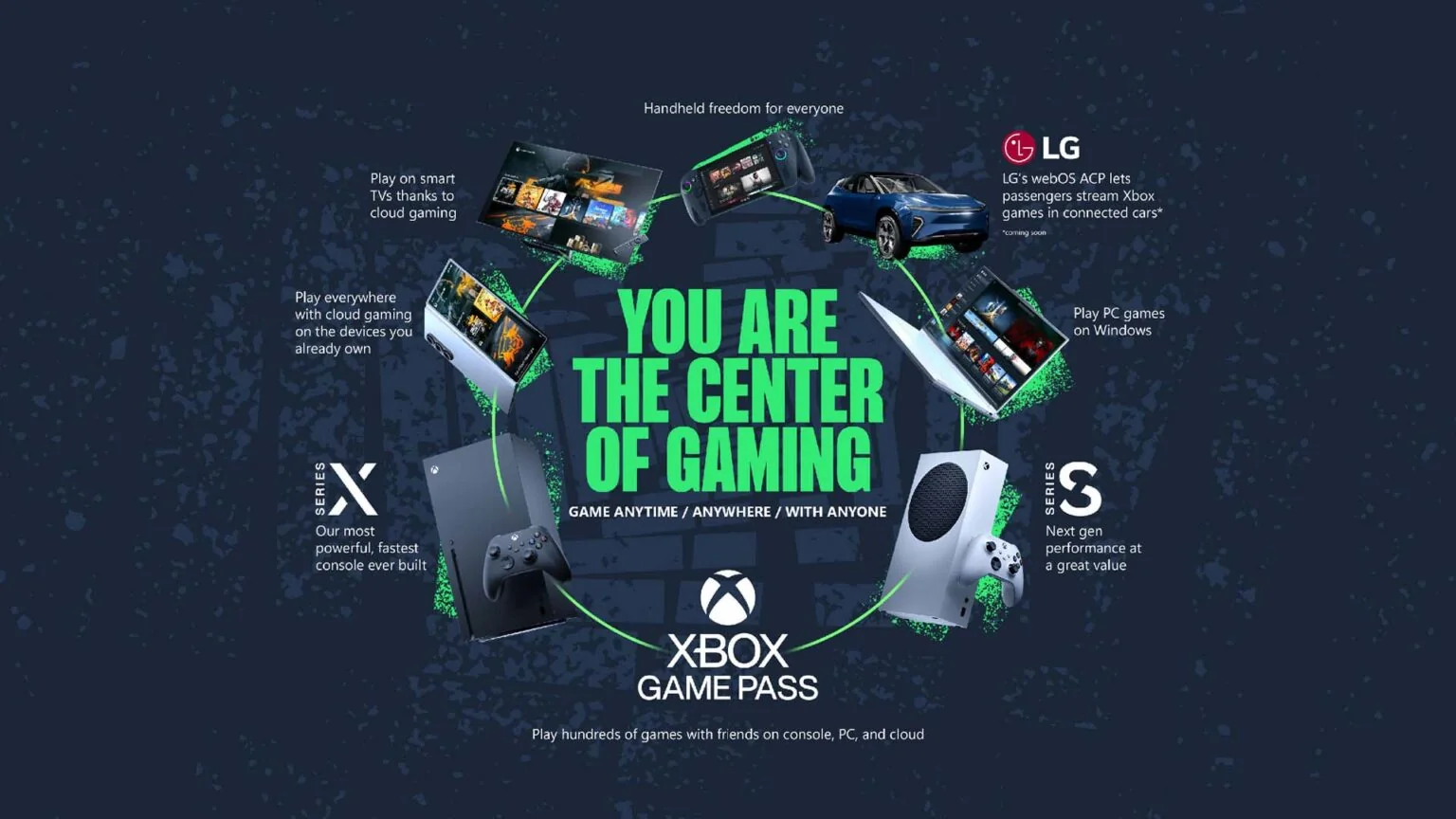
The icon appears only on the device where you add it. Setting it up on an iPhone does not automatically place it on an iPad using the same Apple Account. Repeat the Safari steps on each device. If you create duplicates, keep the icon that opens the correct Xbox cloud library and remove the others as ordinary Home Screen items; this does not affect account data.
If Add to Home Screen is absent, first confirm that the page is open in Safari itself. Then inspect Edit Actions, restart Safari, and check Screen Time or device-management restrictions that may limit Home Screen changes. A work- or school-managed device can enforce settings you cannot change. Do not install a configuration profile from a tutorial to force the shortcut.
The web app can request normal web permissions or notifications as features evolve. Review prompts in context and deny anything unexpected. Xbox cloud play does not need access to contacts, photos, calendars, or device management simply to stream a game. Audio and controller permissions should still be granted only when the feature you are using requires them.
Choose between touch controls and a controller
A touch screen does not mean every Xbox game has touch controls. Xbox enables touch on selected cloud titles and marks those games in the cloud library. Some use a generic on-screen controller; others can have a layout designed around the game's actions. Titles without a touch label generally need a compatible physical controller, so check the game card before starting a session away from your gamepad.
| Play situation | Best starting input | Tradeoff |
|---|---|---|
| Quick turn-based or menu-heavy session | Touch, if the game is labeled for it | No accessory, but controls cover part of the screen |
| Action, racing, shooter, or long session | Compatible controller | Better physical feedback, but needs pairing, power, and a stand/clip |
| iPhone while traveling | Compact mobile controller or touch-enabled title | Portable setup; small screen can make UI text harder to read |
| iPad at a desk | Bluetooth controller with a stable stand | Larger view; separate controller and support surface needed |
| Accessibility-focused play | Verified adaptive or configurable controller where supported | Confirm the full device/game feature chain before purchase |
For a Bluetooth Xbox controller, turn it on, hold its Connect button until it enters pairing mode, open Settings → Bluetooth on the iPhone or iPad, and select the controller. Apple currently identifies Bluetooth-capable Xbox Wireless Controller families, Xbox Elite Wireless Controller Series 2, and Xbox Adaptive Controller among supported examples. Xbox also supports selected PlayStation and partner controllers, but always check the latest Xbox and Apple lists for the exact model.
If the controller appears connected but the game ignores it, close and reopen the Home Screen web app after pairing. Test another cloud game, because one title can expose a game-specific issue. Then update iOS/iPadOS and controller firmware, charge the controller, reduce competing Bluetooth connections, or use Forget This Device and pair it again. Apple notes that features such as audio jacks, lights, and particular buttons can vary by controller and app, so basic input support does not guarantee every extra feature.
Use the site's new Game Pass games tracker to find candidates, but verify both Cloud and Play with touch in the live Xbox library before planning a controller-free session. Platform and input labels can change independently of catalog membership.
Make sessions smoother on iPhone and iPad
Cloud play is sensitive to interruptions that ordinary video can hide. A movie can buffer ahead; an interactive game has to show the result of your input immediately. Prepare the connection and device before a long session instead of changing many settings after lag begins.
- Screen: unlock Portrait Orientation Lock in Control Center, rotate the device to landscape, and let the web app/game choose its supported view. Use a stable stand so touch or controller movements do not block the screen.
- Network: use a strong 5 GHz Wi-Fi connection where practical, stay near the access point, and pause heavy uploads or downloads on the same network. Test mobile data only with awareness of the carrier plan.
- Interruptions: consider an Apple Focus that silences nonessential notifications while still allowing chosen contacts or emergency calls. Avoid switching away from the web app during an active session.
- Audio: connect headphones before launch and confirm their microphone/output route. Bluetooth audio adds another wireless connection, so compare device speakers or a wired option if audio behavior is unstable.
- Power and heat: begin with enough charge, keep the device out of direct sun, and provide airflow. High-quality streaming and charging can warm an iPhone or iPad.
- Data: cloud gaming continuously transfers video, audio, and inputs. Do not treat it like a small web page; monitor cellular usage and carrier limits during the first session.
Apple says iPhone and iPad may dim the display, slow or pause charging, reduce performance, or weaken cellular behavior when internal temperature leaves the normal range. If you see a temperature warning or Charging On Hold message, stop the session, move the device away from heat or sun, and let it cool naturally. Do not place it in a refrigerator or use condensation-producing cooling.
Xbox recommends 5 GHz Wi-Fi or mobile data at 20 Mbps or higher on its mobile page, but a clean connection matters more than chasing a large speed-test number. If play feels delayed, compare a quiet home network with the busy one, pause cloud backups, and test closer to the router. A VPN can add distance or instability and is not a supported method to bypass regional availability.
On iPad, the larger display is helpful for UI-heavy games, but background multitasking and other active windows can compete for attention and resources. Close unused high-load apps and keep the cloud web app in the foreground. On iPhone, a controller clip can improve portability, but check that it does not press buttons, obstruct cooling, or unbalance the device.
Why the Xbox app and Home Screen cloud app look similar
Both use Xbox branding and can show games, so it is easy to open the wrong one. The App Store Xbox mobile app is a signed native companion app distributed through Apple. The Home Screen cloud icon is created from Safari and opens Xbox's web player. They can sit beside each other, use similar colors, and sign in to the same Microsoft account while serving different jobs.
| Question | Xbox mobile app | Xbox Cloud Gaming Home Screen web app |
|---|---|---|
| Where does it come from? | Apple App Store | Safari's Add to Home Screen action for Xbox.com/play |
| Main purpose | Catalog/store, parties/chat, captures, achievements, profile, and console management | Launch and play eligible cloud games |
| How does it update? | App Store update process | Xbox serves the current web experience; browser/OS still need updates |
| What does deleting it do? | Removes the native companion app from that device | Removes the local launcher; account/cloud data remains |
| Does it install console games on iOS? | No; “install” actions target a console where applicable | No; games stream and require a live connection |
If you cannot find a cloud Play button in the Xbox mobile app, do not repeatedly reinstall it. That button belongs to the documented Safari route. Open the Home Screen cloud icon or type Xbox.com/play in Safari. Conversely, use the App Store app when you want party/chat, captures, achievements, purchases, or console-management tools that are not the cloud player's main purpose.
Web delivery also explains why the cloud interface can change without an App Store release. Xbox can test or roll out navigation and streaming changes on the site. The browser and operating system still matter, so keep them current, but there is no separate cloud-app version number to match against an unofficial download page.
A subscription is tied to the Microsoft account, not to which icon you opened. Installing the companion app does not include paid cloud access by itself, and deleting it does not cancel a membership. Use the Game Pass plans guide for plan selection, then manage billing through the official Microsoft account controls.
Troubleshoot Safari, sign-in, controller, and streaming problems
Identify the failing layer before deleting the web app or all Safari data. The Home Screen icon is only a launcher, so recreating it rarely fixes a missing entitlement or an unstable network. Start by opening Xbox.com/play directly in Safari, then compare the symptom with the checks below.
| Symptom | Likely layer | First checks |
|---|---|---|
| Xbox page will not load | Safari, DNS/network, VPN/filter, or service | Open another trusted site, switch networks for a test, update Safari/iOS, and restart |
| Sign-in repeats | Cookies/site data, account, or privacy setting | Confirm cookies are not fully blocked, check date/time, and sign in directly at Xbox.com |
| No Play button | Plan, region, account, exact game/edition, or catalog status | Confirm the signed-in profile and live cloud label; compare current plan access |
| Controller connects but does nothing | Pairing, firmware, game, or controller support | Pair before launch, reopen the web app, test another game, update firmware |
| Image breaks up or input lags | Wi-Fi/mobile congestion, latency, interference, or service load | Move closer to router, pause competing traffic, compare another network |
| Home Screen icon is blank or stale | Local launcher/web data | Open the direct site; remove and recreate only the icon if the site works |
Apple recommends a different-network test, restart, current software, and JavaScript check for Safari loading problems. A VPN or content filter can also stop some sites from loading; temporarily disable it only as a diagnostic test on a trusted network. Do not use a VPN to claim access in an unsupported Xbox region, because account, service, licensing, and latency conditions still apply.
If the site works in Safari but not from the icon, remove and recreate the Home Screen web app. If sign-in is still stuck, then consider clearing Xbox/Safari website data. Apple warns that clearing history, cache, and cookies removes website sign-ins and permissions; blocking all cookies can prevent sites from working. Record any important open tabs and account details first, and use the narrowest available cleanup rather than erasing every browser setting immediately.
For a missing game, compare the current Game Pass catalog changes, the exact cloud game card, and the plan benefits. For a controller issue, update Apple software and controller firmware, charge the controller, forget and re-pair it, and reduce Bluetooth interference. For a service queue or outage, local resets cannot create capacity; retry later and check official Xbox status.
Change one variable at a time. The same account on another supported device tests the device/browser layer; the same device on another network tests connectivity; another cloud game tests title/input behavior. This method produces a useful answer instead of replacing a simple browser problem with several new unknowns.
Xbox Cloud Gaming on iOS FAQ
Is there a native Xbox Cloud Gaming app for iPhone or iPad?
Xbox's documented iOS/iPadOS route is the browser at Xbox.com/play, added to the Home Screen from Safari. The Xbox mobile app in the App Store is a separate companion/store/community app. You do not need an IPA, configuration profile, beta installer, or third-party cloud client.
Do I have to use Safari?
Safari is the setup path Xbox and Apple document for creating the Home Screen web app on iPhone and iPad. Other browsers may open Xbox.com, but menu behavior and full-screen presentation can differ. Start with Safari so your setup matches current first-party instructions.
Do I need an Xbox console?
No, not for Xbox Cloud Gaming. The game runs on Xbox's remote infrastructure. You do need your own compatible Xbox console for remote play, which streams games installed on that console. These experiences can share a web destination and account while retaining different prerequisites.
Is Xbox Cloud Gaming free on iOS?
iOS access is not automatically free. Most cloud games require eligible Game Pass access or a supported cloud-playable purchase. Xbox offers selected free-to-play exceptions such as Fortnite with a free Microsoft account in supported regions. See the site's free Xbox Cloud Gaming guide for the current distinction.
Can I download games for offline play?
No. The Home Screen web app streams console games and needs a live connection. An install button shown in the Xbox mobile app can target an Xbox console, but it does not install that console game on iOS. If the connection stops, the cloud session cannot continue offline.
Can every cloud game use iPhone or iPad touch controls?
No. Touch is available on selected titles and is identified in the live cloud library. Most games should be approached with a compatible controller unless the game card shows touch support. Input availability can change separately from catalog availability.
Can I delete and recreate the Home Screen icon?
Yes. Removing the local web-app launcher does not delete the Microsoft account, Xbox profile, purchases, or cloud-side data. Reopen Xbox.com/play in Safari and repeat Add to Home Screen. You may need to sign in again if Safari site data was also cleared.
Why does the icon open Safari instead of a full-screen app?
Recreate it from Safari and enable Open as Web App when that switch is available. Also confirm you added the actual Xbox.com/play page rather than a search result, redirect, or embedded browser page. Apple menu behavior varies across OS versions, so an update may alter the visible controls.
What is the safest setup?
Update Apple software, use Safari to visit Xbox.com/play, verify the domain, sign in through Microsoft, confirm one eligible game's Play button, add the page to the Home Screen, and pair a current supported controller or choose a touch-enabled title. Keep the device cool and use a stable connection. That route requires no unofficial download.
Comments
Comments are reviewed before publication. Please keep the conversation helpful and on topic.
Sign in with Google to leave a comment.
Loading comments…