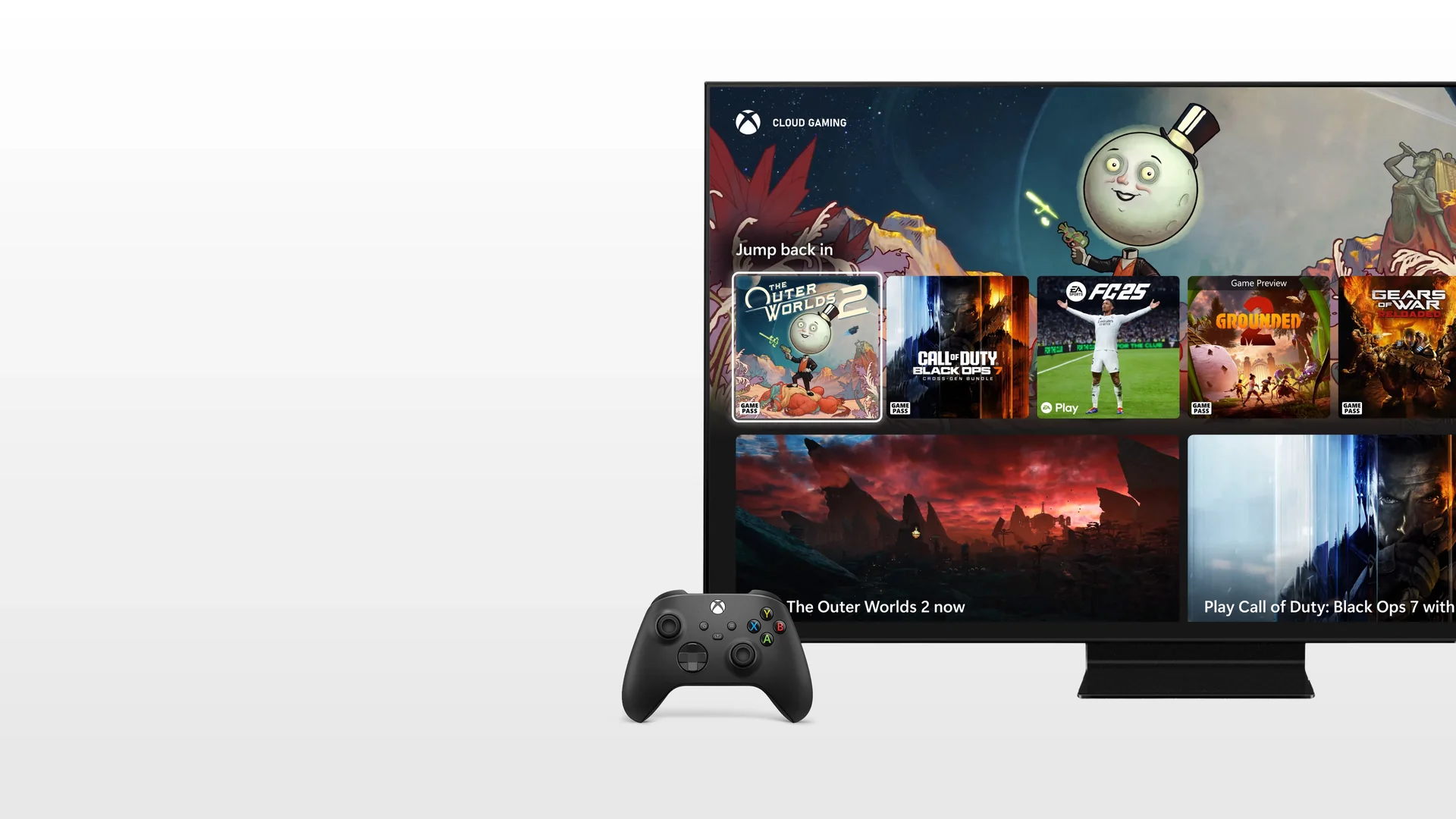
The reported November 3 cutoff concerns the TV app
For owners of 2020 Samsung smart TVs, the reported support deadline is November 3, 2026. Windows Central's October 2 report reproduces a Microsoft email saying the Xbox app on those models will no longer be supported from that date. As of our October 9 check, this is an upcoming change affecting an embedded TV app, rather than a shutdown of Xbox Cloud Gaming everywhere.
The distinction matters if your television has several gaming sources. Launching Xbox from its own app uses the TV's operating system. Choosing an HDMI input connected to a separate device uses that external device's software instead. Before reacting to the headline, identify which of those routes you actually use.
The reproduced email explains the change as a compatibility problem between updated cloud-gaming technology and the operating-system version available on 2020 sets. It directs players toward newer supported televisions and other devices. It does not provide enough detail to establish every underlying engineering decision, and commentary about costs or particular browser components should not become a confirmed explanation.
There is a visible documentation difference: the Xbox TV marketing page still mentions select Samsung 2020 and newer models. That broad description is not a reason to disregard a later dated notice about 2020 support ending. An app working on October 9 and an app remaining supported after November 3 are separate claims.
If your account received the notice, keep it alongside the model information. Do not assume every Samsung owner received the same message, or that the absence of an email proves future compatibility. The next step is checking the exact model and the current dedicated support list, then identifying a supported alternative you can test.
A replacement television is only one possible response. Your account, membership and existing controller should be investigated separately from the app. The plan guide explains subscription benefits, but a membership upgrade by itself cannot change the operating system available on a particular television.
Identify the television and the device running your game
Write down two things: the television's exact model and the device responsible for the cloud session. They may be the same machine, or the television may only be displaying a picture supplied by something else. This small inventory prevents you from trying to repair the wrong part of your setup.
A household can have the TV's own Xbox app, an attached console and a streaming stick available on different inputs. Check which source is selected when you normally play. The support notice should be interpreted against that actual route, rather than every gaming device in the room.
Read the full model code, not the purchase year
Samsung provides official model-code guidance. Look for the label on the television or use Settings, sometimes called All Settings, followed by Support and About TV or About This TV. The precise labels can differ, so consult your set's manual if the route is unfamiliar.
The model generation is a product characteristic. A television purchased after 2020 can still be a 2020 model, and a marketing name or screen size may span more than one generation. Copy the complete code before looking up its specifications. Do not guess the year from one letter without using the correct guide for that product family and market.
Keep a record of the installed software version as well. When asking support about eligibility, provide the model, software and country together. A photograph of the information screen can help you keep track, but hide account details and serial numbers before sharing it publicly.
Use the current support list for compatibility
On October 9, the official Xbox device list specifies Samsung smart TV models from 2021 onward with software version 1300 or higher. That dedicated entry gives a concrete starting point for checking supported hardware. It also explains why the marketing reference to 2020 sets needs care when planning beyond the reported cutoff.
Both parts of the criterion matter. A software update does not turn a 2020 product into a 2021 model. Equally, owning a newer set does not remove the need to check its installed software and local app availability. Avoid treating an update prompt as a promise that any older television will retain the Xbox app.
If your exact model is unclear, use Samsung's regional support or ask for model-specific confirmation. The Australian model-year guide, for example, expressly describes Australian products. A regional table can help an owner in that market without establishing that another country's similar-looking code means the same thing.
Check what remains available through your account
A device-support message is not, by itself, a membership cancellation. Open your Microsoft subscription page and check the account, plan, expiration or renewal date and recurring-billing setting. Those records tell you what membership you have; an icon on a television does not.
The official plan comparison includes cloud benefits for Essential, Premium and Ultimate. Standalone PC Game Pass has a different role. Choosing a cloud-supported plan and choosing compatible hardware are independent checks, so do not pay for an upgrade just because a 2020 television is affected.
Next, locate the particular game in the cloud library under that same account. Games, editions and platforms can differ. A locally installable PC title does not automatically supply a cloud version, and buying a game does not certify that every version is streamable. Verify the exact cloud-supported product rather than assuming the familiar name is sufficient.
A useful test is signing into a supported device you already own and trying that same game. If it launches there, you have a practical reason to focus on the TV client. If the alternate device cannot recognize your membership, inspect the account and subscription instead. If other cloud games work but one title does not, investigate that title's entitlement and availability.
There is another November change to account for: Xbox's announced cloud-playtime policy. It affects how cloud hours are included, separately from this television compatibility notice. A supported replacement does not remove applicable account terms. The cloud-hour limits explanation covers that policy without making it the explanation for TV app retirement.
Once a workable route is confirmed, reassess the membership against the games and time you expect to use. Someone with an existing compatible laptop faces a different decision from someone who would need several new pieces of hardware. If you choose to stop renewal, use the account's displayed controls and terms; the reported TV notice should not be read as an automatic refund offer.
Test an alternative with hardware you already own
The least expensive experiment may be a supported device already in your home. It can establish whether your membership, game and connection work outside the television app before you commit to a new living-room setup. Start with a simple session and add complexity only after that works.
Keep a short list of available computers, mobile devices, consoles and streaming hardware. Then compare their exact models and software with current official requirements. “I have a tablet” is the beginning of that inventory, not the conclusion that it is compatible.
A supported computer or mobile browser
Xbox's getting-started guide describes supported browser routes on computers and mobile devices. Open the official cloud service on a supported device, sign into your usual Microsoft account and select a cloud-playable game. Use current requirements for the browser and device rather than an old app tutorial found through an unrelated search.
Check the controls as well as the picture. If you normally use a controller, connect it to the machine running the session and verify that the menus respond. A controller paired to the old television may need a different connection for the new client. Follow the controller and device instructions instead of assuming the TV pairing transfers automatically.
If you prefer Android, the Android cloud guide can help distinguish a supported browser route from an app download. A filename containing “Xbox” does not establish that an unofficial package is needed or that it will fix the TV's operating-system limitation.
The same television with an external source
A compatible computer may also use the television as a display. Samsung's external-device guidance describes connecting a PC through HDMI and selecting its input. Check both machines' manuals and the available ports before buying a cable or adapter. In that arrangement the supported computer runs the session; the TV supplies the screen.
Test the computer alone first, then add the display connection. Confirm the correct input, sound output, readable menus and comfortable controller position. Consider where the computer will charge and whether you can reach it when a browser or account prompt appears. These details determine whether an improvised setup is pleasant enough for regular use.
Do not assume the same approach works with every phone adapter or wireless-mirroring option. Output capabilities and responsiveness need checking on the exact hardware. Similarly, the television's own browser is not automatically a supported substitute for its retiring app. Supported browser access depends on the client device, rather than the presence of a browser icon on any screen.
Choose a supported living-room setup
If your test device works but is awkward to use every evening, choose a more permanent arrangement. Compare the complete setup rather than a product logo. You need an officially supported client, a controller appropriate for it, the correct display connection where applicable, and a connection that performs well in the actual room.
Separate the reason for buying from the type of product. An external client can address an app-support problem while leaving the screen in place. A new television makes more sense when you also want a different display, size or other features. Neither choice should be made on an assumption that every device from a particular manufacturer runs Xbox.
| Route | Useful when | Check before committing |
|---|---|---|
| Supported hardware already owned | You want to establish a working fallback first | Device requirements, account, controls and daily convenience |
| Supported external streaming device | The television is otherwise satisfactory | Exact model and generation, local Xbox app availability and display connection |
| Supported smart TV | You are also replacing the screen | Regional model, required software, controller and network |
Compare an external streaming device with a new TV
The dedicated Xbox support list includes Fire TV Stick 4K Max first and second generations, Fire TV Stick 4K second generation, Fire TV Cube third generation, Fire TV Stick 4K Plus and Fire TV Stick 4K Select. Use those exact names when checking a listing. A seller's general “Fire TV” description is not enough to match a device to the support entry.
For embedded smart-TV access, the same list identifies Samsung 2021 and newer models with software 1300 or higher, select LG devices with webOS 24 or newer, and select VIDAA-powered televisions running version 9.6 or higher. Some older LG models are covered through specified updates. Check the complete entry and manufacturer information instead of turning a software requirement into an all-model promise.
Ask whether the Xbox app can actually be installed on the particular device in your market. For a television, check whether the necessary software update is available for that model. For an external source, confirm the connection and power arrangement. If you already own a controller, verify it against the new device's instructions rather than automatically adding another to the basket.
Include the cost and inconvenience of any missing accessories in your decision. This guide does not assume a particular sale price or retailer return policy. Check the terms of the actual purchase, then test during whatever return period is available. Keep the packaging until you know the arrangement suits your games and seating position.
A successful test should reach an actual cloud game and confirm usable sound and input. Seeing a sign-in screen proves only that you reached that screen. Try the setup during your usual playing time, when the household connection and room conditions resemble everyday use. That makes your decision more reliable than a brief demonstration on unrelated showroom hardware.
Prepare your fallback before the deadline
Give yourself time to establish the alternative before November 3. Sign into the intended account, select a known cloud-supported title and verify the controller, picture and sound. Then return for another session rather than relying on a single successful launch. You want a repeatable arrangement, not just proof that the welcome screen appeared once.
Change one variable at a time when investigating a failure. Try the supported source without the television connection, then add the display. Keep the account and game consistent. If one title fails while others launch, record that difference; if every supported device fails, investigate the shared account or connection before blaming the old TV.
Consult Xbox Status for a matching service incident. The live dashboard separates account, subscription, cloud and game functionality. A support change affecting one device generation is different from a temporary incident affecting sign-in or cloud sessions. Follow any relevant incident update rather than treating a static guide as a live all-clear.
For problems confined to a device or network, use the official cloud troubleshooting routes. Record the model, software, account you intended to use, error text and whether another supported device works. That information is more useful to support than an account of repeated installations without a consistent test.
Verify your game progress before continuing on the new route. Confirm the expected account and save. If you also change from cloud play to a separately installed version from another store, consult that game's support for progress compatibility. Sharing a title or availability on several platforms does not establish that every version uses interchangeable saves.
Your preparation can stay modest: a confirmed affected model, the dated notice, one tested supported route and a clear understanding of your membership. With those details, you can decide whether an external device, another screen or ending future renewal best fits your needs. The reported retirement of a 2020 TV app does not require every owner to make the same purchase.
Comments
Comments are reviewed before publication. Please keep the conversation helpful and on topic.
Sign in with Google to leave a comment.
Loading comments…