What Xbox actually confirms about 4K cloud streaming
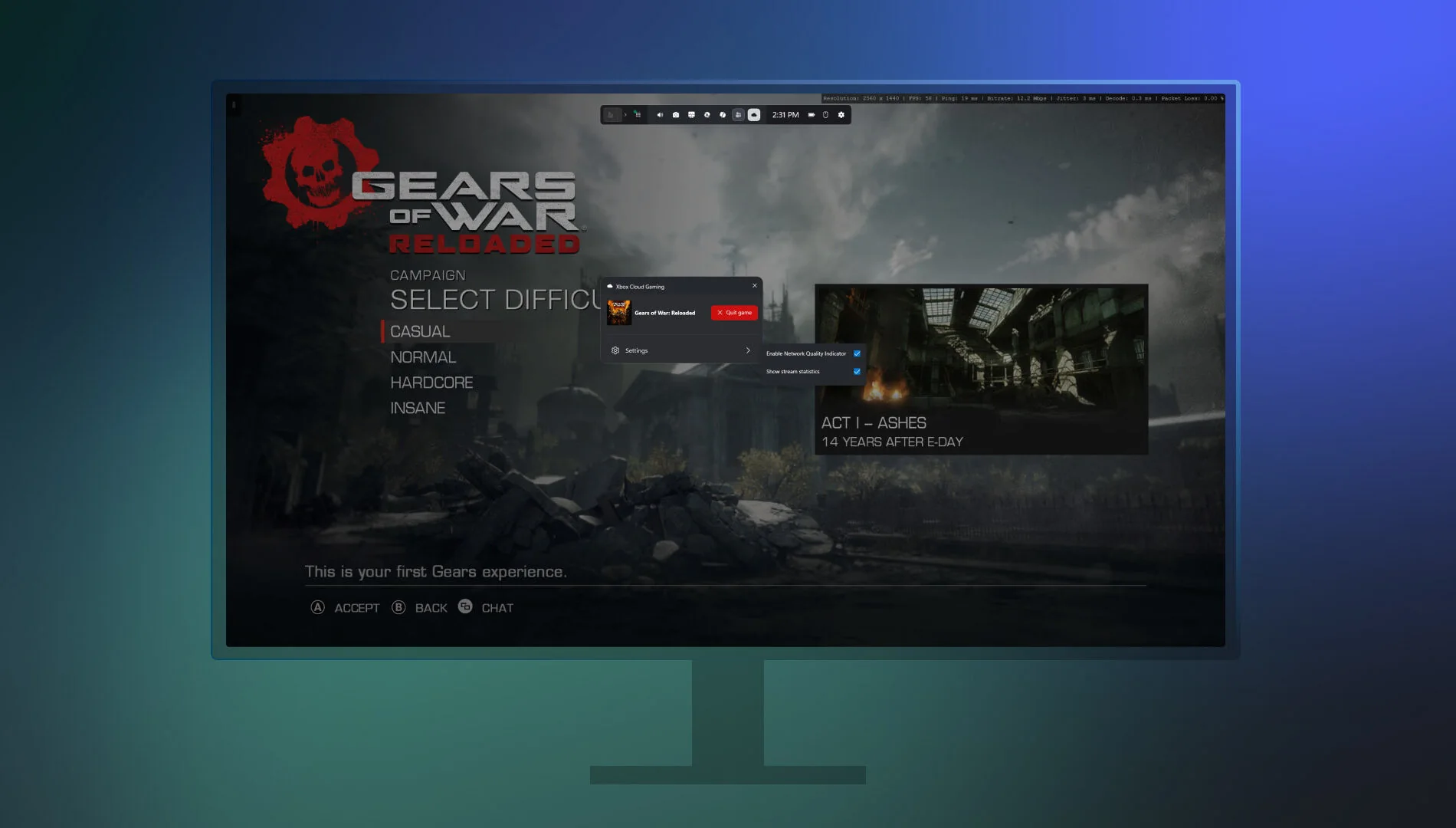
Do not buy an Xbox Cloud Gaming subscription on the assumption that it delivers a native 4K stream. In the official announcements checked on November 18, 2026, Xbox describes enhanced streaming up to 1440p for Ultimate members on supported games and devices. A 4K television can display that stream, but its panel resolution does not establish how many pixels arrived from the cloud.
The clearest dated evidence is the February 2026 Xbox update, which describes the console rollout. Treat that announcement as a statement about its specified feature and scope. It is not a promise that every session, device or account will offer the highest setting, and it does not announce a universal 4K option.
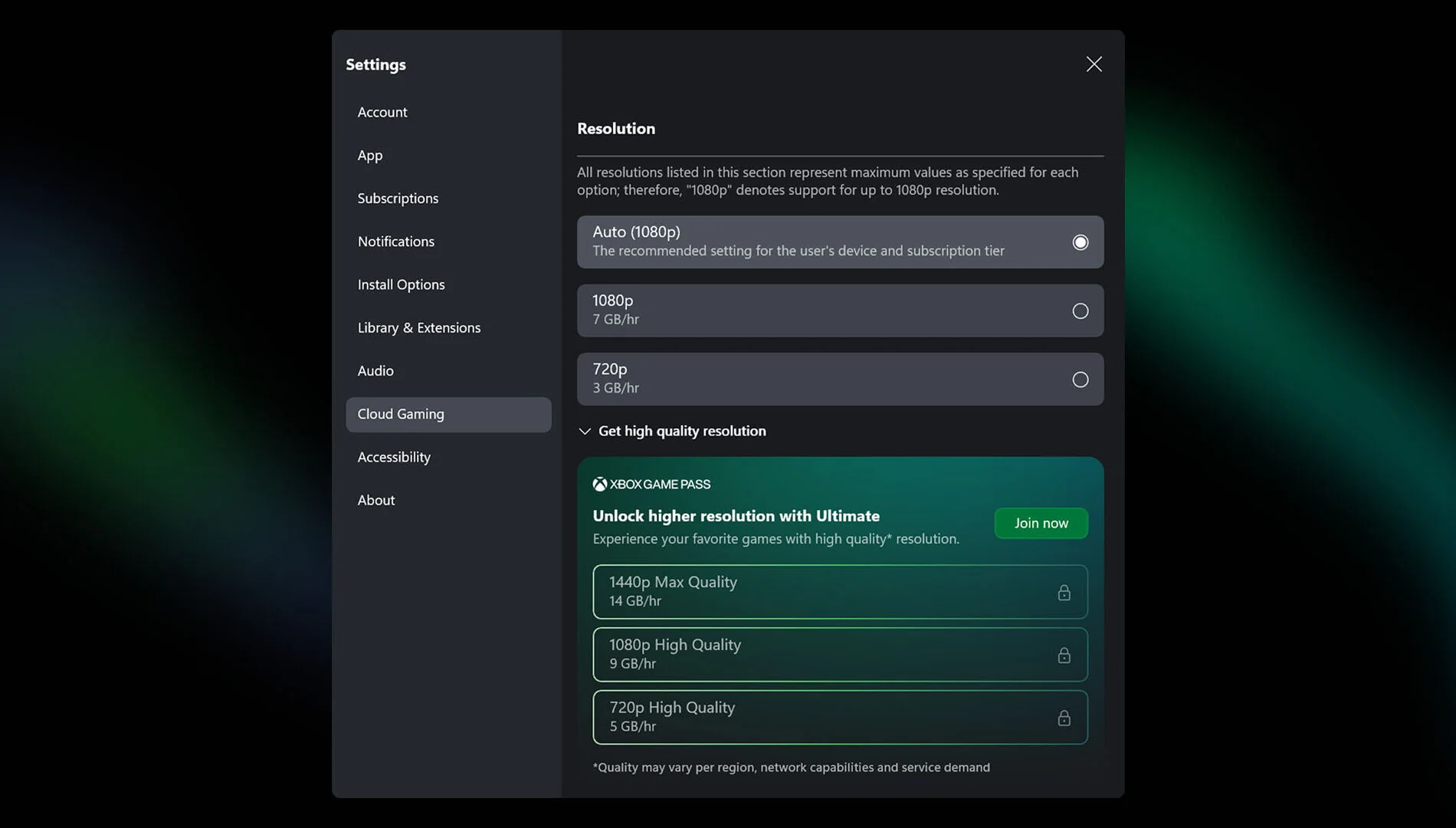
This guide explains how to check the quality available to your setup and how to investigate a disappointing picture. It does not present measured results from a particular game, connection or display. Screenshots of settings are useful illustrations of the controls, while the choices visible in your own signed-in session determine what you can select.
Read the scope of a resolution announcement
Three phrases deserve attention: "up to," "supported titles," and "supported regions." The first describes a ceiling within the announced feature, rather than a guaranteed sustained result. The other two limit where that feature applies. A screenshot from another player's session cannot remove those qualifications.
Separate access from quality before comparing plans. A subscription can include a game and cloud access while a particular device or title offers different video choices. Our Game Pass plan comparison helps with the access question; the remaining checks here address the stream you actually launch. That order prevents a missing resolution control from becoming an unnecessary subscription purchase.
Separate stream resolution from what your screen reports
A useful picture-quality diagnosis follows the image through three stages. The game produces a scene on the server, a video stream carries an encoded picture to your device, and your display presents that picture across its own pixels. Those stages can have different resolutions. Knowing one number does not automatically reveal the other two.
Three places where pixel counts can differ
| Stage | What the number describes | What it cannot establish alone |
|---|---|---|
| Game rendering | The image produced by the game before video delivery | The resolution encoded and delivered to your client |
| Cloud video stream | The video picture sent to the supported client | The game's internal rendering method or your panel's native resolution |
| Display output | The signal or desktop mode delivered to the screen | That the source video contains native 4K detail |
The arithmetic helps explain the distinction. A conventional 2560-by-1440 picture contains 3,686,400 pixels; a 3840-by-2160 picture contains 8,294,400. The second has 2.25 times as many pixel positions. This is a comparison of dimensions, not a prediction that one stream uses exactly 2.25 times the data. Compression, frame rate, picture content and other delivery choices also matter.
A lower-resolution source can fill a larger panel through scaling. You still see a full-screen image, but filling those positions does not prove that equivalent original detail arrived from the server. Conversely, an image can look clearer without its dimensions changing. Keep that possibility in mind before using "sharper" and "higher resolution" interchangeably.
Why a 4K device name is not a streaming promise
A product called Fire TV Stick 4K describes the device, rather than every service running on it. Likewise, a television reporting a 2160p input is describing its incoming display signal. Neither label overrides a game's cloud-video choices. Xbox's device announcements and its streaming-quality announcements answer separate questions.
First confirm how you launched the game: locally installed, from a remote console, or through Xbox Cloud Gaming. Then inspect the controls associated with that route. On Windows, our PC app and browser guide can help identify the cloud route before you compare it with your desktop's display settings. This simple check avoids changing HDMI or desktop settings to solve a cloud option that those settings do not control.
Check the plan, game and device before changing quality
A game that will not launch has an access problem to investigate before it has a picture-quality problem. Start with the Microsoft account shown in the client. Confirm that it is the account holding the relevant membership or game access, then check the exact game and edition. A similar title in a different store, a locally installed copy, or another family member's subscription should not be assumed to establish the cloud session you are trying to use.
The current Xbox cloud-gaming overview distinguishes supported subscription games, selected owned games and eligible free-to-play access. It also describes monthly or purchased ad-free playtime and an ad-supported route where available. Those are ways to obtain access and streaming time. They should not be read as a blanket promise that every method, game and device exposes identical quality controls.
Work through these checks in order:
- Account and access: identify the plan or other eligible play route the signed-in account is using. Read any account-specific terms displayed before purchasing more time or changing plans.
- Exact game: confirm that the edition has a cloud option for that account and region. Use the current catalog to find the title, then follow its official source rather than relying on a remembered library list.
- Supported client and device: identify the actual app or browser and the device model running it. Being able to open a website is not equivalent to the device being supported for every streaming feature.
Update the legitimate client or browser through its normal distribution channel before comparing settings. On Android, our APK and official-access guide explains why downloading a different package does not establish new cloud entitlements. A client advertising a larger resolution number also cannot, by that label alone, grant a server-side feature to your account.
Write down the result of these checks. "Ultimate, this edition, this browser, this region" is a useful description when asking for help. "I have a 4K screen" omits nearly everything needed to understand which cloud option should appear. If access fails, resolve that first; if the game launches, move to the choices the session actually offers.
Choose a quality setting that fits your connection
Start with the supported client you already have. Launching the same game through several unofficial tools at once makes it harder to identify what changed. Choose a quiet point in your household's internet use, keep other downloads paused, and note the client, device and game before adjusting a video option. This is a comparison procedure you can carry out, not a benchmark result established by this article.
Find the video-quality choice your session actually offers
Xbox's November 2025 update introduced a way to select preferred streaming resolution before launching selected games. Use the current controls exposed by your supported client. Labels and placement can change, so follow what the interface actually shows rather than treating an old screenshot as a universal menu map.
For a supported Xbox console, the April 2026 Xbox update identifies Settings > Cloud Settings as the dedicated place to choose preferred streaming resolution. It also describes a Network Quality Indicator that can surface connection issues while you play. Use those console controls where available; they are separate from the television display-output menu, and the browser interface need not use the same path.
If the preferred setting is absent, record the available choices first. Recheck the account, exact title and device against the preceding checklist. Try another supported cloud title to see whether the difference follows one game. A missing option in one session does not establish that a television is defective, and a screenshot from another account does not prove that your own session should have the same control.
Compare one change at a time
Use a scene you can revisit safely, such as a menu with readable text followed by a short period of ordinary movement. Keep the display mode, client and game unchanged while comparing two available quality choices. Look separately at small text, detail during movement and control response. A static image can look excellent while motion exposes instability.
Next compare the connection while leaving the chosen video setting unchanged. Microsoft's cloud-lag advice includes moving closer to the router, using Ethernet where practical and closing unnecessary background activity. Start with those reversible changes before buying hardware. On Apple computers, the Mac setup guide can help establish a consistent browser and controller configuration.
Keep the lower option if it produces a steadier session that you prefer. Keep the higher one when its additional detail is useful and responsiveness remains acceptable to you. Neither choice is a permanent verdict on the service: the same household can have different conditions later in the evening. A brief note about the time and connection makes a later comparison more informative than relying on memory alone.
Improve clarity without mistaking processing for more pixels
Picture processing can change how a stream looks on your screen. That can be worthwhile, especially when fine outlines or interface text are hard to read, but it answers a different question from the encoded resolution. An improvement you prefer is useful even when it does not establish a native 4K source.
What Clarity Boost changes
Microsoft describes Clarity Boost as an Edge feature that improves the appearance of video streams and game graphics. Its compatibility guidance names Windows 10 or Windows 11 PCs and tablets, with availability varying by device, market and browser version. Use that scope rather than assuming a feature demonstrated in desktop Edge also exists in Safari, a television app or every mobile browser.
When the feature is available in your supported setup, compare the same scene with it enabled and disabled. Keep the stream's own video choice fixed during that comparison. Read a small label, inspect a fine outline, and then move through the scene. Choose the presentation you find easier to read without treating that preference as proof of a different source resolution.
Avoid stacking several processing changes simultaneously. Increasing the television's sharpening, changing desktop scaling and enabling browser processing together makes it difficult to know which change helped. It can also leave you adjusting the wrong layer when you next switch to a locally installed game. Note the original setting so you can reverse an experiment that does not help.
Microsoft's Edge gaming-features page also lists features with different purposes. Do not assume that every feature carrying "boost," "performance" or "super resolution" describes the same operation. Read the feature's own scope and use the control that belongs to cloud video. The PC access guide is a useful companion when you are deciding which official app or browser route you are actually using.
Client processing cannot make an unsupported game cloud-playable, add streaming time or establish a subscription entitlement. Keep those access checks separate from your visual preferences. That makes both billing decisions and troubleshooting much clearer.
Diagnose blur, stutter and delay as different problems
Describe the symptom before choosing a fix. A soft picture with smooth controls is a different observation from a sharp picture that repeatedly freezes. Both differ from a game that looks fluid while your inputs feel late. A larger resolution number is not a general solution to all three.
| What you observe | First useful comparison | What the result can tell you |
|---|---|---|
| Small text looks soft but play is smooth | Keep the game fixed and compare available video quality, then processing separately | Whether one supported presentation is easier to read |
| Detail breaks up mainly during movement | Compare a quieter household connection with the same client and scene | Whether delivery conditions appear related to the change |
| Video pauses or skips repeatedly | Pause background transfers and compare a wired connection where possible | Whether local connection changes alter the symptom |
| Controls feel late | Compare the same supported controller and client under steadier network conditions | Whether the problem follows the connection or input setup |
| The game does not start | Check account, game access and the official service status | Whether this is an access or service problem before any quality test |
These comparisons narrow a question; they do not conclusively identify a server fault or prove that a provider is throttling your account. If the result changes, repeat it before drawing a conclusion. One unusually quiet session can produce a misleading improvement, just as one busy evening can make a workable setup look consistently poor.
Record whether the issue affects one title or several, one client or every client, and one connection or every connection you can legitimately test. Include the time and any error message. This information is more useful to support than a cropped photograph labeled "not 4K." Never share account credentials, authentication codes or payment details in a public troubleshooting post.
When multiple games fail around the same time, use the Game Pass outage guide to reach current official status information. This article does not declare that an outage is occurring. Once an access problem is resolved, repeat the quality comparison without changing several unrelated settings. Avoid drastic resets merely because a higher resolution option is missing; the option may be outside the scope of that particular session.
Decide whether a plan or device upgrade is worth it
Begin with the game you intend to play this month, not the largest number printed on a screen's box. Confirm its cloud access, check the quality choices offered by your supported client, and decide whether the present picture actually prevents you from enjoying it. A readable, steady session can be a better fit than a theoretically higher setting that you rarely use.
Before paying, answer four questions:
- Does the proposed plan include the exact game and route you need?
- Does the official description identify a quality benefit that applies to your intended device, title and region?
- Have you tested the connection and available settings with hardware you already own?
- Is the price shown at your own checkout worthwhile for the benefits you will actually use?
Use the current plan comparison alongside the official offer. A plan's wider library, multiplayer or other benefits may matter independently of video quality. If those features have no value to you, do not count them as a reason to upgrade merely because another person recommends the most expensive tier. Promotional eligibility and renewal terms also deserve a separate check.
The same reasoning applies to a new streaming device or television. Confirm the exact supported model and client before purchasing, then consider whether it solves an identified problem. A model name containing 4K does not establish a native 4K Xbox cloud source. A stronger internet package also cannot create a resolution option that the service does not offer to that session.
Keep a useful record of the setup that works: account route, game edition, client, connection and selected quality. Revisit it when Xbox changes support or when your needs change. The practical sequence remains straightforward: establish access, inspect actual quality choices, compare one reversible change, and purchase only when the remaining difference matters to your play. Until official support says otherwise for your intended setup, a 4K cloud-stream assumption should not drive the decision.
Comments
Comments are reviewed before publication. Please keep the conversation helpful and on topic.
Sign in with Google to leave a comment.
Loading comments…