Do You Actually Download Xbox Cloud Gaming on PC?
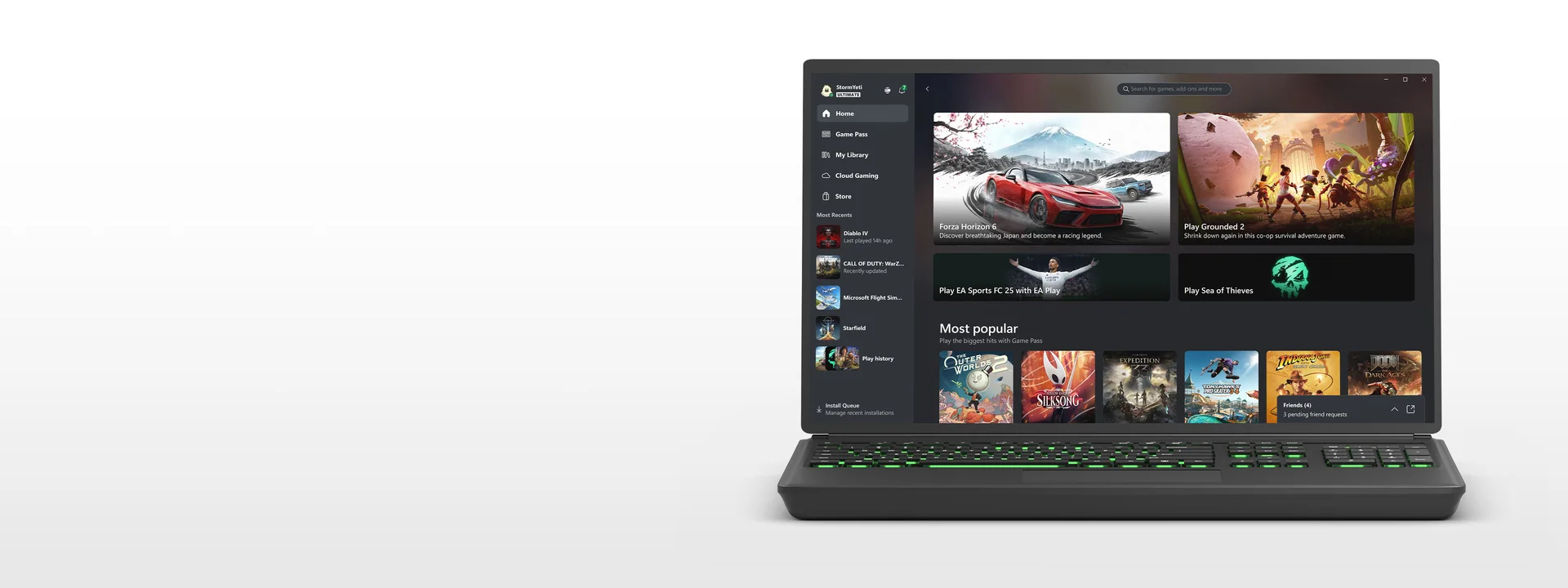
You do not download an Xbox cloud game to your PC. You stream it. The optional download is Microsoft's official Xbox PC app, which provides a Cloud Gaming area on supported Windows 10 and Windows 11 systems. If you do not want another app, open xbox.com/play in a supported browser instead. Both routes run the game on remote Xbox hardware and send the picture and sound to your PC, so there is no separate “Xbox Cloud Gaming Beta” installer or cloud-game package to find.
This distinction matters because the Xbox app also installs native PC games. Selecting Install on a PC edition downloads files to your drive and uses your computer's processor and graphics hardware. Selecting Play with Cloud Gaming starts a stream of a supported console version; it uses relatively little local storage, but it needs a steady internet connection. A low-spec laptop can therefore stream a demanding title that it could not run natively, although connection quality and cloud availability still set the limits.
Xbox Remote Play is a third route with a similar-looking video stream. Remote Play connects to a game on your own Xbox console, so you need a configured console and the game installed there. Xbox Cloud Gaming connects to Microsoft's cloud service and does not require you to own an Xbox console. Access instead depends on your account, region, the individual game's cloud status, and an eligible Game Pass plan or supported free-to-play exception.
Safe answer: download only the official Xbox app from Xbox or Microsoft Store, or skip the download and use the official browser player. Do not install an EXE advertised as a standalone xCloud or Cloud Gaming Beta client.
If you are choosing a membership specifically for streaming, compare the current benefits on our Xbox Game Pass plans page before paying. Plan names, included libraries, queue treatment, and regional offers can change; the cloud badge on the exact game page is the final launch check.
What You Need Before You Start
Check the service gates before troubleshooting the download. For most cloud catalog games, you need a Microsoft account with an active Xbox Game Pass Essential, Premium, or Ultimate membership, a game included for that plan, and a location where Xbox Cloud Gaming operates. A selected cloud-playable game you own may also be streamable, while supported free-to-play games such as Fortnite can be exceptions to the paid-plan rule. A free Microsoft account does not unlock the subscription catalog; see our free Xbox Cloud Gaming guide for that narrower route.
- PC and software: use a supported Windows PC through the official app or a current supported browser.
- Account and location: sign in with the account holding the membership or eligible purchase, and verify your country on Xbox's region page.
- Game access: confirm the exact title carries a cloud option for your account, plan, and region.
- Input: have a compatible USB or Bluetooth controller ready unless the game explicitly supports mouse and keyboard.
- Connection: Xbox recommends 20 Mbps for best performance on PCs and favors Ethernet or 5 GHz Wi-Fi.
There are two official Windows-version statements, and they apply to different scopes. Xbox Wire's December 2025 cloud setup guide lists Windows 10 version 20H2 and later among supported cloud platforms. The current Xbox PC app download page is stricter: it requires Windows 10 or Windows 11 version 22H2 or higher, plus about 150MB for the app and a 720p display. If Windows Update cannot bring your PC to 22H2, do not hunt for an old app package; try the supported browser route and plan an operating-system upgrade.
Connection speed is a starting point, not a quality guarantee. A speed test can exceed 20 Mbps while Wi-Fi interference, packet loss, router congestion, or long distance to the service still causes stutter. For the first launch, connect the controller before opening the game, close large downloads, use Ethernet if possible, and test from the same Windows account and Microsoft account you intend to keep. That controlled baseline makes later diagnosis much faster.
How to Download and Install the Official Xbox App
Use the official Xbox PC app page or search for “Xbox” inside Microsoft Store. Avoid download portals, repacked installers, and pages that call their file an xCloud APK or PC beta. Microsoft Store handles app delivery and updates, which removes the need to choose a build from an unofficial archive.
- Run Windows Update and confirm the PC is on Windows 10 or Windows 11 version 22H2 or later.
- Select Download the App on the official Xbox page, or open Microsoft Store, search for the Xbox app published by Microsoft Corporation, and select Get or Install.
- Open the app and allow Microsoft Store to finish any Xbox or Gaming Services updates it offers.
- Sign in with the Microsoft account connected to the Xbox profile that owns the subscription or eligible cloud-playable game.
- Open the Cloud Gaming area. Choose a title and check for a cloud Play action rather than assuming an ordinary Install button starts streaming.
- Connect your controller before the first session, then launch a short, familiar game to test input, sound, and network stability.
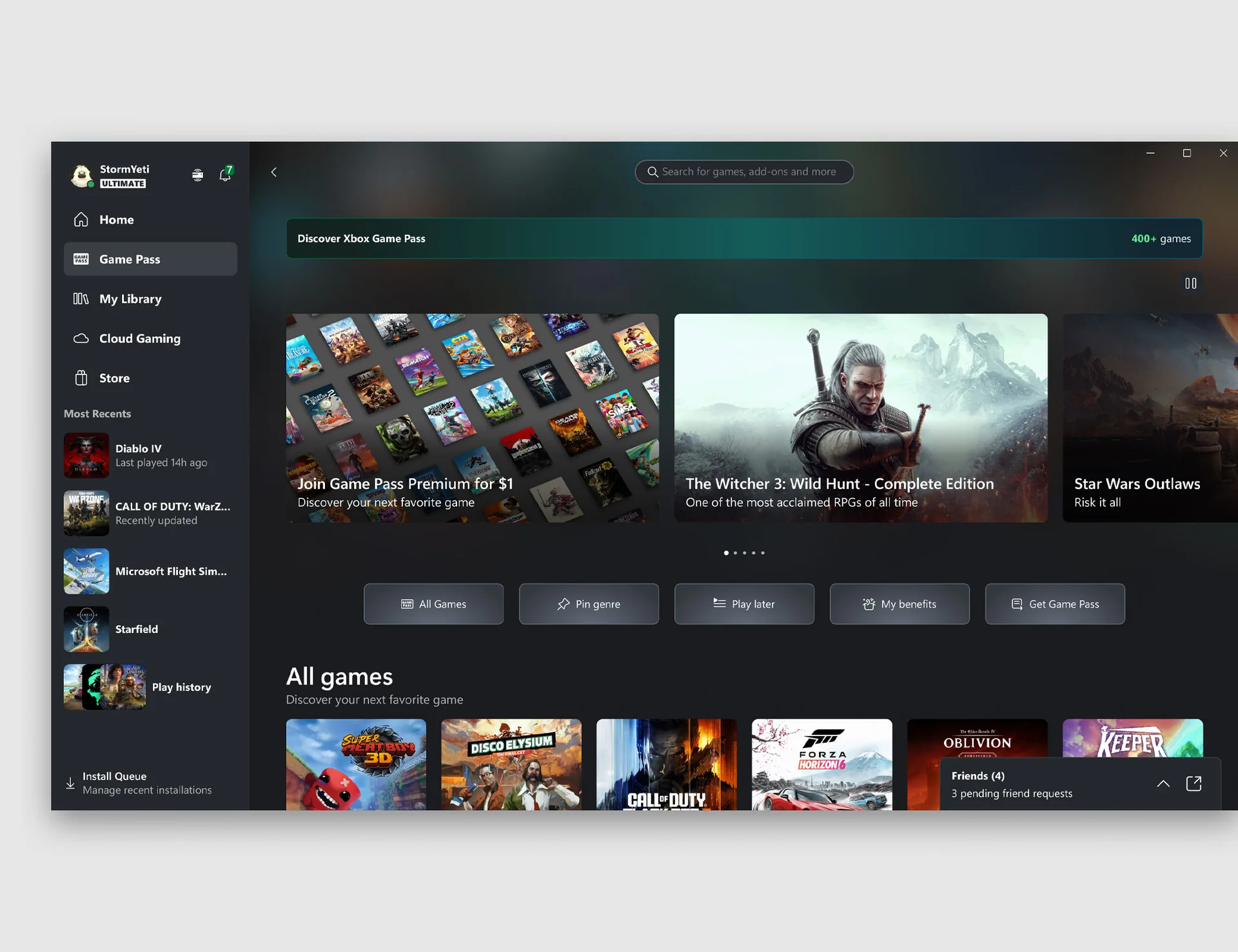
The app download itself is small—Xbox currently lists about 150MB—but that number does not apply when you install a native PC game. A native title may require tens or hundreds of gigabytes. A cloud session needs only ordinary app and cache space because the game runs remotely. If your goal is to avoid a large game download, remain in Cloud Gaming and do not choose the PC edition's Install action.
If the app opens but shows a Join button, first verify the signed-in account and the exact title's entitlement. Do not immediately buy another subscription. Check the current tiers on our Game Pass plan comparison, because cloud access and individual game availability are separate gates. If the Cloud Gaming area is absent, update Windows and Microsoft Store apps, restart the PC, and use the browser method below as a clean comparison.
How to Play in a Browser Without Installing the App
The browser player is the fastest official route when you want to test Xbox Cloud Gaming without installing the Xbox PC app. Update Microsoft Edge or Google Chrome, go directly to xbox.com/play, and sign in. Xbox also names Safari among supported browsers, although Edge and Chrome are the practical Windows choices. Do not follow a search advertisement to an unfamiliar “web client”; verify that the address remains on xbox.com.
- Close any large downloads, VPN experiment, or video stream that could distort the first network test.
- Connect a compatible controller by USB for the simplest baseline, unless the selected game has an explicit mouse-and-keyboard badge.
- Open `xbox.com/play` in an updated supported browser and sign in with the account holding your plan or eligible purchase.
- Search for the exact game and edition. A catalog listing alone is not enough; look for the cloud Play action available to your account.
- Launch, allow fullscreen and controller access when prompted, and test gameplay for several minutes before changing network settings.
Browser play is especially useful on a PC where the Xbox app fails to install, on a secondary computer, or when you want to separate an app problem from a service or account problem. If the same game launches in the browser but not in the app, your subscription and broad service access are probably working; focus next on Microsoft Store updates, app repair, and the Windows installation. If neither route launches it, recheck the account, region, cloud badge, and Xbox service status first.
You can make the browser route feel more app-like in Microsoft Edge. Open the page, use Edge's menu to install the site as an app, and pin the resulting shortcut to Start or the taskbar. That shortcut still opens the web service and still requires internet access; it does not download the game or create an offline client.
The browser can also expose selected purchases outside the current Game Pass catalog. Ownership alone is not enough—the title must be in Xbox's supported cloud collection. Our Stream Your Own Game guide explains how to check that separate entitlement without mistaking a store purchase for automatic cloud support.
Xbox App vs Browser: Which PC Route Is Better?
Choose by workflow, not by the assumption that a downloaded launcher makes the streamed game run locally. Xbox presents the app and browser as two official ways into cloud gaming. They use the same basic account, title, region, input, and network gates. There is no sound basis for promising that one route always has lower latency or sharper video on every PC, so test both on your own connection if quality is the deciding factor.
| Decision | Xbox PC app | Browser at xbox.com/play |
|---|---|---|
| Local installation | Required; current app page lists Windows 10/11 22H2+ | No Xbox app required; use an updated supported browser |
| Cloud game disk use | Streamed title is not installed unless you separately choose a native PC Install action | Streamed title is not installed |
| Other Xbox features | Native PC installs, Remote Play, social features, store, and combined library access | Focused cloud library and launch experience |
| Best first use | Regular Windows players who manage Xbox and PC Game Pass games in one place | Occasional streaming, quick compatibility tests, or app-install problems |
| Troubleshooting value | Tests the Windows app and Microsoft Store stack | Helps isolate the app from account, catalog, and service problems |
| Offline play | Only separately installed native PC games can work offline when their licenses and game rules allow it | No; cloud streaming requires a live connection |
Start with the Xbox app if you already use it to install PC Game Pass titles or connect to your own console. Its single library reduces switching, and the Cloud Gaming area makes the launch type visible. Start with the browser if cloud play is your only goal, you are short on privileges or storage, or you want the fewest setup variables. On a managed school or work PC, however, permission to open a browser does not imply permission to use gaming services.
The other route is also your best diagnostic tool. When a title works in Edge but not the Xbox app, update or repair the app rather than changing your Game Pass plan. When it fails in both places, verify the cloud badge and signed-in account, then check the service and network. Our current plan comparison can confirm broad plan benefits, but the signed-in Xbox game page remains the authority for a specific title.
Controller, Keyboard, and Mouse Setup
Assume a controller is required unless the game's cloud page shows otherwise. Xbox says most cloud games are designed around a gamepad, and compatible controllers can connect to a PC through USB or Bluetooth. For the cleanest first test, use a USB cable: it removes battery level, radio interference, and pairing state from the problem. Connect the controller before opening the stream, press a button on the game page, and confirm Windows sees input before blaming the cloud service.
Bluetooth is more convenient once the baseline works. Put the controller in pairing mode, open Windows Settings > Bluetooth & devices, add it, and then relaunch the browser or Xbox app if the session was already open. Exact pairing buttons vary by controller, so follow the manufacturer's instructions. If navigation works in Windows but not in one game, test another cloud title; that separates a title-specific input problem from a device-wide failure.
Mouse and keyboard support is a per-game feature, not a general benefit of viewing the stream on a PC. Xbox reported more than 190 supported cloud games in its April 2026 update, but the collection keeps changing. Open the current Play with mouse and keyboard gallery or look for the input badge on the title. Our keyboard and mouse cloud list and setup guide explains the live verification process instead of freezing an aging title list here.
- Start the first test with only one input device connected.
- For a gamepad, try USB before Bluetooth and update controller firmware through Microsoft's supported tools if offered.
- For desktop input, click inside the stream and follow its fullscreen or pointer-capture prompt.
- Do not interpret a “Press A” opening screen as proof that keyboard support is absent; some supported games switch prompts after the first key press.
- If input drops, exit the stream, reconnect the device, and launch again before resetting the Xbox app.
A controller working in the browser but not the app points toward app focus, permissions, or an app-specific fault. Failure in both routes points first toward Windows input detection, the cable or Bluetooth connection, controller compatibility, or the selected game's supported methods. This order prevents a network or membership change from being used to solve a local input problem.
How to Improve Stream Quality and Reduce Lag
Start with the network path, not a “cloud booster” download. Xbox recommends about 20 Mbps for best performance on PCs, but raw download speed is only one part of a live game stream. Latency determines how quickly an input returns as action, jitter describes inconsistent delay, and packet loss forces data to be resent or concealed. A connection can pass a fast download test and still feel poor when those real-time measures fluctuate.
- Try Ethernet. A direct cable to the router removes Wi-Fi interference and is Xbox's preferred route where practical.
- Use 5 GHz Wi-Fi nearby. If the router broadcasts separate 2.4 GHz and 5 GHz names, select 5 GHz. Move closer because the faster band generally has less range through walls.
- Stop local contention. Pause game updates, cloud backups, 4K video, and large downloads on the PC and other household devices for one test.
- Remove routing experiments. Disable a VPN or proxy while diagnosing. It can add distance and variability, and it does not legitimately create support in an unavailable region.
- Restart the path. Exit the stream, restart the PC, and then restart the modem/router according to the manufacturer's procedure if multiple devices show problems.
- Compare routes and times. Test app versus browser, then test outside peak household usage. Record what changed instead of adjusting five settings at once.
If Ethernet is also unstable, inspect Windows Network & internet status, try another cable or router port, and run Microsoft's built-in network troubleshooter. Test another device on the same network: failure everywhere suggests the router or ISP path, while failure on one PC points toward its adapter, driver, security software, or configuration. This comparison is more informative than repeatedly reinstalling the Xbox app.
Keep Network reset as a last resort. Microsoft warns that it removes installed network adapters and their settings, then reinstalls them after restart; VPN clients and virtual switches may need configuration again. Also avoid promising yourself a fixed resolution or queue time. Xbox states that streaming performance varies by connection, location, device, title, region, and other conditions, so the goal is a stable path—not a magic Windows download.
Fix the Xbox App or Cloud Game When It Will Not Launch
Diagnose the smallest failing layer before resetting anything. First open the official Xbox status dashboard and our Xbox Game Pass status and fixes guide. Then try the same cloud-enabled title in an updated browser. A successful browser launch is strong evidence that the account, entitlement, broad cloud service, controller, and network can work; focus on the installed app. If every route fails, app reinstallation is unlikely to solve a region, catalog, account, outage, or network fault.
- Confirm the exact game. Try a second cloud title available to the same account. One failure can be title-specific; several failures indicate a broader layer.
- Confirm the account. Sign out and back in only after checking which Microsoft account owns the membership or purchase. Review family or organization restrictions where relevant.
- Check browser and app. Test `xbox.com/play` in Edge or Chrome, then the Xbox app. Record which route fails.
- Update safely. Install supported Windows updates, open Microsoft Store, and check for Xbox, Store, and related app updates. Restart the PC.
- Repair before reset. In Windows Settings, open Apps, find Xbox, choose Advanced options where available, and select Repair. Use Reset only if Repair fails, knowing you may need to sign in and configure the app again.
- Reinstall last. Remove and reinstall the Xbox app through Microsoft Store only after browser play and simpler repairs have isolated an app fault.
If the Store does not show the app, Microsoft notes that region, account, device compatibility, family settings, organization policy, or a pending restart can affect availability. Check those conditions before downloading a copied installer. On a work or school PC, ask the administrator rather than trying to defeat policy.
Gaming Services errors need careful scope. Microsoft's old Windows 10 article for errors 0x80073D26 and 0x8007139F concerns installing or starting a native Xbox Game Pass PC game. It is not evidence that deleting services or running an old PowerShell workaround will fix a browser stream. When the error code and OS do not match the support article exactly, use current Xbox or Microsoft support instead of applying invasive commands copied from a forum.
Finally, separate a launch failure from poor playback. A Join or Buy button usually points to account or entitlement; a missing title can point to plan, region, or catalog; a stream that starts and then stutters points toward network conditions; an app that crashes while the browser works points toward Windows app repair. Matching the symptom to the layer is faster and safer than “reinstall everything.”
Can You Use Xbox Cloud Gaming on Windows 7?
Windows 7 is not a supported target for the current Xbox PC app. Xbox's official app page requires Windows 10 or Windows 11 version 22H2 or later, so a site offering an “Xbox Cloud Gaming download for Windows 7” is not distributing the current supported Microsoft app. Do not install a repackaged executable, an old beta client, or a modified browser just to make the label appear compatible.
A browser does not turn Windows 7 into a supported cloud-gaming system. Microsoft ended Windows 7 support on January 14, 2020, which means ordinary users no longer receive standard software updates, security fixes, or technical support for the operating system. Modern browser support has moved on as well. An old browser might still open parts of a website, but that does not make its video, controller, sign-in, or security behavior current or reliable.
The safest choice is a supported Windows installation on compatible hardware. If the PC cannot run a current Windows version, use another officially supported device already available to you—such as a modern phone, tablet, console, selected TV/streaming device, Chromebook, or Mac—after checking Xbox's current device and region pages. Cloud gaming can reduce local graphics demands, but it cannot repair an unsupported operating system.
Do not confuse “free to download” with “safe to install.” The official Xbox app costs nothing to download, but current OS support, game access, and membership rules still apply. A third-party Windows 7 package adds risk without adding official support.
PC Download Questions Answered
Is Xbox Cloud Gaming free to download on PC? The official Xbox PC app is free to download, and the browser player requires no app purchase. That does not make the full cloud catalog free. Most titles need an eligible Game Pass plan or supported owned-game entitlement; selected free-to-play exceptions can work with a free Microsoft account in a supported region. Check the exact conditions in our free cloud gaming guide.
Does a cloud game use PC disk space? It does not install the full streamed console game. The Xbox app currently lists about 150MB for itself, and both app and browser use ordinary cache and settings space. If you separately select Install for a native PC edition, that is a different action with the game's full storage requirement.
Do I need an Xbox console? No. Xbox Cloud Gaming streams from Microsoft's service to a supported PC. A console is required for Xbox Remote Play because that feature streams from your own Xbox, but Remote Play is not the same service.
Is “Xbox Cloud Gaming Beta” a separate PC download? No current separate beta download is needed. Xbox announced that Cloud Gaming was out of beta in December 2025 and reiterated that status in 2026. Old articles and search snippets may retain the beta name, while a new interface or feature can have its own preview. Use the current Xbox app or `xbox.com/play`.
Can I stream a game I bought? Only if Xbox marks that exact game or edition as cloud playable and your current plan/account meets the conditions. Buying any Xbox game does not automatically enable cloud play. Use our owned-game cloud guide to check the live supported collection.
Will my progress follow me? Cloud sessions use Xbox cloud saves, and many games let you continue across compatible Xbox devices. Do not assume a native PC build, a console/cloud build, and a publisher-account version always share one save. Confirm Xbox Play Anywhere, cross-save, and edition details on the game's official page before relying on a transfer.
The simplest reliable setup is still the same: use a supported Windows version, obtain the Xbox app from Microsoft or open the official browser player, sign in with the correct account, verify the live cloud action on the exact game, and test on a stable connection. That route answers the “download” intent without unsafe installers or obsolete beta instructions.
Comments
Comments are reviewed before publication. Please keep the conversation helpful and on topic.
Sign in with Google to leave a comment.
Loading comments…