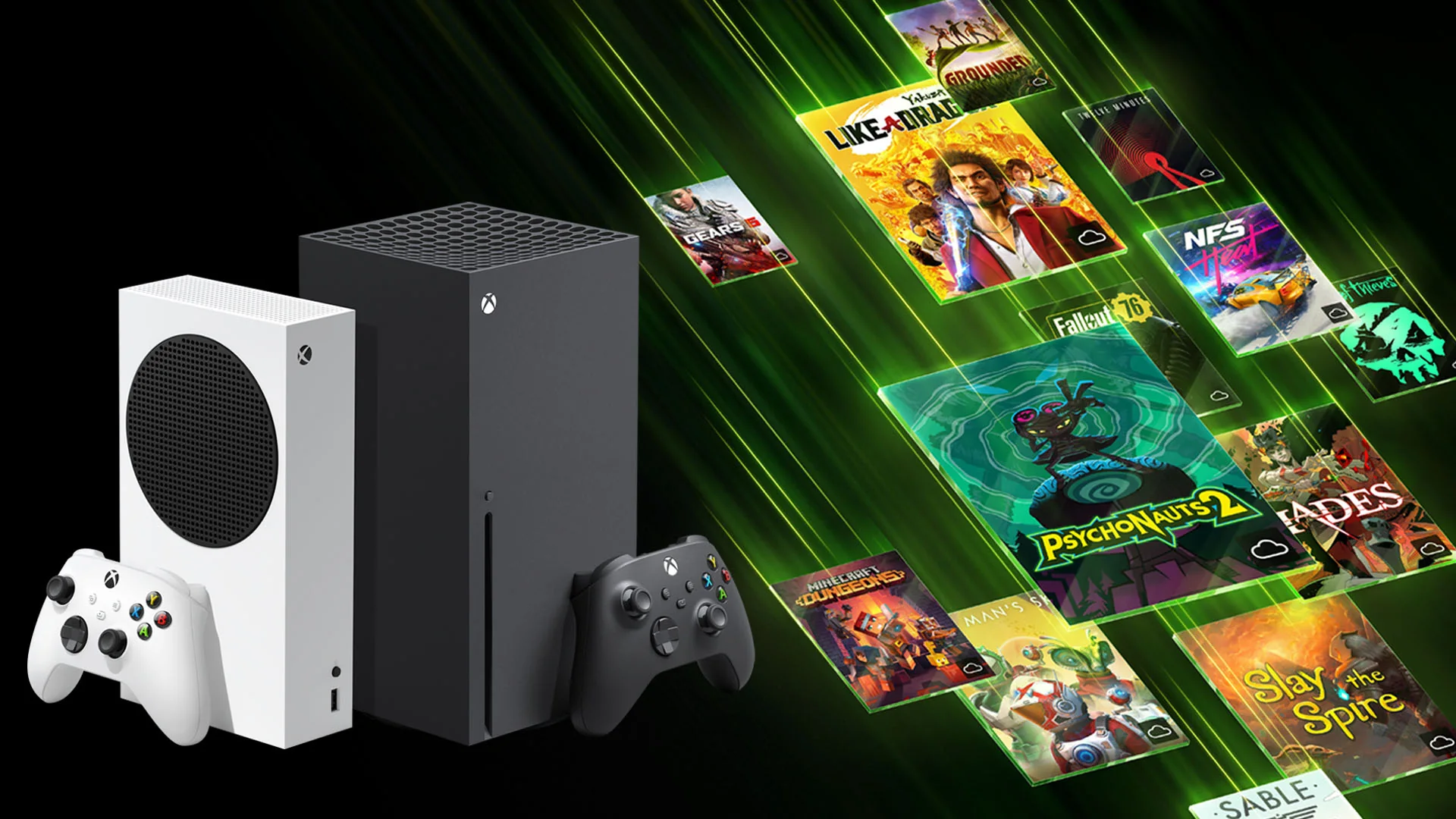
Can Xbox One still use Xbox Cloud Gaming?
Yes. Xbox Cloud Gaming supports compatible Xbox One consoles, letting you start an eligible game from the console's library without downloading the full game. Your account still needs the appropriate game access and an available cloud-playtime route in a supported region. Start by checking the exact title and edition in the Game Pass catalog, then confirm the cloud option shown to your signed-in account.
The useful distinction is where the game runs. With a local installation, your Xbox One runs the software. With cloud gaming, a remote Xbox system runs it and sends the picture and sound to your console while receiving your controller inputs. That can make selected newer-generation titles playable on an older machine. It does not create an Xbox One installation of every Series X|S game, and an absent cloud version cannot be fixed by downloading an unrelated app.
You do not need an Android APK, a phone acting as a second console, or a Windows Xbox app to follow the console route. Microsoft's cloud getting-started guide directs console owners to their library and Game Pass. Phone and computer setup instructions use different interfaces, so following them button for button on an Xbox One can send you to the wrong place.
The steps below cover two starting points: a game included with your plan and an eligible game you already own. Check them separately. A cloud badge tells you that streaming is supported; the account's current launch screen determines whether your combination of game access, streaming time, device and location can actually start that session.
Prepare the console, account and connection
Before shopping for another membership, bring the console to a usable starting state. Connect the controller you intend to use, confirm that it can navigate the Xbox dashboard, and finish any console update or restart already requested in Settings. Sign in with the Microsoft account whose subscription or digital game purchase you expect to use. A working dashboard on one account does not establish the streaming rights of another household member.
Give the network a fair test. Xbox's getting-started guidance recommends at least 20 Mbps and favors wired Ethernet where possible. A suitable wireless connection can also work, but a speed-test headline does not describe every interruption, busy household upload or delay between a button press and the arriving picture. Pause large downloads for an initial comparison. If a wired test improves the session, investigate the wireless link before paying for a higher subscription tier.
Check the game license and cloud time separately
Two different things must line up: permission to play the selected game and a way to use the streaming service. Buying cloud hours does not add every Game Pass title to your account. Owning a game also does not make every edition cloud enabled. Use our plan comparison to identify the membership, then inspect the exact game's supported platforms and access label.
| Your starting point | What to confirm |
|---|---|
| A game included with your subscription | Your current tier includes that edition, and it has cloud support. |
| A purchased game | The owned edition is eligible for cloud streaming; ownership alone is insufficient. |
| A free or ad-supported offer | The game, country, device and account qualify for the particular route displayed. |
As checked on November 18, 2026, Xbox's public cloud page lists monthly allowances of 5 hours with Essential, 10 with Premium and 15 with Ultimate, plus purchased ad-free time and eligible free ad-supported sessions. PC Game Pass by itself does not include those cloud hours. Read your account's current terms and launch screen before assuming a public offer describes your own balance or any retained exception.
For an existing subscriber, the useful question is whether this particular game can start through the route already available. For a new subscriber, check that answer before committing to recurring billing. Extra streaming time cannot repair an unsupported game edition, an unavailable service region or a controller that is not reaching the console.
Start a Game Pass cloud game from the console
Begin with one title you have already checked, rather than changing several settings while browsing an unfamiliar library. The console route is through My games & apps and its full library or Game Pass collection. Xbox's current getting-started guide describes selecting a cloud-enabled game from that console library; the interface may group subscription collections differently as dashboard updates arrive.
- Sign in with the account whose Game Pass membership you intend to use.
- Open the console's Game Pass collection. Where the library offers a Cloud gaming filter, use it to narrow the results.
- Open the exact game edition and look for the cloud badge or cloud-play action. A download button alone is not evidence that streaming is available.
- Choose the cloud action, then read any account, playtime or eligibility message before accepting a purchase.
- Let the session connect. Once the game opens, check its own sign-in or publisher-account prompt and confirm that your controller operates the game.
A queue is part of connecting to remote capacity, while an Install option starts a local download. They are different paths. If your goal is a quick trial without the full download, stay with the cloud action. If the title also has a native Xbox One version and you decide to keep playing it, you can consider installing afterward. A cloud session does not automatically install that local version for you.
For a changing library, our new-games tracker helps identify candidates, but check their cloud and plan labels individually. A new arrival may be available on PC or console without streaming support. Likewise, an old tutorial's pictured game may have left the catalog. The useful part of the tutorial is the navigation method; today's launch screen supplies the account-specific answer.
If the cloud action is missing, stop before repeatedly choosing Buy or changing subscriptions. Follow the access checks below. You may simply be looking at a different edition, an installed-game shortcut or a title without a supported cloud version.
Stream an eligible game you already own
Use the owned-games route when the exact purchase is cloud playable but is not being accessed through your current Game Pass catalog. Microsoft's console rollout instructions describe a separate Owned Games collection. That announcement's original membership requirements belong to its 2025 launch; check the current account offer rather than treating its old Ultimate-only wording as today's complete rule.
Find the cloud badge in Owned Games
- Open My games & apps > Full library > Owned Games.
- Find the game or use Filter > Ready to play > Cloud gaming where that filter is offered.
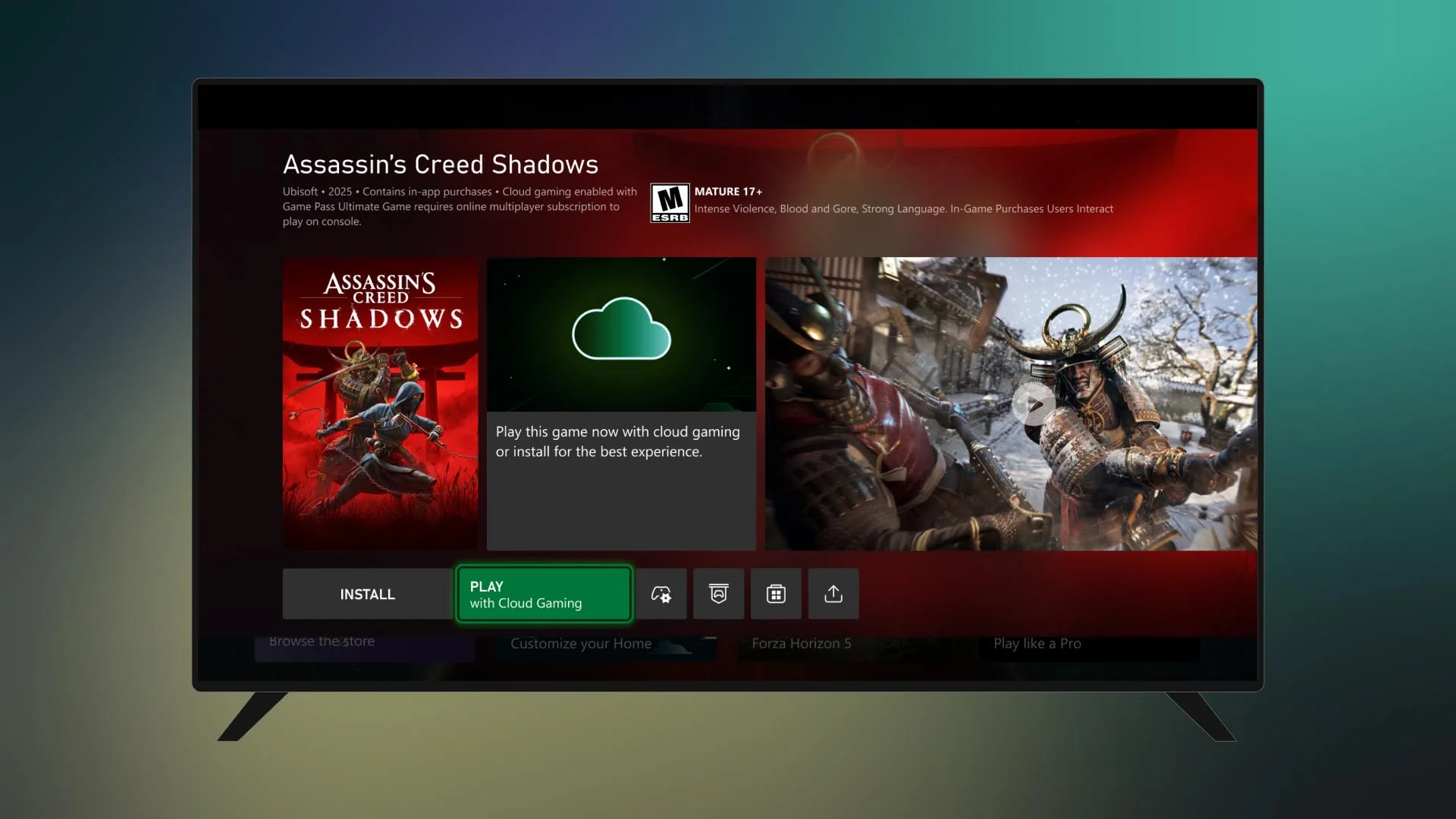
- Open the game's page and check its cloud badge.
- Choose Play with Cloud Gaming, then follow the available account and playtime route.
The Stream Your Own Game guide explains how this collection differs from the subscription library. Check the precise edition before buying again. A PC-store purchase, another platform's purchase or a similarly named bundle does not by itself establish that your Xbox account owns the cloud-supported product shown on screen.
A disc also needs a more careful answer than either “all discs stream” or “discs can never help.” Xbox announced an Insider preview for claiming digital entitlements from supported discs in August 2026. That announcement describes cloud benefits where supported after the entitlement is claimed. It does not establish that every disc, account or cloud title qualifies. Check the feature's availability and whether the correct digital right actually appears on your account before assuming that inserting a disc has solved the streaming requirement.
If you reach a purchase screen unexpectedly, compare the signed-in account, game edition and displayed eligibility first. Streaming time and a game license solve different problems. Buying more hours while the wrong edition is selected can leave the original launch problem unchanged.
Choose between streaming, installing and Remote Play
Cloud gaming is useful when you want to try a game promptly, avoid its full local download or access a cloud-enabled newer-generation title on an Xbox One. Installation can be a better fit for a compatible game you expect to play regularly, especially when your internet connection makes streaming inconsistent. Check the platform before planning that switch: cloud access to a Series X|S-only edition does not make a native Xbox One download available.
| Route | Where the game runs | What it solves |
|---|---|---|
| Cloud gaming on Xbox One | A remote Xbox system | Starts an eligible cloud title without its full local installation; requires a working streaming connection and access route. |
| Local Xbox One installation | Your Xbox One | Uses console storage and a compatible local edition. Offline availability depends on that game's and license's requirements. |
| Remote Play to another device | Your own console | Sends an installed console game to a supported phone, computer or other screen; the console remains the host. |
Microsoft's Remote Play page explicitly describes games installed on your own console. It is therefore a different setup from selecting Cloud Gaming on the Xbox One itself. Remote Play does not provide a remote Series X to run a game that your host console cannot install. For choosing what to start next, use the Game Pass calendar together with the game's platform details.
Understand the Xbox One S and One X quality distinction
The Xbox One family name does not establish one universal stream-quality ceiling. Xbox's February 2026 update names Xbox One S and Xbox One X in its rollout of up to 1440p, higher-bitrate cloud streaming for Ultimate members on supported games and regions. It does not name the original Xbox One in that quality upgrade. Keep basic service support separate from the particular hardware named in an enhancement.
The April console update also describes preferred resolution under Console Settings > Cloud Settings and a Network Quality Indicator. Where those controls are available, choose a setting your connection can sustain and compare results. Selecting a higher number is not a guarantee of a stable stream, and connecting a 4K television does not turn a 1440p stream into native 4K cloud video.
Fix a missing cloud button or a failed session
Match the next check to the symptom. An absent streaming button, an account purchase prompt and a blurry game already running are different failures. Note the exact message, title, edition and signed-in account before changing anything. That small record makes it easier to tell whether a change helped and gives support a more useful description than “cloud gaming is broken.”
Start with Xbox's service-status page if several otherwise eligible games suddenly fail. Our Game Pass outage guide explains how to distinguish an announced service problem from a local one. If a matching incident is active, wait for its resolution before rebuilding your console setup. A failed launch during an outage is not evidence that you need another subscription.
When no cloud option appears
- Check the product. Open the current library entry for the exact edition and confirm cloud support. A franchise name or an old Home shortcut is not enough.
- Check the account. Confirm which account owns the game or subscription. Read any billing or entitlement message instead of assuming another profile's access is transferable.
- Check the route. Included games, owned games and free offers have different requirements. Confirm the current country and device availability, plus the account's streaming-time offer.
- Check the console state. Complete pending updates, then reopen the library after a normal restart if the console requests one. Recheck service status before taking more disruptive action.
Stop once you find the failed requirement. Repeatedly changing country settings or buying a different edition without confirming its cloud support can add confusion. A factory reset is a poor first response to a missing entitlement or a game that simply does not have a cloud launch option.
When the stream opens but controls or picture fail
If the controller operates the dashboard but the game ignores it, check whether the game is waiting at an account prompt, then reconnect the controller and retry after safely ending the session. If it cannot navigate the dashboard either, address that console/controller connection first. Do not follow phone touch-control or browser-extension instructions for a controller connected to an Xbox One.
For unstable audio or video, pause competing transfers and compare a wired connection where possible. Use the offered Network Quality Indicator to relate visible problems to connection warnings. If supported Cloud Settings offer a lower resolution, compare it with the previous setting while keeping the other conditions similar. A faster advertised broadband plan does not automatically fix Wi-Fi interference or an inconsistent route to the service.
If the issue repeats across eligible games after these checks, contact Xbox Support with the error, console model, connection type and approximate time. Describe which change you tried and what happened. That preserves a clear troubleshooting trail without treating an unverified internet tweak as a guaranteed cure.
Keep progress and cloud time under control
Before leaving a session, reach a normal save point or use the game's save command where one exists. Let any visible saving or synchronization message finish before closing it. When you return, use the same Xbox account and check the edition before assuming that a similarly named local, cloud or PC version shares the same progress. Xbox Play Anywhere explicitly carries progress across supported versions of participating games; that label should not be expanded into a promise about every edition or publisher account.
For time management, check the balance and terms shown to your account rather than estimating them from a membership name. Xbox's public FAQ says included monthly cloud time is used before purchased time. The monthly allowance resets and unused included hours do not roll over, while purchased playtime remains until used. Keep the distinction in mind if you move between a Game Pass game and an eligible owned game: the game-access route and the streaming-time balance are separate decisions.
Our cloud-hour limits guide provides background on the change. Your current account screen and official terms should settle an immediate purchase decision. Do not assume that every older account, market or promotional offer has identical conditions, or buy a large block of hours before testing whether the game and connection suit your Xbox One.
A useful next-session routine is brief: confirm the account, open the correct library entry, check the cloud action and available access, then start the game. If you enjoyed the trial and a compatible local Xbox One edition exists, compare installation with continuing to stream. If only a cloud-supported newer-generation edition is available, keep that platform boundary clear. The successful outcome is a reliable route to the particular game you want, with your progress and spending choices understood before the next session begins.
Comments
Comments are reviewed before publication. Please keep the conversation helpful and on topic.
Sign in with Google to leave a comment.
Loading comments…