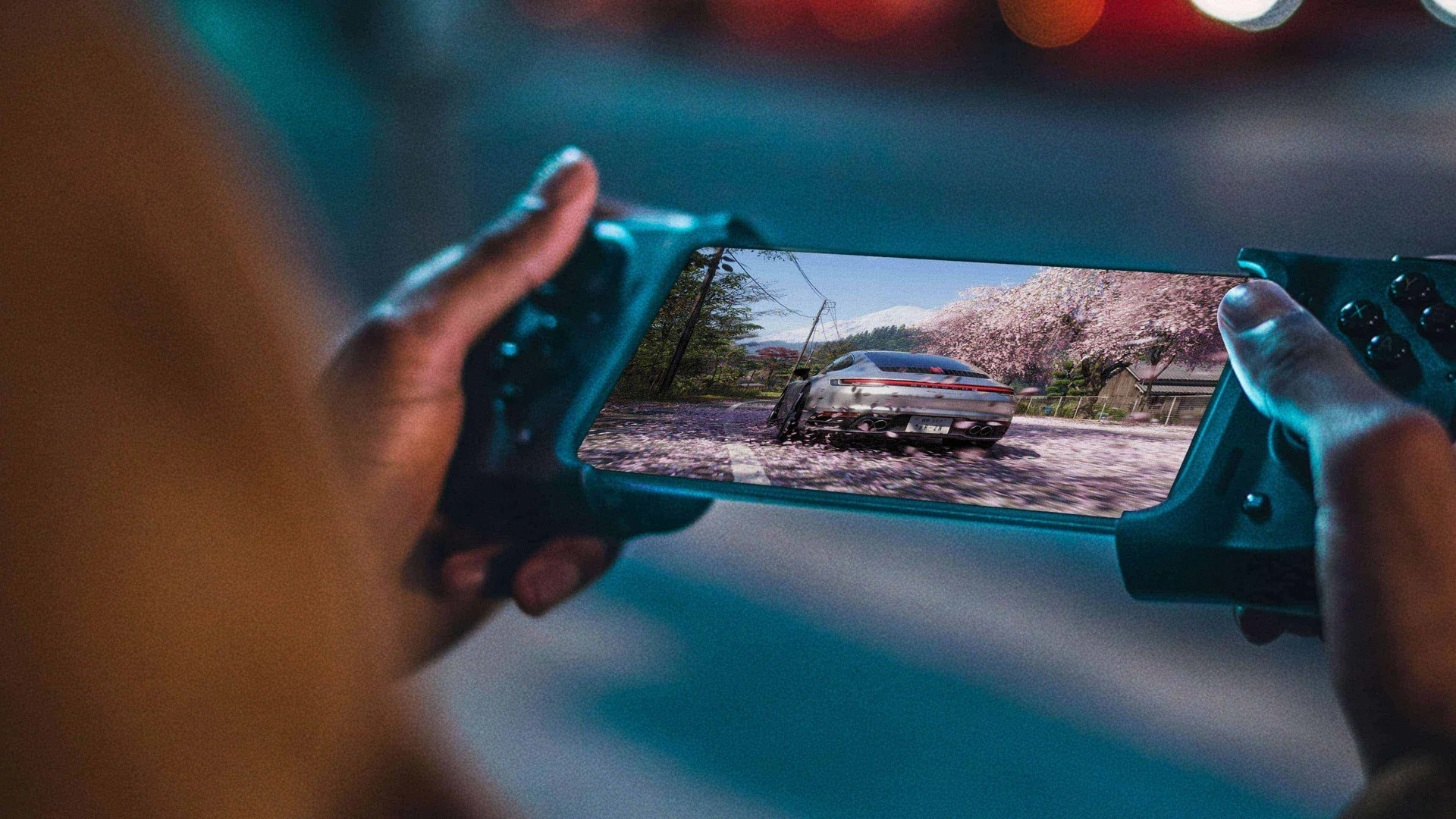
Start with the country where you will play
Xbox Cloud Gaming is available in several European countries, but “Europe” is not a single supported market. Check the country where your device will connect before buying a subscription for a trip, moving your account or choosing a cloud-only gaming setup. A Game Pass checkout page in a country does not establish that Xbox Cloud Gaming is available there.
This guide checks the official country-service matrix on November 18, 2026. Its most useful distinction is between cloud support and the availability of individual subscriptions. Microsoft lists those as separate services. A country can have PC Game Pass, or even an Ultimate offer, while its Cloud Gaming entry remains unsupported. Conversely, a supported country still needs the right game, device and access route.
Keep three questions separate. Where will you physically play? Which market and subscription apply to your Microsoft account? Does the exact game you want have a cloud option through that account? Answering the first question cannot settle the other two. A hotel in a supported destination does not add a game license, and a paid membership does not turn every game into a streamable title.
The current Xbox cloud overview for the UK describes access through selected owned games, supported free-to-play games and eligible Game Pass titles. It also separates game access from cloud playtime. Use our Game Pass plan comparison once you have established that your destination supports the service.
For a short visit, make a small checklist with the destination, travel dates, two intended games and your device. For a longer move, add the account and billing checks later in this guide. That gives you a concrete decision to verify instead of relying on a broad claim that cloud gaming works across an entire continent.
Which European countries currently support Xbox Cloud Gaming?
The following snapshot comes from Microsoft's supported countries and regions directory, checked November 18, 2026. Choose Xbox Cloud Gaming in its product/service view to repeat the check for your destination. The directory distinguishes support for the cloud service from availability of Game Pass subscriptions and PC downloads.
Supported countries in the current official matrix
The current matrix marks Xbox Cloud Gaming supported in these 19 European countries: Austria, Belgium, Czechia, Denmark, Finland, France, Germany, Hungary, Ireland, Italy, the Netherlands, Norway, Poland, Portugal, Slovakia, Spain, Sweden, Switzerland and the United Kingdom. This is a dated service-support list. It does not mean that every cloud-playable game has the same catalog availability in all nineteen countries.
Read the country name rather than guessing from language. A German-language storefront can refer to Germany, Austria or Switzerland, while English-language pages can refer to the UK, Ireland or another market. Select the destination explicitly. Nearby countries can also have different service flags; proximity to a supported market does not establish eligibility.
Game Pass sales do not establish cloud availability
These selected comparisons show why a subscription advertisement is an unreliable substitute for the cloud column. “Supported” refers to the directory's service entry, not a promise that every feature or game is included in a particular purchase.
| Country | Cloud Gaming | PC Game Pass | Game Pass Ultimate |
|---|---|---|---|
| Germany, France, Ireland, United Kingdom | Supported | Supported | Supported |
| Greece | Not supported | Supported | Supported |
| Bulgaria, Cyprus, Romania | Not supported | Supported | Not supported |
| Estonia, Latvia, Lithuania | Not supported | Supported | Not supported |
| Iceland, Luxembourg | Not supported | Supported | Not supported |
Greece is the clearest example: the directory supports Ultimate there while marking Cloud Gaming unsupported. Buying the higher subscription therefore cannot resolve the country restriction. In Romania, a PC Game Pass offer can still be useful for downloading games to a suitable Windows computer, but that is a different method of playing.
If your destination is absent from this selected comparison, open the live directory rather than treating omission as a verdict. Check again before a prepaid purchase or departure because support can change. Then verify the exact game and device; the country directory is the first filter, not the final checkout decision.
Check the local plan, game and cloud time together
After confirming country support, open the storefront for your actual market. Compare the price, currency, renewal period and included benefits shown for your account. A US-dollar price copied into an international guide is not a local offer, and converting that amount into euros or pounds does not establish what Microsoft will charge you.
The current Irish cloud page and German cloud page distinguish monthly cloud time with an eligible subscription, separately purchased cloud time and eligible ad-supported play where available. Those routes do not give identical access to every game. Verify both the game license and the streaming method displayed at launch.
For example, owning a game is useful only if that particular edition is cloud-playable. A title included in one Game Pass tier may require purchase through another route. PC Game Pass also needs special attention: the UK plan comparison excludes it from the monthly cloud allowance. Its downloadable PC library is not a substitute for checking streaming access.
Make your time estimate practical. Four evenings of two hours each require eight hours of streaming, before any extra sessions. Compare that estimate with the allowance actually shown for your plan and any purchased time already on your account. The current local cloud FAQs say included monthly time is used first and unused monthly hours do not roll over; purchased cloud time remains until used. Read our cloud hour limits guide for the broader distinction.
If an older subscription has different terms, inspect Microsoft's notice and the benefits attached to that specific account before changing it. Do not assume a nationwide exception from a forum post, another subscriber's email or a guide with a different publication date. Equally, a general marketing page cannot resolve an individual contract question.
Save the offer details you are comparing: country, plan, renewal date, intended games and available cloud time. This short record makes a purchase prompt easier to understand later. It also helps you avoid paying for a larger catalog when the missing requirement was an eligible edition, a supported country or additional streaming time.
Prepare the device and connection you will actually use
Country support cannot compensate for an incompatible device or a poor connection. Check the screen you will take with you, rather than assuming that a setup working on your home computer will behave the same way on an older tablet or hotel television. Microsoft's getting-started guide, updated November 16, 2026, lists Android 12 or later and Windows 10 version 20H2 or later among its platform requirements.
Update the operating system and supported browser before departure, then open the official cloud site and sign in. A saved home-screen shortcut is convenient, but it does not change device requirements. For televisions and streaming sticks, check the exact model and the supported Xbox app route; the existence of an app on another television from the same manufacturer is not enough.
The official guide recommends at least 20 Mbps and favors wired Ethernet where possible, with 5 GHz Wi-Fi another option. Treat that recommendation as preparation, not a promise of smooth play. A shared hotel connection can have enough download bandwidth while still producing interruptions or delayed inputs. Check whether your accommodation requires a browser sign-in, and review mobile data or roaming charges before a long session.
Match the game to its supported controls
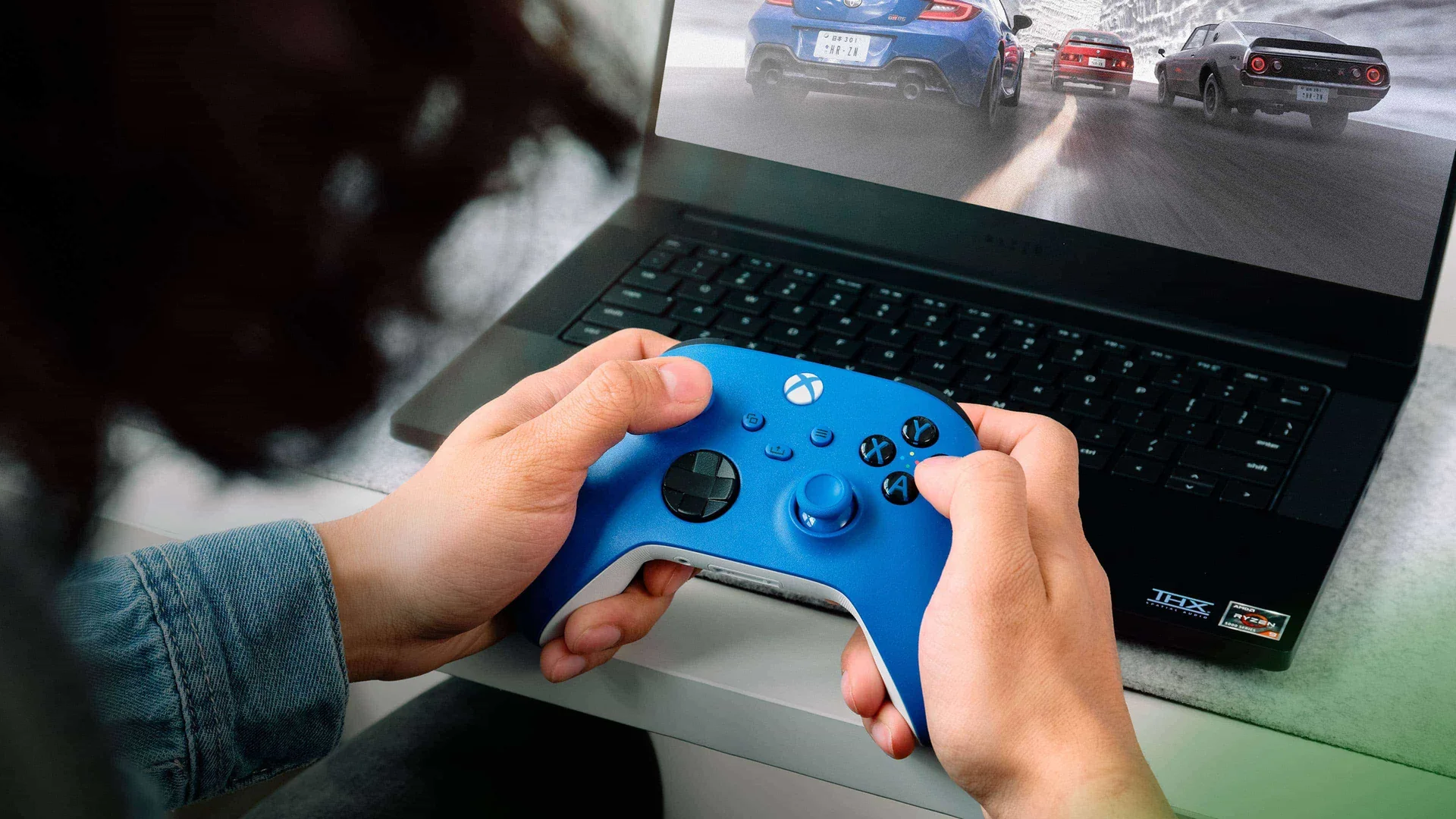
Most cloud games need a compatible gamepad. Selected games support touch or mouse and keyboard, but a touchscreen or a laptop keyboard does not establish that your chosen title accepts those controls. Check the game's displayed input options, then pair your controller and confirm that the browser or app recognizes it. Our keyboard and mouse games guide explains that distinction.
Try a brief session before committing to a long subscription or a new accessory. Look for readable text, dependable input and stable audio on the device you intend to use. This is a practical check you can perform, not a performance result measured for this article. Carrying a controller only helps once the country, game and launch route are also eligible.
Traveling and relocating need different account checks
A weekend trip and a permanent move should not start with the same account change. For a short visit, first verify cloud support at the destination and check the games available through your existing account. Do not assume that changing a website's language, buying a local gift card or selecting a different storefront changes the service's country support.
Microsoft's country and region guidance recommends changing region only for a long-term move. It warns that regional subscriptions and other purchases can behave differently after a change. That is a reason to investigate your existing membership before altering it, rather than using account migration as a troubleshooting experiment during a holiday.
For relocation, review your active subscriptions, account balance, payment details and intended new market before the move. Microsoft says account funds cannot be transferred between regions. Do not treat an existing balance as automatically convertible travel money or assume that a foreign-currency gift card will settle your next subscription payment. Check what you can use through the official account pages.
Billing needs its own attention. Microsoft's payment-method instructions explain that adding a payment method for another country requires changing the account country first. Available payment methods also vary by market. Follow the relevant official process for a real move and confirm what will happen to your particular subscription; a successful browser language change does not complete that process.
Consider two practical cases. Traveling from Ireland to France means both destinations appear in the supported cloud list, but you should still check the intended games and connection. Traveling from Germany to Greece brings a different issue: Greece's current cloud entry is unsupported even though Ultimate is offered. An account setting cannot be assumed to remove that service restriction.
Before contacting support, write down the home market, destination, whether the move is temporary, subscription renewal date and exact error. That gives support the facts needed to distinguish billing from service availability. Keep any purchase receipt available, but share account identifiers only through Microsoft's own support channels.
Europe, the EU and the EEA do not describe the same entitlement
Regional wording matters when a search result discusses European streaming rights. Europe is broader than either the European Union or the European Economic Area. The EFTA explanation of the EEA describes the EU member states together with Iceland, Liechtenstein and Norway. That grouping is not the same as Xbox's commercial service-support list.
The distinction is visible in the current directory. The United Kingdom and Switzerland support Xbox Cloud Gaming, while Iceland's cloud entry is unsupported. Neither the label “European” nor membership of a particular economic area can replace a check of the service in the destination country.
You may also encounter Microsoft's Activision Blizzard cloud-streaming commitments FAQ for the EEA. It addresses defined eligible games and consumer licenses under those commitments. It does not turn every game in every Xbox subscription into a universally available cloud title. An eligible purchased game and a title temporarily included through an active subscription are also different license situations.
A streaming license can still require a paid service
The FAQ separates the consumer's permission to stream an eligible game from the service that supplies the streaming. Providers can charge for their services, and participation by providers is voluntary. A free consumer streaming license therefore does not establish that a particular provider must supply unlimited sessions or free computing time.
Apply that distinction to a specific purchase. First identify the game and the license you hold. Then check whether your intended provider supports that edition, the country and your device. Finally, check the provider's service price and time conditions. Our stream-your-own-games guide helps separate ownership from Xbox cloud eligibility.
For ordinary Game Pass shopping, return to the actual local offer and account benefits. A headline about European streaming rights can concern a narrowly defined license, while your immediate question is whether the cloud button works for your game at your destination. Those are related checks with different evidence.
If the cloud option is missing, check in this order
A missing cloud button is not automatically a reason to upgrade. Work through the requirements in an order that rules out the largest mismatch first. Keep the wording of any error message; a country restriction, a purchase prompt and an exhausted-time notice point to different checks.
- Confirm the destination's cloud entry. Use the official country directory's Xbox Cloud Gaming service, rather than its PC Game Pass or Ultimate column. If the destination is unsupported, a higher tier is not evidence of a solution.
- Confirm the signed-in account. Check that the account in the cloud browser or app is the one holding the subscription, purchased game or purchased time you intend to use. Do not assume that a browser signed into another Microsoft service has selected the right gaming account.
- Open the exact edition. Compare the full game name, edition and platform with your license and the cloud listing. A similarly named add-on or PC edition may not provide the expected access.
- Read the access route and time balance. A game can need a license as well as streaming time. Eligible ad-supported access has its own availability and session conditions; owning the title does not remove those checks.
- Check the device and service. Review browser, operating system and input support, then inspect official service notices. Our Game Pass outage guide explains how to distinguish a wider incident from a local problem.
If one title has disappeared while other eligible cloud games launch, check whether its catalog inclusion changed. The leaving-soon list is a useful starting point, followed by the live official listing for the exact title. Reinstalling a browser will not restore a game license that your current route no longer includes.
For an unresolved issue, record the destination, date and local time, device, browser version, game edition and error. Note whether one game or every game is affected. Before paying again, identify the missing requirement: supported country, correct account, eligible game, usable device or available cloud time. That makes the next action specific to your situation.
Comments
Comments are reviewed before publication. Please keep the conversation helpful and on topic.
Sign in with Google to leave a comment.
Loading comments…