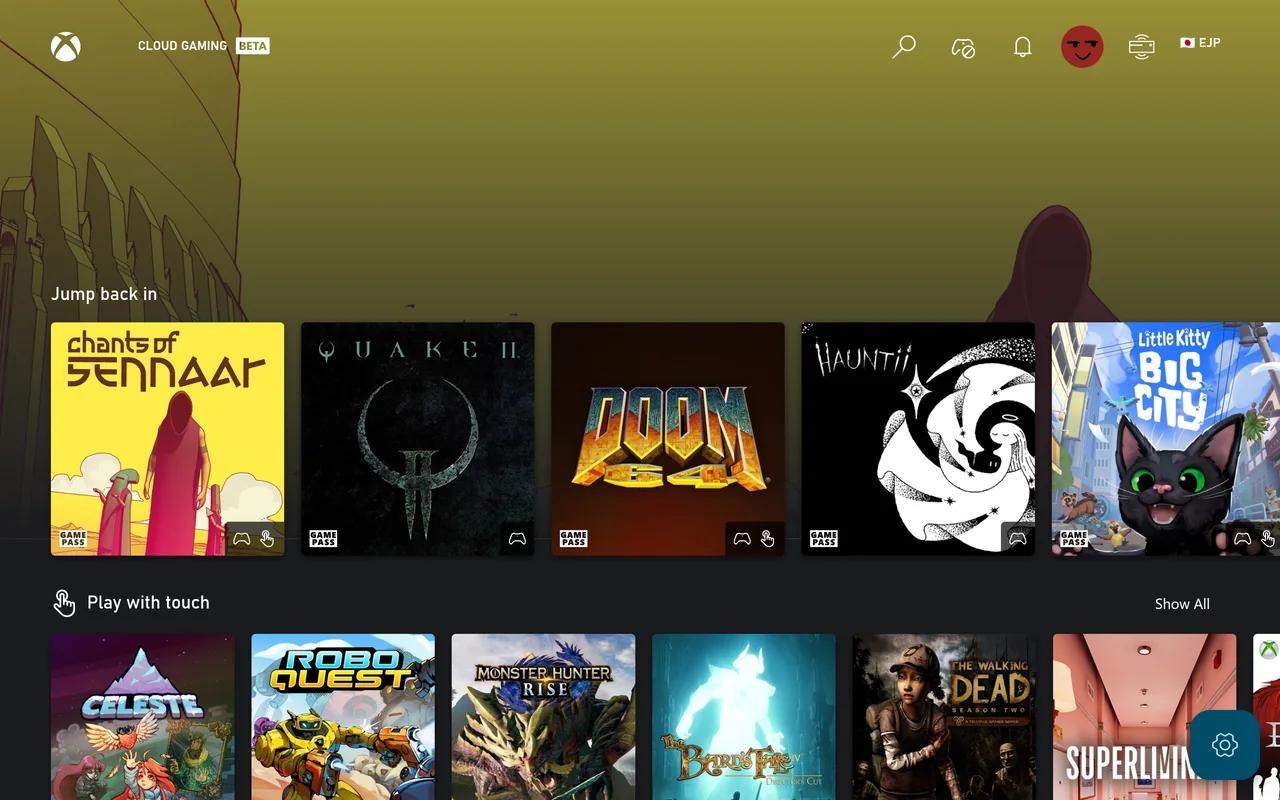
Understand Better xCloud’s role
Better xCloud is a third-party way to customize the Xbox Cloud Gaming website and, through supported project features, Xbox Remote Play. Start with the project’s own documentation, choose the client for your device, and check its current compatibility notes before installing anything. It is not a Microsoft subscription or an official Xbox mobile app.
The useful distinction is between the stream you are entitled to receive and the software presenting it. Better xCloud adds controls around that experience: interface options, picture adjustments, input tools and stream information. Microsoft still determines which game your account can launch and which cloud-playtime route is available. Installing a free client does not give you a paid game, add subscription hours or remove a server queue.
As checked on November 18, 2026, Xbox’s cloud page describes monthly Game Pass cloud time, separately purchased cloud time and eligible free, ad-supported play. Availability depends on the game and access method. Use our Game Pass plan comparison to resolve your membership question before treating a client error as an entitlement problem.
Also distinguish the project’s components. The browser userscript has its own public repository. The Android wrapper’s README still describes a testing phase and a future source-code release. A broad “open source” label on a homepage should not substitute for checking the exact component you intend to install.
This guide explains a setup and troubleshooting process; it does not report a personal benchmark or security audit. The maintainer’s statements about performance or account safety are project claims, not a Microsoft service guarantee. Decide whether the extra controls solve a specific problem for you, keep a working official access route available, and avoid changing a stable setup merely because another settings menu exists.
Match Better xCloud to your device
Choose the client before choosing settings. The maintainer’s client matrix recommends different routes for desktop Chromium browsers, Android devices and Safari. A browser sharing a familiar name across operating systems does not necessarily share extension support, video decoding or input behavior.
| Device | Project-documented route | Check first |
|---|---|---|
| Windows, Linux or SteamOS computer | Desktop Chromium browser with a userscript manager | Extension and script permissions |
| Android phone or tablet | Better xCloud Android app | Android version and current project release |
| Android TV | Android app or documented Edge alternative | Navigation and video decoding on the exact device |
| iPhone or iPad | Safari with Userscripts | Safari extension and website access |
| Mac | Desktop Chromium route; Safari has separate instructions | Feature differences before switching |
Android phones, tablets and television devices
The Android app integrates the userscript into a web-based wrapper. Its documentation lists Android 8.0 or later, but meeting that minimum does not establish that a television’s processor can decode every scene smoothly. The app also does not accept ordinary browser extensions. If an extension is essential to your setup, examine the documented browser alternative instead of searching for an extension menu inside the app.
Treat a phone, a streaming box and a television as separate test devices. Record their exact model and software version. If the app works well, keep that baseline; if it does not, the project documents Edge for Android as an alternative. That recommendation describes the project’s approach, not official Xbox certification of every Android TV.
Desktop browsers and Safari
On desktop, the script runs through a userscript manager such as Tampermonkey. Safari uses a different route: the Safari guide requires Userscripts and its own file-directory and website-permission setup. An Android APK cannot install that workflow on an iPhone.
Our iPhone and iPad cloud guide and Windows app/browser guide cover the official starting points. Use those routes as your comparison. A client choice should follow the features and reliability you need on the device you actually own, rather than someone else’s screenshot of a different platform.
Follow the genuine GitHub release trail
Start at the project documentation and follow its links to the redphx/better-xcloud userscript repository or the separate Android repository. Check the account and repository name before opening a release. Similar branding on another domain does not establish that the maintainer distributes that download.
The file must match the route you chose. An Android release provides an app package; the desktop route installs a userscript through a manager. Opening a script file is not the same as installing an Android app, and placing an APK on a computer does not add the script to its browser. Follow the project-controlled installation link rather than a search result claiming to host a universal “Xbox Cloud Gaming APK.”
Read the release notes before updating. On November 18, the Android release page still described work on the newer play.xbox.com website. The repository’s November 6 compatibility notice distinguishes that address from xbox.com/play. The latest release notes also describe automatic redirection to the older address when needed. This makes the current release trail more useful than a copied installation tutorial.
If the project’s own current instructions offer an “Exit preview” control on the Xbox profile menu, follow that documented route and reopen the client afterward. Treat the control as conditional: interfaces change, and its absence is not a reason to invent an alternative sign-in address or download an unrelated wrapper. A website migration can break a client even when your password, controller and subscription remain correct.
Before troubleshooting further, record the client version, script version where shown, operating system and actual Xbox hostname after redirection. That short record makes it easier to compare an issue with a release note. Our official Android APK and browser guide helps distinguish the underlying Xbox access route from this optional third-party layer.
Set up the Android app and Android TV
Begin with a successful Xbox cloud session through a supported official route, where possible. That establishes whether the account and game access work before adding another client. Update the device through its normal system updater, pair the controller, and note the Android version. Keep your first Better xCloud session close to the default configuration.
The project’s Android installation page links to its GitHub download. Install the release intended for your device, allowing installation from that source only as required by Android, then restore the installation setting afterward. Open the app, use the Xbox/Microsoft sign-in flow it presents and check that the expected account appears. Never send an account password or session token to someone offering to configure the app for you.
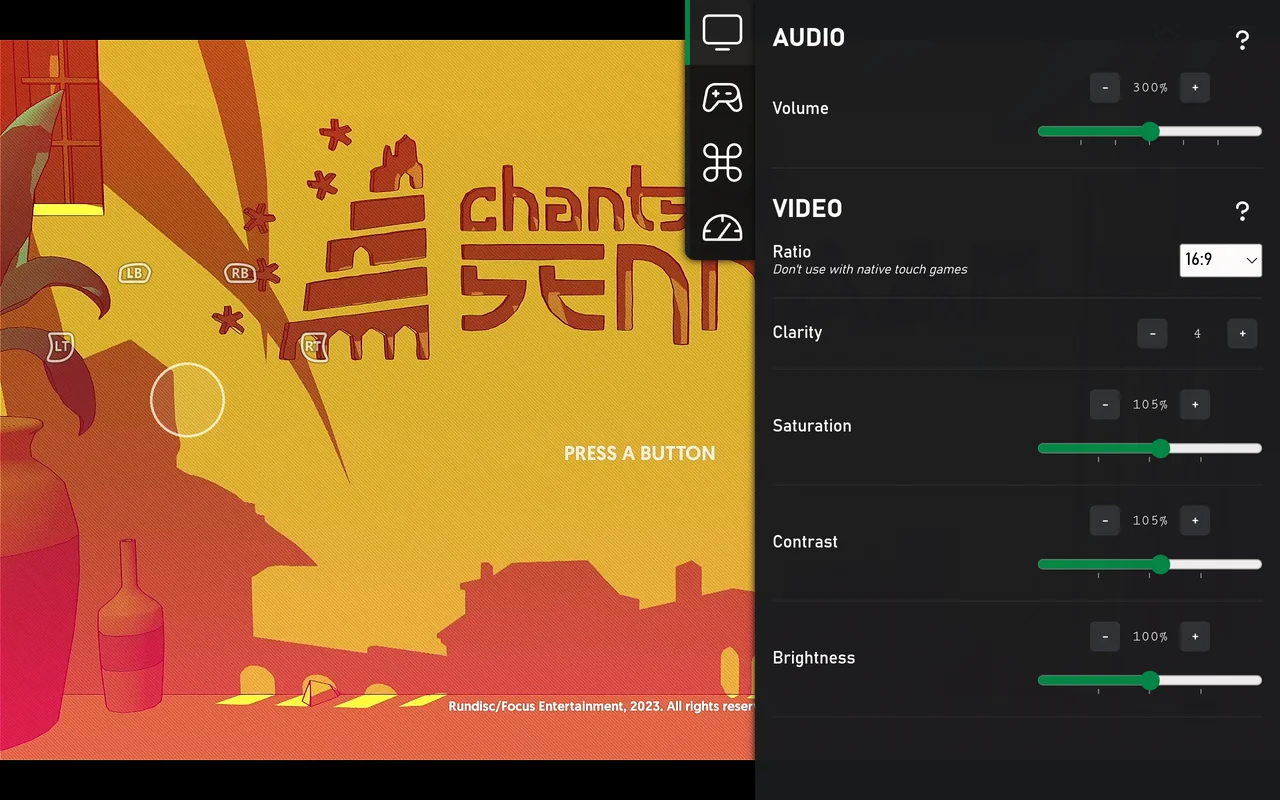
After the page loads, the project describes a server-name button beside the profile picture as its settings entry. Its precise appearance can change with the release and Xbox website. Launch one game you already know your account can access, verify basic controller input, and finish a short baseline session before adding picture filters, remapping or other options.
Treat television compatibility as device-specific
A television needs more than an installable package. Check whether you can navigate the menus, reach the settings button, sign in and decode moving gameplay without persistent stutter. A controller that works in a game may still leave a web menu awkward to operate. Have an appropriate pointing device available if the device’s navigation needs it, rather than assuming a television remote controls every screen.
The maintainer’s WebView tuning guide identifies particular tested devices and explicitly says a working installation does not need those changes. Its results are not a compatibility certificate for every television carrying “4K” on its box. Keep a record of any optional change so you can reverse it.
If the wrapper struggles, the documented Edge alternative uses Tampermonkey and installs Better xCloud inside that extension. The same page no longer recommends discontinued Kiwi Browser. Follow the current project route instead of a years-old shortcut tutorial; consult our Android and TV access guide when you need an officially supported fallback.
Tune the stream with a repeatable check
Write down your starting settings, then change one control at a time. Use the same game and a comparable scene when possible, and note whether your problem is blurry detail, delayed input, uneven motion or a disconnected session. Those symptoms call for different checks. A setting copied from a powerful desktop may be counterproductive on a small television processor.
Separate picture settings from connection quality
The project’s in-game settings documentation describes video filters, aspect-ratio controls, renderer options and other presentation tools. Sharpening can change how an existing frame looks; it does not prove Microsoft delivered a higher-resolution stream. A display labeled 4K also does not establish the resolution of the incoming cloud video.
Start with a modest change and compare ordinary gameplay, not just a still menu. Look for visible artifacts, lost detail, additional heat or less consistent motion. Restore the previous setting if the result is worse. Stretching a picture to fill a screen may remove borders while distorting proportions, so choose consciously between filling the panel and preserving the original shape.
Stream statistics can help separate network round-trip time, decoded frames and local decoding cost. The project documents limitations, including an Android decode-time issue, and warns that showing statistics can itself affect performance and battery use. Treat an overlay as a diagnostic clue. A green number does not replace the experience of controlling the game, and a displayed decoded-frame rate is not automatically the game’s internal frame rate.
Distinguish native input from controller emulation
The project documents both native mouse-and-keyboard access and a virtual controller mapper. Native input needs a game that actually supports that input route. Mapping a mouse to a virtual stick does not turn a controller-only console interface into a native PC version.
Check basic buttons, cursor capture and menu navigation before adjusting sensitivity. The project also warns that remapping in online games may conflict with a game’s input-detection rules; do not treat it as universally approved. Our official keyboard-and-mouse guide and touch-control guide provide a separate way to check supported input before introducing another layer.
Troubleshoot the failing layer
Describe the failure before changing settings. “Cloud gaming does not work” can mean the Xbox website never loads, the script never appears, a game refuses to launch, the controller is ignored, or video becomes uneven after launch. Save the exact message and the point at which it appears. That evidence is more useful than installing several alternative APKs.
| Symptom | First check | Useful next step |
|---|---|---|
| No Better xCloud controls | Actual Xbox hostname, script enabled and website permission | Compare current installation and release notes |
| Script error in a desktop browser | Userscript-manager dashboard | Follow the project’s browser-specific troubleshooting |
| Game asks for access or payment | Correct account, game entitlement and cloud route | Check the official game/service page |
| Menus work but gameplay stutters | Same game in another supported client | Compare decoding, network and optional video settings |
| Video works but input does not | Controller pairing and selected input mode | Return to basic gamepad input before remapping |
The project’s “Failed to run Better xCloud” instructions begin by checking whether the script is installed correctly in Tampermonkey. They then describe browser-specific permissions and settings. Follow that sequence for the matching error; changing every experimental option is a poor response to a game-license message.
For Android, compare the wrapper with the documented browser route under similar conditions. The maintainer’s FAQ explains that their rendering paths differ. A difference between them may identify a local-client problem, but one brief comparison does not prove which component caused it. Check whether the problem persists with optional filters disabled and with the original input settings restored.
If official access also fails, use our Xbox service-status and connection guide before blaming the extension. A wider outage, account issue or missing game entitlement cannot be repaired by sharpening settings. Conversely, an official service working normally does not guarantee that a third-party script remains compatible after a website update.
Keep updates and an official fallback ready
Keep a small setup record: device model, operating system, browser or WebView version, Better xCloud app version, script version and the changes you chose. Add the date when you compare a problem with an upstream issue. An exact version and reproducible symptom are far more useful to a maintainer than a claim that the “latest app” is broken.
Check both release streams when relevant. The userscript release page describes updating the script through the Android app’s settings, while the wrapper has its own releases. Updating one component does not automatically establish that every other component is current. Read the change notes, preserve the old settings you may need to restore, and retest the same basic launch-and-input sequence afterward.
Keep Microsoft’s current requirements separate from the project’s minimum installation requirements. The Xbox getting-started guide, updated November 16, 2026, lists Android 12.0 or later for its supported phone/tablet browser route. The project’s Android 8.0 app minimum is a different statement: it does not make an older device officially supported by Xbox. Check both layers before buying hardware or subscribing around one device.
If you decide the extra controls are not useful, disable the userscript in its manager or remove the optional client and return to your supported Xbox route. Keep account billing decisions separate; removing an app does not cancel a Microsoft subscription. Our PC access guide remains an option for users with a compatible Windows device.
When reporting a project bug, follow its issue instructions and provide the relevant versions, exact hostname and reproduction steps. Remove personal account information from any attachment. If ordinary Xbox access is reliable and the third-party layer is not, you can keep playing through that official route while waiting for a compatible release. There is no need to keep an optional configuration that makes your actual sessions less dependable.
Comments
Comments are reviewed before publication. Please keep the conversation helpful and on topic.
Sign in with Google to leave a comment.
Loading comments…